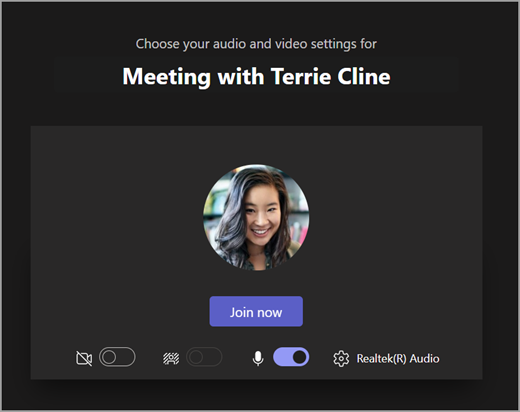
교육용 Microsoft Teams 모임 도구 모음을 사용하면 모임에 들어가기 전에 카메라, 마이크 및 배경 설정을 조정하여 중단을 방지할 수 있습니다. 모임 도구 모음을 사용하면 모임 중에 콘텐츠 공유, 손 올리기 등과 같은 중요한 기능에 쉽게 액세스할 수 있습니다.
수업 전에 도구 모음을 사용합니다.
-
Calendar
 열고 모임을 찾습니다.
온라인 참가를 선택합니다.
열고 모임을 찾습니다.
온라인 참가를 선택합니다. - 조인 전 화면에서 카메라
 을 켜고
을 켜고  을 켜거나 끕니다.
 - 비디오를 켜서 배경 필터
 보고 뒤에 표시되는 항목을 선택합니다.
 - 수업에 들어가려면 지금 참가를 선택합니다.
참고
모바일 장치에서 참가하려면 Teams 앱으로 이동한 다음 일정을 선택합니다. 원하는 모임을 찾은 다음 참가를 선택합니다.

모임 컨트롤 사용
모임 컨트롤을 사용하면 콘텐츠를 공유하고, 배경을 조정하고, Teams 수업 모임에 참여할 수 있습니다.

타이머 - 모임이 실행된 기간을 표시합니다.
 에서 카메라 켜
 및 음소거 해제 아이콘 마이크
콘텐츠  - PowerPoint 프레젠테이션 또는 개인 화면을 공유하는 옵션을 생성합니다.
추가 작업
- 갤러리, 대형 갤러리 또는 함께 보기 - 다른 모임 참가자의 비디오 피드 배열을 변경합니다.
- 배경 효과 표시 - 모임 중에 배경을 변경합니다.
- 녹음/녹화 시작/중지 - 향후 참조를 위해 모임을 기록합니다.
- 모임 종료 - 모든 사용자에 대한 모임이 종료됩니다.
손을 - 모임에서 손을 들어 방해하지 않고 댓글을 달거나 질문을 할 수 있습니다.
대화 채팅 표시 - 모임에 참가한 참가자 간의 채팅 대화를 표시합니다.
참가자 표시 - 모든 모임 참가자를 표시합니다.
모임 나가기