
Izmantojot Markdown, jūs iegūstat sava formatētā teksta tiešo priekšskatījumu sastādīšanas lodziņā rakstīšanas laikā, un jūs vienmēr varat atsaukt formatējumu, nospiežot taustiņu kombināciju Ctrl+Z. Šīs darbības ir pieejamas, arī izvēršot sastādīšanas lodziņu.
Piezīme
Teams izmanto Markdown stila sintaksi. Lai gan mēs to dēvējam par "Markdown", tas pilnībā neatbilst standarta Markdown, un daži formatējumi var darboties atšķirīgi.
Pieejamās markdown darbības pakalpojumā Teams
| Nosaukums | Darbība | Piemērs |
|---|---|---|
| Treknraksta teksts | *treknraksta teksts* | treknraksta teksts |
| Slīpraksta teksts | _slīpraksta teksts_ | slīpraksta teksts |
| Pārsvītrojums | ~pārsvītrojums~ |

|
| Numurēts saraksts | < > pirmais vienums | 1. Pirmais vienums 2. Otrais punkts |
| Nekārtots saraksts | * Pirmais vienums VAI - Pirmais vienums |
· Pirmais vienums · Otrais vienums |
| Hipersaite | [Teksts](URL) | Šeit ir saite. |
| Vairākrindiņu koda bloks | ```[koda bloks] | |
| Iekļauts koda bloks | `[koda teksts]` | |
| Virsraksts 1 tekstā un grupā Stili | # Galvenes teksts | |
| Virsraksts 2 | ## Galvenes teksts | |
| Virsraksts 3 | ### Galvenes teksts | |
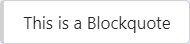
| Citāta bloks | > |
|
Izmantojiet Markdown, lai kopīgotu iekļauto kodu
Markdown ar iekļauto kodu ļauj iezīmēt konkrētus koda fragmentus rindkopā. Tādējādi ir vieglāk atrast un saprast rindkopā ietverto kodu.

Lai pievienotu iekļautu koda bloku (monospace), sāciet un beidziet tekstu ar atpakaļvērstās atzīmes (') taustiņu. Tas atrodas blakus tastatūras ciparam 1, kam seko atstarpe. Lai sāktu iekļauto koda bloku, varat arī izmantot vienu no tālāk norādītajām alternatīvajām atslēgām:
- Shift+`+atstarpes taustiņš
- Shift+Alt+´
- Tastatūras menedžeris Ukelele.
Kad esat izvēlējies vienu no šiem taustiņiem, ierakstiet savu kodu un pēc tam vēlreiz nospiediet to pašu taustiņu, lai beigtu koda bloku.
Izmantojiet Markdown, lai kopīgotu koda bloku
Lai pievienotu vairākrindiņu koda bloku, ievadiet tekstu ar ``` un pēc tam ielīmējiet to sastādīšanas lodziņā. Jūs saņemsit sava koda tiešo priekšskatījumu, un jūs varat atsaukt jebkuru formatējumu, nospiežot taustiņu kombināciju Ctrl+Z. Lai uzzinātu vairāk, izlasiet rakstu Koda bloku izmantošana programmā Microsoft Teams.