Outlook offers you the choice of two different styles of ribbon: the Simplified Ribbon or the classic ribbon. If you choose the new, Simplified Ribbon, your favorite menu items and commands may be in different locations than you're used to.
To locate the commands you use most often, you can type the name of the action in the Tell me what you want to do box in your Outlook client. Outlook will show you both the command itself and help for that command.
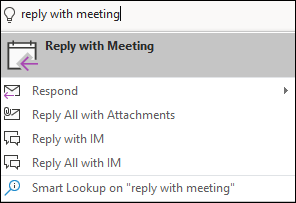 You can also use this reference guide to locate your actions. The classic ribbon menu options are shown on the left and the Simplified Ribbon options are shown on the right.
Inbox and mail folder commands
| Menu items |
Simplified Ribbon |
| New email, meeting requests, other items |

|
| Delete, archive |

|
| Reply, reply all, forward |

|
| Quick steps |
|
| Categorize, follow-up, mark as read/unread |

|
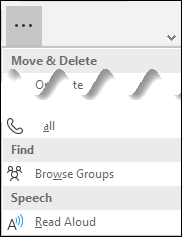
| Browse groups |
|
| Search people, address book, filter email |

|
| Speech |

|
Message commands
| Menu items |
Simplified Ribbon |
| Paste text and format painter |

|
| Attach files |

|
| Flag for follow-up and change priority |

|
| Check names and access the address book |

|
| Dictate |

|
Calendar and meeting commands
| Menu items |
Simplified Ribbon |
| Change your calendar view |

|
| See the next seven days or go to today |

|
| Create a new meeting |

|
| Forward a meeting |

|
| Change Show As and add a reminder |

|
| Save, delete, or move a meeting |

|
| Invite attendees |

|
| Change recurrence and view time zones |

|
| Add a Skype or Teams meeting |

|
| Categorize or set the importance for a meeting |

|
| Menu items |
Simplified Ribbon |
| Save a contact |

|
| Delete or move a contact |

|
| Email a contact |

|
| Categorize or flag a contact |

|
| Search for a contact |
|
| Switch between contact detail screens |

|
| Share a contact |

|
| Create a new contact |
|
Task commands
| Menu items |
Simplified Ribbon |
| Create a new task |

|
| Flag or categorize a task |

|
| Set the importance for a task |

|
| Take action on a task |

|
