No novo Outlook, pode:
Guardar o seu ficheiro num serviço na nuvem e partilhar uma ligação | Comprimir um ficheiro | Guardar o ficheiro numa biblioteca | do SharePoint ServerRedimensionar uma imagem no corpo de um e-mail
Guarde o seu ficheiro num serviço em nuvem e partilhe uma ligação no novo Outlook
Existem vários serviços de armazenamento na nuvem para os quais pode carregar e, em seguida, partilhar ficheiros grandes. Alguns serviços populares de armazenamento na nuvem incluem o OneDrive, o Dropbox, o iCloud e o Google Drive. Assim que o seu ficheiro estiver armazenado na nuvem, pode incluir uma ligação para o documento na sua mensagem de e-mail.
Carregue o seu ficheiro para um serviço na nuvem, como o OneDrive ou o Dropbox.
Observação
O serviço que utiliza gera uma ligação para aceder ao seu ficheiro. O destinatário pode abrir a ligação para transferir o seu ficheiro.
Após carregar o ficheiro, copie a ligação e cole-a na sua mensagem de e-mail.
Voltar para o início
Comprimir o ficheiro no novo Outlook
Ao comprimir ou zipar o seu ficheiro, este diminui o tamanho e poderá diminuí-lo o suficiente para caber dentro dos limites de tamanho do Outlook para anexos. Os artigos a seguir descrevem como compactar e extrair arquivos para diferentes sistemas operacionais Windows.
Voltar para o início
Guardar o ficheiro numa biblioteca do SharePoint Server no novo Outlook
Se estiver a utilizar o Outlook num ambiente empresarial e utilizar o SharePoint, pode guardar um ficheiro numa biblioteca do SharePoint e partilhar uma ligação para o ficheiro. Consulte Partilhar um documento com o SharePoint ou o OneDrive para obter instruções.
Voltar para o início
Redimensionar uma imagem no corpo de um e-mail
No novo Outlook para Windows, pode alterar o tamanho de apresentação de uma imagem que inseriu numa mensagem de e-mail, mas não pode reduzir o tamanho de ficheiro dessa imagem:
- Selecione a imagem no corpo da mensagem de e-mail.
- No friso, selecione o separador Formatação da imagem .
- Selecione Tamanho e, em seguida, selecione a opção de tamanho que pretende no menu.
- Se a imagem ainda não tiver o tamanho que pretende, pode selecioná-la e, em seguida, clicar e arrastar uma alça de redimensionamento de canto para dentro ou para fora para ajustar ainda mais o tamanho.
Voltar para o início
No Outlook clássico, pode:
Guardar o seu ficheiro num serviço na nuvem e partilhar uma ligação | Comprimir um ficheiro | Reduzir o tamanho de uma imagem | Guardar um ficheiro numa biblioteca | do SharePoint ServerRedimensionar uma imagem no corpo de um e-mail
Guardar o seu ficheiro num serviço na nuvem e partilhar uma ligação
Existem vários serviços de armazenamento na nuvem para os quais pode carregar e, em seguida, partilhar ficheiros grandes. Alguns serviços populares de armazenamento na nuvem incluem o OneDrive, o Dropbox, o iCloud e o Google Drive. Assim que o seu ficheiro estiver armazenado na nuvem, pode incluir uma ligação para o documento na sua mensagem de e-mail.
Carregue o seu ficheiro para um serviço na nuvem, como o OneDrive ou o Dropbox.
Observação
O serviço que utiliza gera uma ligação para aceder ao seu ficheiro. O destinatário pode abrir a ligação para transferir o seu ficheiro.
Após carregar o ficheiro, copie a ligação e cole-a na sua mensagem de e-mail.
Voltar para o início
Comprimir um ficheiro no Outlook clássico
Ao comprimir ou zipar o seu ficheiro, este diminui o tamanho e poderá diminuí-lo o suficiente para caber dentro dos limites de tamanho do Outlook para anexos. Os artigos a seguir descrevem como compactar e extrair arquivos para diferentes sistemas operacionais Windows.
Voltar para o início
Reduzir o tamanho de uma imagem no Outlook clássico
Se estiver a enviar um ficheiro de imagem grande, pode redimensioná-lo automaticamente para reduzir o respetivo tamanho de ficheiro.
Anexe as imagens à sua mensagem de e-mail.
SelecioneInformaçõesdo arquivo>.
Na secção Anexos de Imagem , selecione Redimensionar imagens grandes quando envio esta mensagem.

Regresse à sua mensagem e selecione Enviar.
Voltar para o início
Guardar o ficheiro numa biblioteca do SharePoint Server no Outlook clássico
Se estiver a utilizar o Outlook num ambiente empresarial e utilizar o SharePoint, pode guardar um ficheiro numa biblioteca do SharePoint e partilhar uma ligação para o ficheiro. Consulte Partilhar um documento com o SharePoint ou o OneDrive para obter instruções.
Voltar para o início
Redimensionar uma imagem no corpo de um e-mail
Inserir uma imagem
No Outlook clássico, para inserir uma imagem no corpo da mensagem de e-mail, coloque o cursor no corpo da mensagem de e-mail, selecione o menu Inserir e, em seguida, escolha Imagens no grupo Ilustrações do Friso.
Se a imagem parecer muito grande (ou muito pequena), você poderá usar as alças de dimensionamento na imagem para redimensioná-la.
Redimensionar uma imagem
É possível alterar o tamanho visível da imagem; por exemplo, quanto espaço da tela ela ocupará, sem alterar o tamanho do arquivo ou a resolução da imagem. No entanto, isso não reduzirá o tamanho total da mensagem de email que você está enviando.
Clique ou toque na imagem para exibir uma pequena alça de dimensionamento circular em cada canto da imagem.
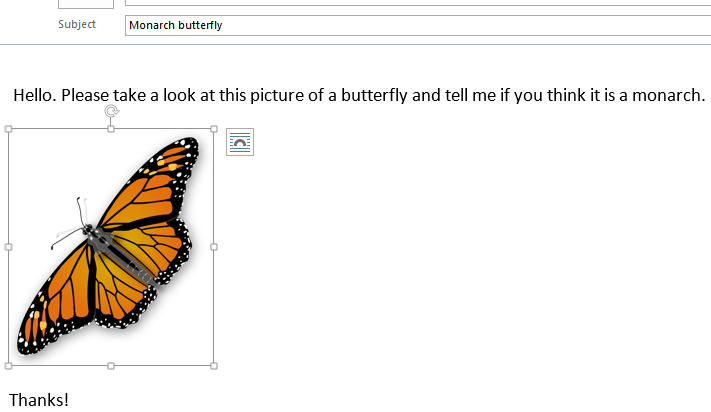
Clique (ou pressione e segure) uma das alças e arraste-a em direção ao centro para reduzir o tamanho da imagem ou para longe do centro a fim de aumentar o tamanho da imagem.
Dica
Há alças de dimensionamento adicionais no centro de cada lado da imagem. Se quiser manter as proporções da imagem, use apenas as alças de dimensionamento nos cantos. Usar as alças no centro de cada lado distorce a imagem.
Redimensionar uma imagem para dimensões exatas
Selecione a imagem que deseja redimensionar.
Na guia Formatar, no grupo Tamanho, insira a altura necessária. A altura muda automaticamente para se manter na proporção da altura.

Se pretender alterar a altura e largura em separado, selecione o  do iniciador de caixa de diálogo e desmarque a caixa Bloquear proporção marcar antes de alterar a altura ou largura necessária no passo 2.
Compactar imagens para reduzir o tamanho do arquivo
Compactar uma imagem mantém a altura e a largura da imagem, mas reduz a resolução. Imagens com resolução menor têm um tamanho de arquivo menor.
- Selecione a(s) imagem(ns) que precisa reduzir.
- Em Ferramentas de Imagem no separador Formatar , selecione Comprimir Imagens
 a partir do grupo Ajustar . Dependendo da resolução da tela, você poderá ver apenas o ícone de Compactar Imagens.
- Selecione as opções de compactação e resolução e, em seguida, OK. Para imagens que não são impressas, Web (150 ppi) é a resolução mais comum.
Importante
A compactação de uma imagem para reduzir o tamanho do arquivo altera a quantidade de detalhes mantidos na imagem de origem. Isso significa que, após a compactação, a imagem poderá parecer diferente de antes de ter sido compactada.
Voltar para o início
Guardar o seu ficheiro num serviço na nuvem e partilhar uma ligação | Comprimir um ficheiro | Guardar um ficheiro numa biblioteca do SharePoint Server
Guardar o seu ficheiro num serviço na nuvem e partilhar uma ligação
Existem vários serviços de armazenamento na nuvem para os quais pode carregar e, em seguida, partilhar ficheiros grandes. Alguns serviços populares de armazenamento na nuvem incluem o OneDrive, o Dropbox, o iCloud e o Google Drive. Assim que o seu ficheiro estiver armazenado na nuvem, pode incluir uma ligação para o documento na sua mensagem de e-mail.
Carregue o seu ficheiro para um serviço na nuvem, como o OneDrive ou o Dropbox.
Observação
O serviço que utiliza gera uma ligação para aceder ao seu ficheiro. O destinatário pode abrir a ligação para transferir o seu ficheiro.
Após carregar o ficheiro, copie a ligação e cole-a na sua mensagem de e-mail.
Voltar para o início
Comprimir um ficheiro e enviá-lo em Outlook na Web ou Outlook.com
Ao comprimir ou zipar o seu ficheiro, este diminui o tamanho e poderá diminuí-lo o suficiente para caber dentro dos limites de tamanho do Outlook para anexos. Os artigos a seguir descrevem como compactar e extrair arquivos para diferentes sistemas operacionais Windows.
Voltar para o início
Guardar o ficheiro numa biblioteca do SharePoint Server
Se estiver a utilizar o Outlook num ambiente empresarial e utilizar o SharePoint, pode guardar um ficheiro numa biblioteca do SharePoint e partilhar uma ligação para o ficheiro. Consulte Partilhar um documento com o SharePoint ou o OneDrive para obter instruções.
Voltar para o início

