
O Anotação, da plataforma Microsoft Whiteboard, ajuda você a colaborar em coisas como um design ou uma apresentação enquanto compartilha sua tela em uma reunião do Teams.
Ative a anotação enquanto você ou outra pessoa estiver compartilhando conteúdo durante uma reunião. Os apresentadores podem optar por dar a todos acesso para iniciar a anotação ou limitar o acesso a si mesmos.
Ativar anotação
- Coloque o cursor na parte superior da tela que você está compartilhando para exibir a barra de ferramentas do apresentador.
- Selecione Anotar
 .
.
Ativar anotação enquanto outra pessoa faz uma apresentação
- Selecione Anotar ícone de anotação do nos controles da reunião.
- Selecione Solicitar.
Depois que sua solicitação for aprovada pelo apresentador, você poderá fazer anotações na tela e todos na reunião poderão ver suas anotações.
Quem pode fazer anotações
Como apresentador, você pode optar por ser o único que pode anotar seu conteúdo compartilhado ou pode permitir que todos os participantes façam anotações.
Para escolher quem pode anotar:
- Selecione o menu Configurações
 no conjunto de ferramentas do Whiteboard.
 - Selecione Todos podem anotar o
 ou Somente eu posso anotar
 .
.
Sua configuração será aplicada imediatamente.
Interagir com o conteúdo em segundo plano
Enquanto estiver anotando seu conteúdo, você poderá interagir diretamente com o conteúdo em segundo plano se for você quem está apresentando.
Percorra a página, avance pelos slides e muito mais na tela compartilhada.
- Para interagir com o conteúdo em segundo plano, selecione Iniciar a interação com o botão
 em segundo plano no conjunto de ferramentas do Whiteboard.
 - Para retornar à anotação, selecione o botão Parar de interagir com o plano de fundo no conjunto de ferramentas do Whiteboard.
Tire um snapshot
Quer ver novamente as anotações da sua sessão do Whiteboard mais tarde? Faça um snapshot para salvar automaticamente as anotações em um arquivo do Whiteboard.
Para tirar um snapshot de anotação, selecione Save a no conjunto de ferramentas do Whiteboard.
Para acessar os arquivos do Whiteboard:
- Selecione Exibir mais aplicativos
 no lado esquerdo do Teams.
 - Pesquise e selecione Quadro de Comunicações.
- Selecione Anotações Ícone de para ver todos os instantâneos de anotação.
No snapshot, você poderá ver as anotações na tela que estava sendo compartilhada quando o snapshot foi tirado.
Selecione as anotações para alterá-las. Redimensione e mova-os, duplique-os e muito mais.
Desativar anotação
Como apresentador, você pode desativar a anotação para todos os participantes selecionando Anotar ícone de anotação do novamente na barra de ferramentas do apresentador.
Se você ou outra pessoa reiniciar a anotação, as anotações da sessão anterior ficarão visíveis novamente, a menos que alguém as desmarque.
Para limpar anotações, selecione Exibir opções de limpeza > da lixeira do Microsoft TeamsLimpar minhas anotações ou Limpar minhas anotações na barra de ferramentas de anotações.
Configurações de anotação
Cursores colaborativos
Os cursores colaborativos mostram os nomes de todos os participantes da reunião por padrão.
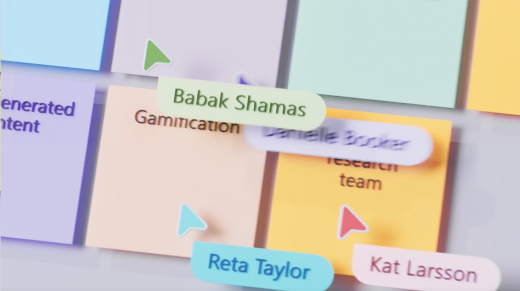
Qualquer pessoa na reunião pode desativá-las. Para desativá-las:
- Selecione o menu Configurações no conjunto de ferramentas do Whiteboard.
- Desative a alternância de Cursores colaborativos .