
Microsoft Planner brings together the simplicity of Microsoft To Do, the collaboration of Microsoft Planner, the power of Microsoft Project for the web into a simple, familiar experience. By adding Planner as a tab in Microsoft Teams, you can use Planner in a shared space to collaborate on tasks and projects in Teams channels.
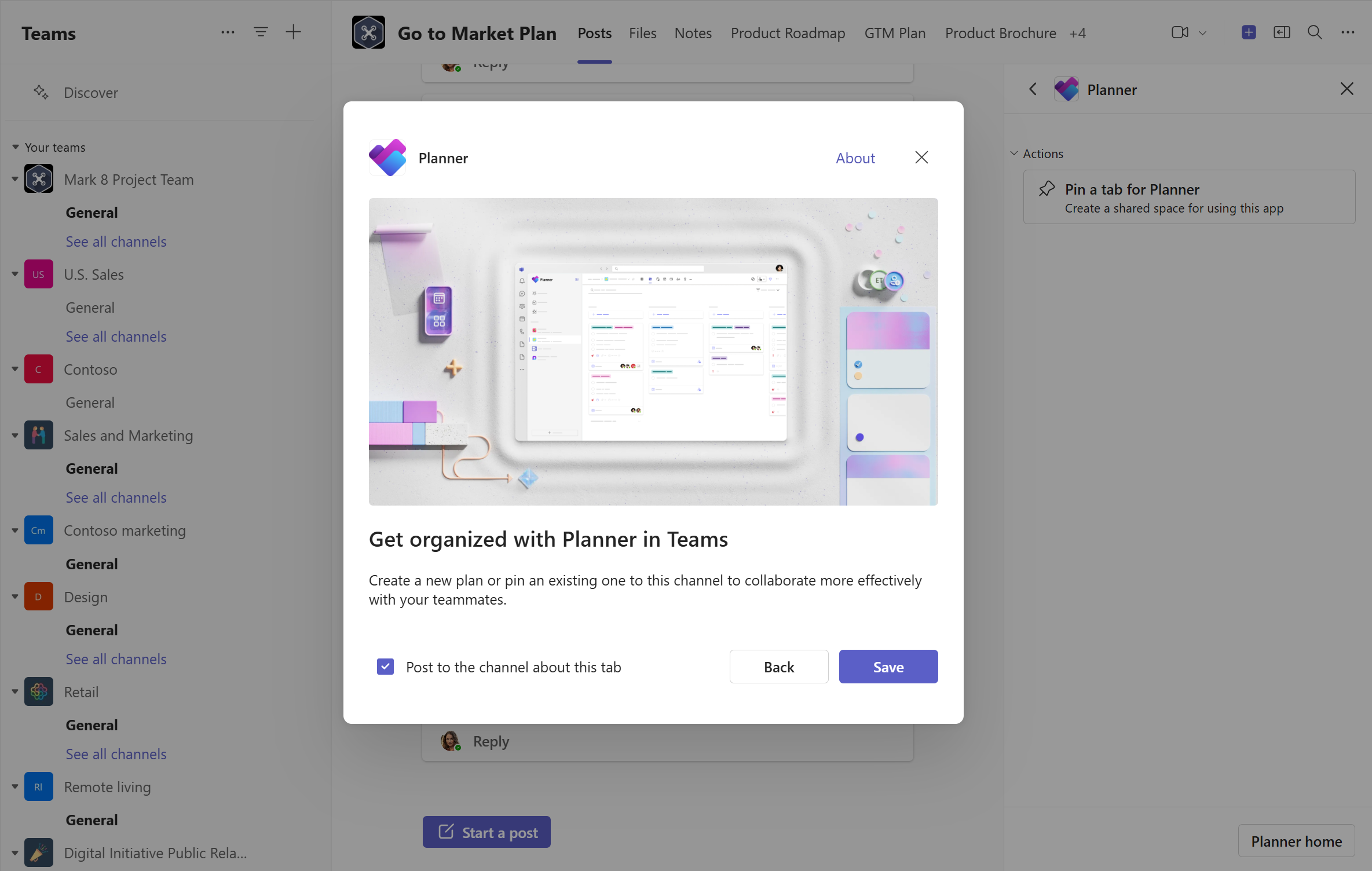
To add Planner as a tab in a Teams channel:
- Select Teams
 in Teams.
 - Select the team channel you want to add Planner to.
- Select Add a tab
 > Apps
 at the top of a channel.
 - Select Planner > Save.
You now have the option to:
- Create a new plan: Build a new basic or premium plan from scratch or start with one of our out-of-the-box templates.
- Add an existing plan: Select an existing plan shared to the channel or the group associated with the channel.
In addition to using Planner in a tab, you can also use Planner as a standalone app in Teams or the web browser. Learn about additional capabilities in Get started with Microsoft Planner.