Select and configure your microphone

Your workstation might have several internal or external microphone input devices that you can use for ambient recording or dictation in Dragon Copilot. 

You can specify separate microphone input settings for each Dragon Copilot platform (web, desktop, or embedded). Your selections and settings are saved in your Dragon profile and apply whenever you log in to that Dragon platform - regardless of the workstation or device you use. 

Important

The built-in microphone on a mobile device provides optimal results for multi-party or monologue ambient recording. Use the Dragon Copilot mobile app (or connect to the Dragon Copilot web platform from a mobile device) to create ambient recordings.

The microphone icon in the title bar lets you quickly access the microphone settings, and select and configure your microphone input device. You can also select the gear icon and navigate to the Microphone section of the Settings screen.

The microphone icon in the Dragon Copilot toolbar.

NOTES:

  • The microphone icon in the title bar changes to indicate when a microphone isn't connected.
  • If the microphone becomes disconnected, Dragon will attempt to connect to the browser's default microphone.
  • If the microphone disconnects, any active recordings stop and are automatically saved.

Select a microphone input (web, desktop, or embedded)

The Microphone section in Settings lists all available microphones detected on your system. You can use any physical input device connected to and configured for your workstation for dictation (and for ambient recording depending on the device).

Select a microphone from the list to use as your input device. (Your selection is automatically saved for that platform.)

  • Dragon Copilot always tries to use the selected device when you sign in to that platform, but it uses the system default if it doesn't detect that device.

NOTE: If you change the system default microphone outside of Dragon, you need to refresh or restart the application for the change to take effect.

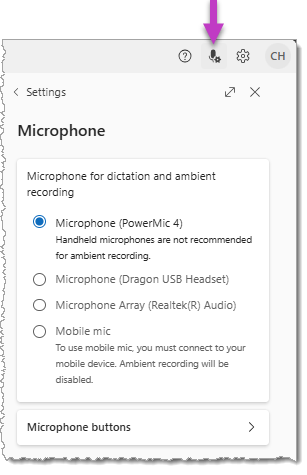
The Microphone settings screen.

Connect and use Mobile mic

If your workstation doesn't have a connected microphone or input device, use the Mobile mic feature for dictation. Select the Mobile mic option in the Microphone settings in Dragon Copilot on your workstation. Then, open the Dragon Copilot mobile app and launch the Mobile mic feature (described in the following section).

The Mobile mic feature is built into the Dragon Copilot mobile app. You can dictate and use Dragon commands while working in Dragon Copilot on other platforms (for example, desktop or web) on your workstation.

Note

You might be familiar with the capabilities of Mobile mic if you used the PowerMic Mobile app with other versions of Dragon. Mobile mic supports dictation and the same voice commands as Dragon Copilot. It also lets you navigate between text entry fields included in your notes and documents and select the default value for a field. Additional features are available when using Mobile mic with the desktop version of Dragon Copilot. 

Select Mobile mic and pair your mobile device

To use the Mobile mic for dictation, you must sign in to the Dragon Copilot mobile app and the web, desktop, or embedded platform with your user credentials. 

To use the features of the Mobile mic for dictation:

  • Select the Mobile mic option in the Microphone section in Settings on your workstation.
  • A message appears while your system attempts to connect to your Dragon Copilot mobile app.: The alert message that appears when you attempt to pair to the Mobile mic on the Dragon Copilot mobile app.

Continue the pairing process in the Dragon Copilot mobile app.  

The microphone settings screen with the Mobile mic selected.

In the Dragon Copilot mobile app:

  • Tap the microphone icon to go to the Microphone screen.
  • Tap the Connect button.

The Connect button on the Microphone screen in the Dragon Copilot mobile app.

When pairing is complete, the appearance of the dictation microphone in Dragon Copilot on your workstation changes, and the ambient recording option is disabled. 

The dictation and ambient recording buttons in Dragon Copilot when the device is paired with Mobile mic.

After pairing is complete, the Mobile mic screen appears on your mobile device. 

The buttons on the Mobile mic screen allow you to:

The Mobile mic screen in the Dragon Copilot mobile app and the available button actions.

Important

The most efficient way to add or clarify information in your note or document is to add another ambient recording. You can't use Mobile mic for ambient recording, but you can close the Mobile mic screen to return to the Dragon Copilot mobile app to add an ambient recording for the session.

Configure options for specific input devices

If Dragon Copilot detects a configurable input device connected to your workstation, it shows an alert:

The alert that appears in Dragon Copilot when a configurable microphone is detected on your workstation.

Select Enable buttons to allow the buttons on your device to invoke button actions in Dragon Copilot.
 

Configure button actions:

Select Microphone buttons in the Microphone screen in Settings to customize the actions assigned to the buttons on a PowerMic or SpeechMike device when it connects to your system.

Important

PowerMic and SpeechMike devices aren't optimized for multiparty ambient recording - though they're appropriate for creating a monologue ambient recording. An alert appears if you attempt to create an ambient recording while a PowerMic or SpeechMike is set as your input device.

Select a microphone to configure the button actions.

  • If the device is connected to your system, you can press a button on the device to highlight the Button actions section for that button, then select an option from the drop-down list.
  • Your selections are automatically saved and apply whenever a device of that same type (for example, PowerMic) connects to your system.
  • The button actions are also platform-specific, based on the platform you use when you make the selections (for example, web or desktop).

The Microphone and Button actions sections in Settings. ​​​​​​​

NOTES:

  • The Enable buttons toggle only appears if the device connects to your system and is selected as the input device. If you disable the button actions, you can still activate ambient recording or voice input by selecting the buttons in the Dragon Copilot screen or by using a keyboard shortcut.
  • Some button actions are only available for the desktop platform.
  • Administrators can modify the default actions for device buttons.

Add information to your note

Edit with your voice

Use Copilot chat