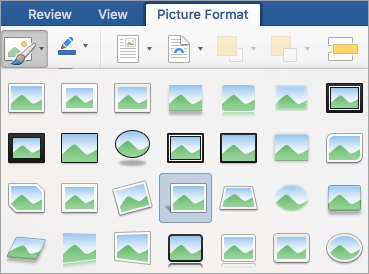
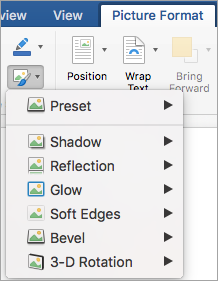
Sliku možete da poboljšate tako što ćete joj dodati efekte kao što su senke, sjaj, odrazi, umekšane ivice, kosine i trodimenzionalne (3-D) rotacije.
Možete i da primenite umetnički efekat na sliku ili da promenite svetlinu, kontrast ili oštrinu slike.
Dodavanje efekta slici
Izaberite sliku za koju želite da dodate ili promenite efekat.
Napomena
Da biste isti efekat dodali na više slika, kliknite na prvu sliku, a zatim pritisnite i zadržite taster CTRL dok klikćete na druge slike. Ako koristite Word, morate da kopirate slike na podlogu za crtanje ako već nisu na njoj. Izaberite stavku "Umetanje>oblika>", nova podloga za crtanje. (Nakon dodavanja ili promene efekta, možete ponovo da ih kopirate na originalnu lokaciju u dokumentu.)
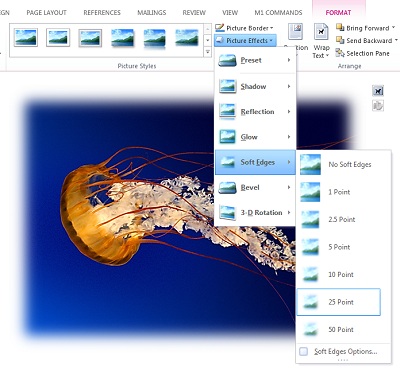
U okviru Alatke za slike, na kartici Oblikovanje, u grupi Stilovi slika kliknite na dugme Efekti slike.
Zadržite pokazivač na jednoj od opcija Efekata slike da biste videli meni sa različitim načinima za primenjivanje svakog efekta. Kada zadržite pokazivač na jednom od efekata iz menija, taj efekat se pojavljuje kao pregled na slici u dokumentu
Napomena
- Da biste prilagodili efekte koje dodajete, izaberite stavku Opcije koja se nalazi na dnu menija svakog efekata. Na primer, ako ste otvorili meni Senke , kliknite na dugme Opcije senke da biste prilagodili efekat senke.
- Ako ne vidite kartice Alatke za slike ili Oblikovanje, kliknite dvaput na sliku da biste se uverili da ste je izabrali. Ako vidite [Režim kompatibilnosti] pored imena datoteke na vrhu prozora programa, pokušajte da sačuvate dokument u formatu kao što je *.docx ili *.xlsx umesto u starijem formatu datoteke kao što je *.doc ili *.xls, a zatim pokušajte ponovo.
Uklanjanje efekta sa slike
Svaka kategorija efekta slike ima opciju "Bez <imena> efekta" u vrhu menija. Izaberite tu opciju da biste isključili efekat koji ne želite.
Na primer, da biste uklonili senku, postavite pokazivač na stavku "Efekti> slike""Senka>"bez senke.
Izaberite sliku za koju uklanjate efekat.
U okviru "Alatke za slike", na kartici "Oblikovanje ", u grupi "Stilovi slike " izaberite stavku "Efekti slike".
Izaberite kategoriju "Efekti slike " koju želite da uklonite. U meniju koji se pojavi, prva opcija je "Bez <imena> efekta" (na primer, "Bez senke" ili "Bez odraza"). Izaberite tu opciju da biste uklonili tu vrstu efekta sa slike.