
Tips
Om du har en Microsoft 365 Copilot licens kan du överföra ditt Teams-samtal med en Copilot-genererad sammanfattning. Mer information om hur du gör detta finns i Komma igång med Copilot i Microsoft Teams-telefon.
Överföra dina 1:1-samtal i Teams
- När du sitter i ett samtal väljer du Överför i dina samtalskontroller.
- Välj en föreslagen kontakt som du ofta ringer eller börja skriva namnet på den person som du vill nå och välj dem när de visas.
- Om de är i din organisation och använder Teams eller Skype för företag aktiverar du Ring tillbaka om det inte finns något svar för att skicka tillbaka samtalet till dig om mottagaren inte svarar eller har vidarekoppling aktiverat. I annat fall vidarekopplas samtalet omedelbart till din kontakt.
- Välj Ta med ett samtalsämne för mottagaren om du vill dela en anteckning om uppringaren som du överför.
- Om samtalet transkriberas väljer du Generera kontext för samtalsöverföring för mottagaren för att skapa ett meddelande med Copilot. Mer information om hur du genererar kontext för samtalsöverföring finns i Komma igång med Microsoft 365 Copilot i Teams Phone.
- Välj Överför för att slutföra överföringen eller välj listrutepilen för att välja något av följande alternativ:
- Överföra till ett ljudsamtal för att överföra samtalet till deras Teams-nummer
- Överföra till deras arbetsröstbrevlåda för att skicka den direkt till deras röstbrevlåda
- Alla andra nummer (till exempel deras mobilnummer) som de har lagt till på sitt konto
Rådgör innan du vidarekopplar ett samtal
Du kanske vill checka in med någon innan du vidarekopplar ett samtal.
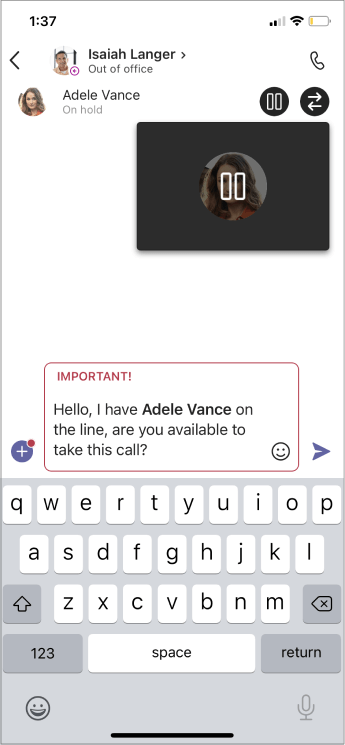
- När du sitter i ett samtal väljer du Konsultera i dina samtalskontroller.
- Under Rådgör sedan vidarekoppla samtalet väljer du en föreslagen kontakt som du ofta ringer till, eller börjar skriva namnet på den person du vill nå och markera dem när de visas.
- När du är klar väljer du Starta ett samtal eller Öppna chatt.
Obs
Konsultera och överför är inte tillgängligt i Teams för webben.
Alla som har en VoIP för företag- eller Business Voice-licens kan göra detta, inte bara ombud.


Relaterade ämnen
Första saker du behöver veta om chatt
Dela en telefonlinje med ett ombud