Các phần bổ trợ của Outlook cung cấp các giải pháp để giúp bạn tương tác tốt hơn với Outlook và hoàn thành các tác vụ trên thư và cuộc hẹn của bạn mà không cần rời khỏi Outlook.
Trong khi một số phần bổ trợ được cài đặt bởi người quản trị email của bạn, bạn có thể cài đặt các phần bổ trợ khác từ Office Store hoặc từ một tệp.
Chọn tùy chọn tab bên dưới cho phiên bản Outlook bạn đang sử dụng.
Tôi có phiên bản Outlook nào?
Lưu ý
Nếu các bước bên dưới tab Outlook Mới này không hoạt động, có thể bạn chưa sử dụng Outlook for Windows mới. Chọn Outlook Cổ điển và làm theo các bước đó thay vào đó.
Cài đặt phần bổ trợ từ cửa hàng | Cài đặt phần bổ trợ tùy chỉnh | Phần bổ trợ được cài đặt bởi Quản trị | Sử | | dụng tính sẵn dùng của Phần bổ trợ trong hộp thư chung Xóaphần bổ trợ
Cài đặt phần bổ trợ từ Office Store trong Outlook mới
Trong Outlook mới, đi tới dải băng hoặc thanh dẫn hướng, rồi chọn Thêm ứng dụng Thêm>ứng dụng.
Mẹo
Bạn cũng có thể truy nhập Store từ nút Ứng dụng để cài đặt phần bổ trợ trực tiếp từ tin nhắn hoặc cuộc hẹn. Để biết hướng dẫn về cách xác định vị trí nút Ứng dụng để truy nhập các phần bổ trợ trong khi đọc hoặc soạn mục thư, hãy xem mục Sử dụng phần bổ trợ trong Outlook.
Trong trang Ứng dụng, tìm kiếm phần bổ trợ bạn muốn từ danh sách sẵn có. Ngoài ra, nếu bạn đang sử dụng một phần bổ trợ cụ thể, hãy nhập tên phần bổ trợ đó vào hộp tìm kiếm. Khi bạn tìm thấy phần bổ trợ mình muốn cài đặt, hãy chọn phần bổ trợ đó để tìm hiểu thêm về phần bổ trợ và xem lại chính sách về quyền riêng tư của phần bổ trợ đó.
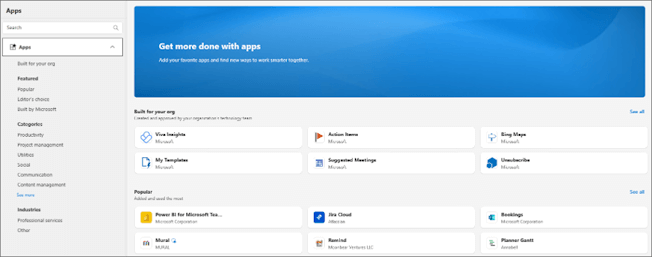
Khi bạn đã sẵn sàng cài đặt phần bổ trợ, hãy chọn Thêm.
Cài đặt phần bổ trợ tùy chỉnh từ tệp trong Outlook mới
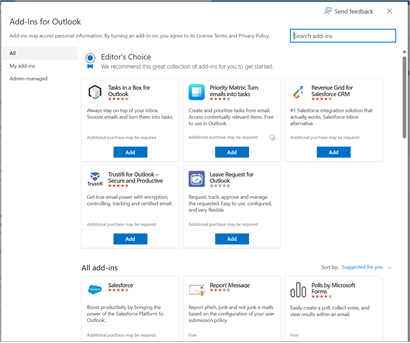
Trong trình duyệt ưu tiên của bạn, đi Outlook trên web và cửa sổ Phần bổ trợ dành cho Outlook sẽ mở ra.
Lưu ý
Cài đặt phần bổ trợ tùy chỉnh từ tệp XML hiện chỉ sẵn dùng thông qua hộp thoại Bổ trợ dành cho Outlook . Nhóm đang làm việc để hỗ trợ chức năng này trong Store mới trong Outlook (Thêm Ứng dụng khác>).
Chọn Phần bổ trợ của tôi.
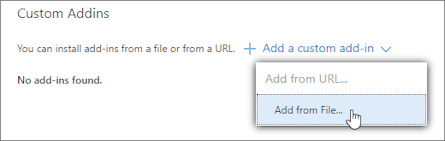
Trong phần Phần bổ trợ Tùychỉnh, chọn Thêm phần bổ trợ tùy chỉnh, rồi chọn Thêm từ tệp.
Lưu ý
Tùy chọn Thêm từ URL không còn sẵn dùng để cài đặt phần bổ trợ Outlook tùy chỉnh. Giải pháp thay thế là mở URL trong trình duyệt ưa thích của bạn để tải xuống tệp bổ trợ, sau đó sử dụng tùy chọn Thêm từ Tệp để cài đặt.
Chọn tệp XML cho phần bổ trợ.
Chọn Cài đặt để cài đặt phần bổ trợ.
Phần bổ trợ do người quản trị CNTT của bạn cài đặt
Nếu bạn là thành viên của một tổ chức và người quản trị CNTT bên bạn đã cài đặt phần bổ trợ mới, phần bổ trợ sẽ sẵn dùng trên bề mặt đọc hoặc soạn ở nơi phần bổ trợ được thiết kế để hoạt động. Để biết hướng dẫn về cách truy nhập một phần bổ trợ, hãy xem mục Sử dụng phần bổ trợ trong Outlook.
Sử dụng phần bổ trợ trong Outlook mới
Vị trí nơi cài đặt phần bổ trợ phụ thuộc vào việc bạn đang đọc hay soạn mục thư.
Sử dụng phần bổ trợ trong khi đọc thư trong Outlook mới
Chọn thư trong Ngăn Đọc hoặc mở thư trong một cửa sổ riêng.
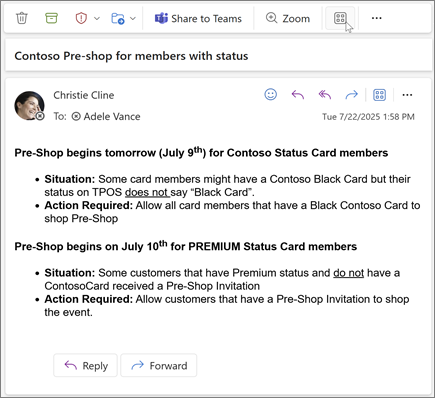
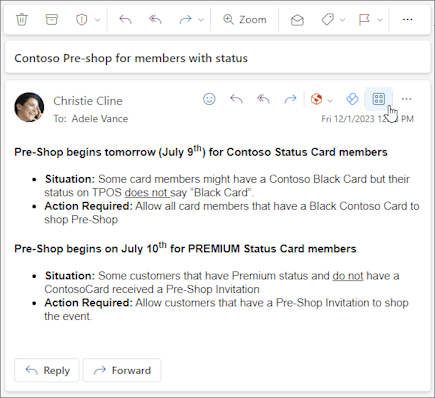
Chọn Xem thêm ứng dụng từ dải băng hoặc Ứng dụng từ thanh hành động của thư.
Mẹo
Truy nhập nhanh các phần bổ trợ của bạn bằng cách ghim chúng vào dải băng và thanh hành động. Để ghim phần bổ trợ, hãy chọn Xem thêm ứng dụng từ dải băng. Sau đó, bấm chuột phải vào phần bổ trợ áp dụng, rồi chọn Ghim. Phần bổ trợ sẽ xuất hiện trong dải băng và thanh hành động của thư. 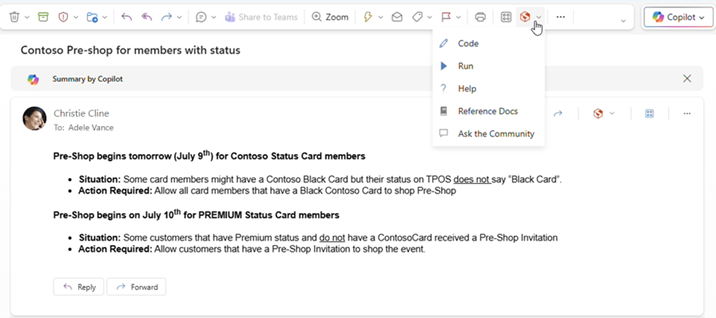
Để hủy ghim phần bổ trợ, hãy làm theo hướng dẫn tương tự để mở menu Xem thêm ứng dụng, sau đó chọn Hủy ghim trên phần bổ trợ áp dụng.
Tùy chọn Xem thêm ứng dụng trên dải băng.
Tùy chọn Ứng dụng trên thanh hành động.
Sử dụng phần bổ trợ trong khi soạn thư trong Outlook mới
Tạo thư mới hoặc trả lời thư hiện có.
Từ dải băng, chọn tab Thư, rồi chọn phần bổ trợ bạn muốn sử dụng.

Nếu phần bổ trợ không xuất hiện trong dải băng, hãy chọn Ứng dụng để xem các phần bổ trợ bạn đã cài đặt.

Sử dụng phần bổ trợ trong khi xem hoặc lên lịch cuộc họp hoặc cuộc hẹn trong Outlook mới
Mở một cuộc hẹn hiện có hoặc tạo một cuộc hẹn mới.
Mẹo
Nếu bạn muốn sử dụng phần bổ trợ trên cuộc họp hoặc cuộc hẹn hiện có, bạn phải mở cuộc họp hoặc cuộc hẹn trong cửa sổ bật lên để xem dải băng.
Từ dải băng, chọn phần bổ trợ bạn muốn sử dụng.
Tính khả dụng của phần bổ trợ khi ngoại tuyến
Khi máy tính của bạn đang ngoại tuyến, các phần bổ trợ dành cho Outlook cũng như cửa hàng Microsoft 365 và Copilot sẽ không sẵn dùng. Bảng sau mô tả hành vi của một số loại phần bổ trợ nhất định khi máy tính của bạn đang ngoại tuyến hoặc có kết nối gián đoạn.
Mẹo
- Nếu bạn cần hỗ trợ xác định loại phần bổ trợ bạn đang sử dụng, hãy liên hệ với nhóm hỗ trợ kỹ thuật trong tổ chức của bạn.
- Đối với người quản trị, bạn có thể đặt cấu hình chính sách hộp thư để đảm bảo rằng các bổ trợ kiểm tra thư tuân thủ trước khi chúng được gửi đi khi thiết lập lại kết nối mạng. Để tìm hiểu thêm, hãy xem mục "Tính sẵn dùng của phần bổ trợ khi ngoại tuyến" trong mục Phát triển phần bổ trợ Outlook cho Outlook mới trên Windows.
|
Kịch bản |
Ngăn tác vụ và phần bổ trợ ít giao diện người dùng hơn |
Phần bổ trợ dựa trên sự kiện |
| Không có kết nối internet khi khởi chạy Outlook |
Phần bổ trợ đã cài đặt không xuất hiện trên dải băng hoặc thanh hành động. |
Vì Outlook không thể xác định những phần bổ trợ nào được cài đặt trong khi ngoại tuyến nên các phần bổ trợ dựa trên sự kiện không thể chạy khi sự kiện mà chúng xử lý xảy ra. Ví dụ: phần bổ trợ không thể tự động chèn chữ ký cá nhân hóa của bạn khi bạn tạo thư mới.
Nếu bạn đang sử dụng phần bổ trợ kiểm tra thư gửi đi của bạn trước khi chúng được gửi đi, khi bạn chọn Gửi trong khi ngoại tuyến, tùy thuộc vào chính sách hộp thư được áp dụng cho tổ chức của bạn, thư đi của bạn sẽ được lưu vào thư mục Thư nháp hoặc Hộp thư đi của bạn. Thư được lưu vào thư mục Hộp thư đi sẽ tự động được gửi đi khi bạn trực tuyến trở lại. Tuy nhiên, bạn phải gửi theo cách thủ công bất kỳ thư nào đã được lưu vào thư mục Thư nháp. Để được hỗ trợ, hãy liên hệ với nhóm hỗ trợ kỹ thuật của tổ chức bạn. |
| Kết nối được thiết lập sau khi khởi chạy Outlook khi đang ngoại tuyến |
Các phần bổ trợ đã cài đặt sẽ xuất hiện trên dải băng và thanh hành động. |
Outlook có thể xác định những phần bổ trợ đã được cài đặt. Các phần bổ trợ đã cài đặt sau đó có thể chạy khi sự kiện mà chúng xử lý xảy ra. |
| Máy mất kết nối trong khi Outlook đang được sử dụng |
Nếu bạn mất kết nối trong khi sử dụng Outlook, các phần bổ trợ đã cài đặt của bạn sẽ không chạy. Một hộp thoại hoặc thông báo được hiển thị để thông báo rằng bạn đang ngoại tuyến. |
Nếu bạn mất kết nối, hành vi sẽ khác nhau tùy thuộc vào loại phần bổ trợ dựa trên sự kiện được cài đặt.
Bổ trợ chạy khi gửi: Hành vi sẽ khác nhau tùy thuộc vào cách cấu hình phần bổ trợ. Để biết thêm thông tin, hãy liên hệ với nhóm hỗ trợ kỹ thuật trong tổ chức của bạn.
Các phần bổ trợ dựa trên sự kiện khác: Phần bổ trợ không kích hoạt khi sự kiện mà phần bổ trợ đó xử lý xảy ra. |
| Kết nối được thiết lập lại |
Phần bổ trợ đã cài đặt có thể chạy lại các thao tác. |
Các phần bổ trợ đã cài đặt sẽ tiếp tục xử lý các sự kiện khi chúng xảy ra. Thư được lưu vào thư mục Hộp thư đi sẽ tự động được gửi đi khi bạn trực tuyến trở lại. Tuy nhiên, bạn phải gửi theo cách thủ công bất kỳ thư nào đã được lưu vào thư mục Thư nháp để các phần bổ trợ dựa trên sự kiện hiện hành có thể chạy kiểm tra tuân thủ trên đó. Để được hỗ trợ, hãy liên hệ với nhóm hỗ trợ kỹ thuật của tổ chức bạn. |
Để biết thông tin về cách làm việc ngoại tuyến trong Outlook for Windows mới, hãy xem Làm việc ngoại tuyến trong Outlook.
Tính khả dụng của phần bổ trợ trong hộp thư chung
Bảng sau đây trình bày tính khả dụng của các phần bổ trợ trong hộp thư chung. Lưu ý rằng hành vi có thể khác nhau tùy thuộc vào việc hộp thư chung đã được tăng cấp thành tài khoản đầy đủ hay chưa (để tìm hiểu thêm, hãy xem mục Quản lý cài đặt hộp thư chung trong Outlook mới).
|
Kịch bản |
Hộp thư chung không được tăng cấp thành tài khoản đầy đủ |
Hộp thư chung được tăng cấp thành tài khoản đầy đủ |
| Phần bổ trợ do người dùng cài đặt |
Bạn không thể cài đặt các phần bổ trợ trong hộp thư chung. Những bổ trợ bạn cài đặt sẽ được thêm vào hộp thư chính của bạn. |
Bạn không thể cài đặt các phần bổ trợ trong hộp thư chung. Office Store không xuất hiện trên dải băng của hộp thư. |
| Phần bổ trợ do người quản trị cài đặt |
Người quản trị không nên triển khai các phần bổ trợ cho hộp thư chung. Thay vào đó, họ nên triển khai phần bổ trợ vào hộp thư chính của người dùng.
Sau khi phần bổ trợ được triển khai vào hộp thư của mình, bạn có thể sử dụng phần bổ trợ trong hộp thư chung miễn là phần bổ trợ đáp ứng các yêu cầu nhất định (xem các kịch bản sau đây để bổ trợ sẵn dùng trong các chế độ đã đọc và soạn). |
|
| Phần bổ trợ Outlook mặc định |
Các phần bổ trợ Outlook mặc định sẵn dùng trong hộp thư chung. Phần bổ trợ mặc định có thể bao gồm Mẫu củaTôi, Hủy đăng ký và Mục Hành động.
Nếu bạn không có phần bổ trợ mặc định trong Outlook, tổ chức của bạn có thể đã tắt phần bổ trợ. Để được hỗ trợ thêm, hãy liên hệ với người quản trị của bạn. |
|
| Mẫu được tạo bằng bổ trợ Mẫu của Tôi |
Mẫu bạn tạo sẽ được lưu vào hộp thư chính của bạn. Mặc dù bạn có thể sử dụng các mẫu này trong cả hộp thư chính và hộp thư chung, nhưng những người dùng khác có quyền truy nhập vào hộp thư chung sẽ không thể truy nhập những mẫu này. Để biết thêm thông tin, hãy xem Tạo mẫu thư email. |
Mẫu bạn tạo sẽ được lưu vào hộp thư chung. Bất kỳ ai có quyền truy nhập vào hộp thư chung cũng có thể chỉnh sửa hoặc sử dụng các mẫu này miễn là họ cũng mở hộp thư chung trong Outlook mới trên Windows và tăng cấp thành tài khoản đầy đủ. Bất kỳ ai cũng không thể truy nhập các mẫu dùng chung, bao gồm cả người tạo mẫu, từ các nền tảng khác. Điều này bao gồm Outlook mới trên Windows nếu hộp thư chung chưa được tăng cấp thành tài khoản đầy đủ. Ngược lại, không thể truy nhập các mẫu được tạo trên các nền tảng khác từ hộp thư chung đã được tăng cấp thành tài khoản đầy đủ. Để biết thêm thông tin, hãy xem Tạo mẫu thư email. |
| Phần bổ trợ được sử dụng ở chế độ đọc |
Phần bổ trợ được cài đặt trong hộp thư chính của bạn phải được cấu hình để hỗ trợ hộp thư chung. Để được hỗ trợ thêm, hãy liên hệ với người quản trị của bạn. |
|
| Phần bổ trợ được sử dụng trong chế độ soạn thảo |
Bạn có thể sử dụng các phần bổ trợ được cài đặt trong hộp thư chính của mình được hỗ trợ trong chế độ soạn thảo. |
Bổ trợ phải được cài đặt trong hộp thư chính của bạn và phải được cấu hình để hỗ trợ hộp thư chung. Để được hỗ trợ thêm, hãy liên hệ với người quản trị của bạn. |
Xóa phần bổ trợ trong Outlook mới
- Đi tới dải băng hoặc thanh dẫn hướng,
 Ứng dụng khác>Thêm ứng dụng.
- Trên trang Ứng dụng , chọn Quản lý ứng dụng của bạn.
- Trong Quản lý ứng dụng của bạn, tìm ứng dụng bạn muốn xóa rồi chọn Tùy chọn khác Xóa>.
Cài đặt phần bổ trợ từ cửa hàng | Cài đặt phần bổ trợ tùy chỉnh | Sử dụng phần bổ trợ | Tính khả dụng của phần bổ trợ trong hộp thư chung
Cài đặt phần bổ trợ từ Office Store trong Outlook cổ điển
Mở Outlook cổ điển.
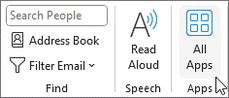
Từ dải băng, chọn Trang đầu Tất>cả Ứng dụng. Nếu Dải băng đơn giản hóa được đặt cấu hình trong máy khách Outlook của bạn, hãy chọn nút dấu chấm lửng (...) từ dải băng, rồi chọn Tất cả Ứng dụng.

Lưu ý
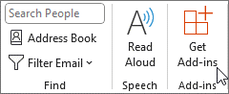
- Bắt đầu trong Outlook for Windows Phiên bản 2303 (Bản dựng 16215.10000), nút Tất cả Ứng dụng sẽ thay thế nút Tải Phần bổ trợ trên dải băng để xem các phần bổ trợ đã cài đặt và truy nhập vào Office Store. Nếu bạn đang sử dụng phiên bản Outlook cũ hơn, thay vào đó bạn sẽ thấy nút Tải Phần bổ trợ.
- Nếu bạn không thấy Tất cả Ứng dụng trên dải băng thì có thể người quản trị của bạn đã tắt các phần bổ trợ cho tổ chức của bạn.
Tùy thuộc vào phiên bản Outlook cổ điển hoặc loại tài khoản của bạn, chọnThêm Ứng dụng hoặc Tải Phần bổ trợ.
Hộp thoại xuất hiện sẽ khác nhau tùy thuộc vào việc bạn có tùy chọn Thêm Ứng dụng hay Tải Phần bổ trợ sẵn dùng cho bạn.
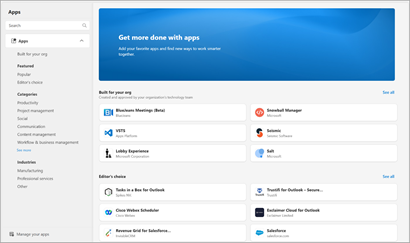
Nếu bạn đã chọn Thêm Ứng dụng, hộp thoại Ứng dụng sẽ xuất hiện.
Nếu bạn đã chọn Tải Phần bổ trợ, hộp thoại Phần bổ trợ cho Outlook sẽ xuất hiện.
Tìm kiếm phần bổ trợ bạn muốn từ danh sách sẵn có. Ngoài ra, nếu bạn đang sử dụng một phần bổ trợ cụ thể, hãy nhập tên phần bổ trợ đó vào hộp tìm kiếm. Khi bạn tìm thấy phần bổ trợ mình muốn cài đặt, hãy chọn phần bổ trợ đó để tìm hiểu thêm về phần bổ trợ và xem lại chính sách về quyền riêng tư của phần bổ trợ đó.
Khi bạn đã sẵn sàng cài đặt phần bổ trợ, hãy chọn Thêm.
Cài đặt phần bổ trợ tùy chỉnh từ tệp XML
Trong trình duyệt ưa thích của bạn, hãy đi https://aka.ms/olksideload. Thao tác này Outlook trên web ra, sau đó tải hộp thoại Phần bổ trợ dành cho Outlook sau vài giây.
Lưu ý
Cài đặt phần bổ trợ tùy chỉnh từ tệp XML hiện chỉ sẵn dùng thông qua hộp thoại Bổ trợ dành cho Outlook . Nhóm đang làm việc để hỗ trợ chức năng này trong Store mới trong Outlook (Tất cả Ứng dụng Thêm>Ứng dụng).
Chọn Phần bổ trợ của tôi.
Trong phần Phần bổ trợ Tùy chỉnh, chọn Thêm phần bổ trợ tùy chỉnh, rồi chọn Thêm từ Tệp.
Lưu ý
Tùy chọn Thêm từ URL không còn sẵn dùng để cài đặt phần bổ trợ Outlook tùy chỉnh. Giải pháp thay thế là mở URL trong trình duyệt ưa thích của bạn để tải xuống tệp bổ trợ, sau đó sử dụng tùy chọn Thêm từ Tệp để cài đặt.
Chọn tệp XML cho phần bổ trợ.
Chọn Cài đặt để cài đặt phần bổ trợ.
Sử dụng phần bổ trợ trong Outlook cổ điển
Tùy thuộc vào loại phần bổ trợ bạn đã cài đặt, phần bổ trợ sẽ xuất hiện ở một trong các khu vực sau đây trong Outlook.
Quan trọng
- Đảm bảo rằng Ngăn Đọc trong Outlook được đặt thành Phải hoặcDưới cùng. Nếu không, các phần bổ trợ sẽ không khả dụng. Để đặt cấu hình Ngăn Đọc của bạn, hãy chọn>Xem Ngăn Đọc.
- Nếu bạn đang chuyển từ Outlook for Windows cổ điển sang Outlook for Windows mới, hãy lưu ý rằng vị trí của các phần bổ trợ sẽ khác nhau đối với từng máy khách. Vị trí của các phần bổ trợ trong Outlook for Windows mới phụ thuộc vào việc bạn đang đọc hay soạn mục thư. Để biết hướng dẫn về cách sử dụng các phần bổ trợ trong Outlook for Windows mới, hãy xem mục Sử dụng phần bổ trợ trong Outlook for Windows mới.
Phần bổ trợ trên dải băng trong Outlook cổ điển
Một số phần bổ trợ nhất định được thêm vào dải băng của bề mặt thư hoặc cuộc hẹn được đọc hoặc soạn thích hợp. Để sử dụng loại phần bổ trợ này, hãy thực hiện như sau:
Trong Outlook cổ điển, dẫn hướng đến dải băng.
Mẹo
Nếu bạn muốn sử dụng phần bổ trợ trên cuộc họp hoặc cuộc hẹn, bạn phải mở cuộc họp hoặc cuộc hẹn trong cửa sổ bật lên để xem dải băng.
Chọn tab dải băng thích hợp. Tab sẽ khác nhau tùy thuộc vào bề mặt thư hiện tại của bạn.
- Nếu bạn đang đọc thư, hãy chọn tab Trang đầu.
- Nếu bạn đang soạn thư, hãy chọn tab Thư .
- Nếu bạn đang xem hoặc lên lịch một cuộc hẹn, hãy chọn tab Cuộc hẹn.
- Nếu bạn đang xem hoặc lên lịch cuộc họp, hãy chọn tab Cuộc họp.
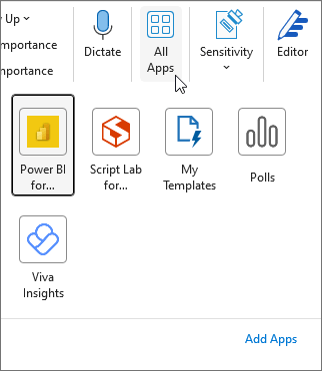
Chọn nút bổ trợ từ dải băng. Nếu phần bổ trợ không xuất hiện trên dải băng, hãy chọn Tất cả Ứng dụng để xem các phần bổ trợ đã cài đặt của bạn.
Phần bổ trợ trong thanh ứng dụng trong Outlook cổ điển
Một số phần bổ trợ nhất định được thêm vào thanh ứng dụng trong Outlook. Để sử dụng loại phần bổ trợ này, dẫn hướng đến thanh ứng dụng ở bên trái Outlook. Sau đó, chọn phần bổ trợ bạn muốn chạy.

Nếu biểu tượng của phần bổ trợ không xuất hiện trong thanh ứng dụng, hãy chọn Xem thêm Ứng dụng để xem các phần bổ trợ bạn đã cài đặt.
Tính khả dụng của phần bổ trợ trong hộp thư chung
Bảng sau đây trình bày tính khả dụng của các phần bổ trợ trong hộp thư chung. Để biết hướng dẫn về cách truy nhập hộp thư chung trong Outlook trên Windows cổ điển, hãy xem mục Mở và sử dụng hộp thư chung trong Outlook.
|
Kịch bản |
Hành vi |
| Phần bổ trợ do người dùng cài đặt |
Bạn không thể cài đặt các phần bổ trợ trong hộp thư chung. Những bổ trợ bạn cài đặt sẽ được thêm vào hộp thư chính của bạn. |
| Phần bổ trợ do người quản trị cài đặt |
Người quản trị không nên triển khai các phần bổ trợ cho hộp thư chung. Thay vào đó, họ nên triển khai phần bổ trợ vào hộp thư chính của người dùng.
Sau khi phần bổ trợ được triển khai vào hộp thư của mình, bạn có thể sử dụng phần bổ trợ trong hộp thư chung miễn là phần bổ trợ đáp ứng các yêu cầu nhất định (xem các kịch bản sau đây để bổ trợ sẵn dùng trong các chế độ đã đọc và soạn). |
| Phần bổ trợ Outlook mặc định |
Các phần bổ trợ Outlook mặc định sẵn dùng trong hộp thư chung. Phần bổ trợ mặc định có thể bao gồm Mẫu củaTôi, Hủy đăng ký và Mục Hành động.
Nếu bạn không có phần bổ trợ mặc định trong Outlook, tổ chức của bạn có thể đã tắt phần bổ trợ. Để được hỗ trợ thêm, hãy liên hệ với người quản trị của bạn. |
| Mẫu được tạo bằng bổ trợ Mẫu của Tôi |
Mẫu bạn tạo sẽ được lưu vào hộp thư chính của bạn. Mặc dù bạn có thể sử dụng các mẫu này trong cả hộp thư chính và hộp thư chung, nhưng những người dùng khác có quyền truy nhập vào hộp thư chung sẽ không thể truy nhập những mẫu này. Để biết thêm thông tin, hãy xem Tạo mẫu thư email. |
| Phần bổ trợ được sử dụng ở chế độ đọc |
Phần bổ trợ được cài đặt trong hộp thư chính của bạn phải được cấu hình để hỗ trợ hộp thư chung. Để được hỗ trợ thêm, hãy liên hệ với người quản trị của bạn. |
| Phần bổ trợ được sử dụng trong chế độ soạn thảo |
Bạn có thể sử dụng các phần bổ trợ được cài đặt trong hộp thư chính của mình được hỗ trợ trong chế độ soạn thảo. |
Lưu ý
Outlook trên web chỉ khả dụng nếu bạn đang sử dụng tài khoản cơ quan hoặc trường học và bạn có giấy phép hợp lệ.
Cài đặt phần bổ trợ từ cửa hàng | Cài đặt phần bổ trợ tùy chỉnh | Phần bổ trợ được cài đặt bởi bộ Quản trị Sử | dụng tính sẵn dùng | của Phần bổtrợ trong hộp thư chung
Cài đặt phần bổ trợ từ Office Store cho người Outlook trên web
Trong Outlook trên web, dẫn hướng đến dải băng hoặc thanh ứng dụng ở bên trái máy khách. Sau đó, chọn Thêm ứng dụng Thêm>ứng dụng.
Trong trang Ứng dụng, tìm kiếm phần bổ trợ bạn muốn từ danh sách sẵn có. Ngoài ra, nếu bạn đang sử dụng một phần bổ trợ cụ thể, hãy nhập tên phần bổ trợ đó vào hộp tìm kiếm. Khi bạn tìm thấy phần bổ trợ mình muốn cài đặt, hãy chọn phần bổ trợ đó để tìm hiểu thêm về phần bổ trợ và xem lại chính sách về quyền riêng tư của phần bổ trợ đó.
Khi bạn đã sẵn sàng cài đặt phần bổ trợ, hãy chọn Thêm.
Hướng dẫn dành cho Outlook trên web cổ điển
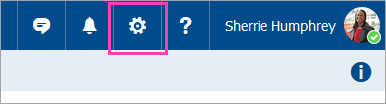
- Chọn
 đặt Cài>đặt Quản lý phần bổ trợ.
- Đối với các phần bổ trợ miễn phí, sử dụng các điều khiển chuyển đổi để bật hoặc tắt. Đối với các phần bổ trợ trả phí và bản dùng thử miễn phí, chọn Tải để hoàn tất việc mua hàng.
Bạn cũng có thể cài đặt thêm phần bổ trợ từ Office Store.
Cài đặt phần bổ trợ tùy chỉnh từ tệp
Trong trình duyệt ưu tiên của bạn, đi Outlook trên web và cửa sổ Phần bổ trợ dành cho Outlook sẽ mở ra.
Lưu ý
Cài đặt phần bổ trợ tùy chỉnh từ tệp XML hiện chỉ sẵn dùng thông qua hộp thoại Bổ trợ dành cho Outlook . Nhóm đang làm việc để hỗ trợ chức năng này trong Store mới trong Outlook (Thêm Ứng dụng khác>).
Chọn Phần bổ trợ của tôi.
Trong phần Phần bổ trợ Tùy chỉnh, chọn Thêm phần bổ trợ tùy chỉnh, rồi chọn Thêm từ tệp.
Lưu ý
Tùy chọn Thêm từ URL không còn sẵn dùng để cài đặt phần bổ trợ Outlook tùy chỉnh. Giải pháp thay thế là mở URL trong trình duyệt ưa thích của bạn để tải xuống tệp bổ trợ, sau đó sử dụng tùy chọn Thêm từ Tệp để cài đặt.
Chọn tệp XML cho phần bổ trợ.
Chọn Cài đặt để cài đặt phần bổ trợ.
Đóng hộp thoại Bổ trợ dành cho Outlook . Sau đó, làm mới Outlook trên web trang.
Phần bổ trợ được người quản trị triển khai
Nếu bạn là thành viên của một tổ chức và người quản trị CNTT bên bạn đã cài đặt phần bổ trợ mới, phần bổ trợ sẽ sẵn dùng trên bề mặt đọc hoặc soạn ở nơi phần bổ trợ được thiết kế để hoạt động. Để biết hướng dẫn về cách truy nhập một phần bổ trợ, hãy xem mục Sử dụng phần bổ trợ trong Outlook.
Sử dụng phần bổ trợ của Outlook trên web
Vị trí nơi cài đặt phần bổ trợ phụ thuộc vào việc bạn đang đọc hay soạn mục thư.
Sử dụng phần bổ trợ trong khi đọc thư trong Outlook trên web
Chọn thư trong Ngăn Đọc hoặc mở thư trong một cửa sổ riêng.
Chọn Xem thêm ứng dụng từ dải băng hoặc Ứng dụng từ thanh hành động của thư.
Mẹo
Truy nhập nhanh các phần bổ trợ của bạn bằng cách ghim chúng vào dải băng và thanh hành động. Để ghim phần bổ trợ, hãy chọn Xem thêm ứng dụng từ dải băng. Sau đó, bấm chuột phải vào phần bổ trợ áp dụng, rồi chọn Ghim. Phần bổ trợ sẽ xuất hiện trong dải băng và thanh hành động của thư.
Để hủy ghim phần bổ trợ, hãy làm theo hướng dẫn tương tự để mở menu Xem thêm ứng dụng, sau đó chọn Hủy ghim trên phần bổ trợ áp dụng.
Tùy chọn Xem thêm ứng dụng trên dải băng.
Tùy chọn Ứng dụng trên thanh hành động.
Sử dụng phần bổ trợ trong khi soạn thư trong Outlook trên web
Tạo thư mới hoặc trả lời thư hiện có.
Từ dải băng, chọn tab Thư, rồi chọn phần bổ trợ bạn muốn sử dụng.
Nếu phần bổ trợ không xuất hiện trong dải băng, hãy chọn Ứng dụng để xem các phần bổ trợ bạn đã cài đặt.
Sử dụng phần bổ trợ trong khi xem hoặc lên lịch cuộc họp hoặc cuộc hẹn trong Outlook trên web
Mở một cuộc hẹn hiện có hoặc tạo một cuộc hẹn mới.
Mẹo
Nếu bạn muốn sử dụng phần bổ trợ trên cuộc họp hoặc cuộc hẹn hiện có, bạn phải mở cuộc họp hoặc cuộc hẹn trong cửa sổ bật lên để xem dải băng.
Từ dải băng, chọn phần bổ trợ bạn muốn sử dụng.
Tính khả dụng của phần bổ trợ trong hộp thư chung
Bảng sau đây trình bày tính khả dụng của các phần bổ trợ trong hộp thư chung. Lưu ý rằng hành vi có thể khác nhau tùy thuộc vào việc hộp thư chung được mở trong cùng một pa-nen với hộp thư chính của bạn hay trong một tab hay cửa sổ riêng bằng tùy chọn Mở hộp thư khác.
Để biết hướng dẫn về cách truy nhập hộp thư chung trong Outlook trên web, hãy xem mục Mở và sử dụng hộp thư chung trong Outlook.
|
Kịch bản |
Hộp thư chung mở trong cùng một tab hoặc cửa sổ |
Hộp thư chung mở trong tab hoặc cửa sổ riêng |
| Phần bổ trợ do người dùng cài đặt |
Bạn không thể cài đặt các phần bổ trợ trong hộp thư chung. Những bổ trợ bạn cài đặt sẽ được thêm vào hộp thư chính của bạn. |
Bạn không thể cài đặt các phần bổ trợ trong hộp thư chung. Office Store không xuất hiện trên dải băng của hộp thư. |
| Phần bổ trợ do người quản trị cài đặt |
Người quản trị không nên triển khai các phần bổ trợ cho hộp thư chung. Thay vào đó, họ nên triển khai phần bổ trợ vào hộp thư chính của người dùng.
Sau khi phần bổ trợ được triển khai vào hộp thư của mình, bạn có thể sử dụng phần bổ trợ trong hộp thư chung miễn là phần bổ trợ đáp ứng các yêu cầu nhất định (xem các kịch bản sau đây để bổ trợ sẵn dùng trong các chế độ đã đọc và soạn). |
|
| Phần bổ trợ Outlook mặc định |
Các phần bổ trợ Outlook mặc định sẵn dùng trong hộp thư chung. Phần bổ trợ mặc định có thể bao gồm Mẫu củaTôi, Hủy đăng ký và Mục Hành động.
Nếu bạn không có phần bổ trợ mặc định trong Outlook, tổ chức của bạn có thể đã tắt phần bổ trợ. Để được hỗ trợ thêm, hãy liên hệ với người quản trị của bạn. |
|
| Mẫu được tạo bằng bổ trợ Mẫu của Tôi |
Mẫu bạn tạo sẽ được lưu vào hộp thư chính của bạn. Mặc dù bạn có thể sử dụng các mẫu này trong cả hộp thư chính và hộp thư chung, nhưng những người dùng khác có quyền truy nhập vào hộp thư chung sẽ không thể truy nhập những mẫu này. Để biết thêm thông tin, hãy xem Tạo mẫu thư email. |
Mẫu bạn tạo sẽ được lưu vào hộp thư chung. Bất kỳ ai có quyền truy nhập vào hộp thư chung cũng có thể chỉnh sửa hoặc sử dụng các mẫu này miễn là họ mở hộp thư bằng tùy chọn Mở hộp thư khác. Bất kỳ ai cũng không thể truy nhập các mẫu dùng chung, bao gồm cả người tạo mẫu, từ các nền tảng khác. Điều này Outlook trên web nếu hộp thư chung được mở trong cùng tab với hộp thư chính của bạn. Ngược lại, không thể truy nhập các mẫu được tạo trên các nền tảng khác từ hộp thư chung được mở bằng tùy chọn Mở hộp thư khác. Để biết thêm thông tin, hãy xem Tạo mẫu thư email. |
| Phần bổ trợ được sử dụng ở chế độ đọc |
Phần bổ trợ được cài đặt trong hộp thư chính của bạn phải được cấu hình để hỗ trợ hộp thư chung. Để được hỗ trợ thêm, hãy liên hệ với người quản trị của bạn. |
|
| Phần bổ trợ được sử dụng trong chế độ soạn thảo |
Bạn có thể sử dụng các phần bổ trợ được cài đặt trong hộp thư chính của mình được hỗ trợ trong chế độ soạn thảo. |
Bổ trợ phải được cài đặt trong hộp thư chính của bạn và phải được cấu hình để hỗ trợ hộp thư chung. Để được hỗ trợ thêm, hãy liên hệ với người quản trị của bạn. |
Câu hỏi thường gặp
Phần bổ trợ hoạt động như thế nào?
Phần bổ trợ đã cài đặt được bật theo mặc định, nhưng bạn sẽ được nhắc đưa ra chấp thuận vào lần đầu tiên bạn chạy các phần bổ trợ này nếu chúng cần truy nhập vào dữ liệu của bạn. Hầu hết các phần bổ trợ chỉ có quyền truy nhập vào dữ liệu trong thư email mà bạn đang làm việc cùng.
Khi bạn cài đặt phần bổ trợ trong Outlook mới, phần bổ trợ đó cũng sẽ xuất hiện trong các phiên bản khác của Outlook. Ví dụ: nếu bạn cài đặt một phần bổ trợ trong Outlook mới, bạn cũng sẽ thấy phần bổ trợ khi mở phần Outlook trên web.
Tất cả phần bổ trợ đều được Microsoft xác thực, bao gồm những phần bổ trợ mà bạn cài đặt từ Office Store. Để biết thêm thông tin, hãy xem mục điều khoản về quyền riêng tư và điều khoản và điều kiện trong biểu mẫu chấp thuận của phần bổ trợ.
Bổ trợ có gửi dữ liệu của tôi đến dịch vụ của bên thứ ba không? Nếu vậy, tại sao?
Một phần bổ trợ có thể gửi dữ liệu tới dịch vụ của chính mình nhưng chỉ để hoàn thành tác vụ mà bạn đã yêu cầu. Tất cả phần bổ trợ bắt buộc phải tuân thủ theo các chính sách riêng tư của mình cũng như các tiêu chuẩn Microsoft. Để biết thêm chi tiết, hãy xem điều khoản về quyền riêng tư của phần bổ trợ.
Đi tới Office Store và tìm kiếm phần bổ trợ mà bạn đang tìm kiếm. Sau đó, chọn phần bổ trợ đó để xem thông tin như tổng quan, yêu cầu, xếp loại và đánh giá.
Bài viết liên quan
Sử dụng phần bổ trợ trong Outlook for Mac
