A Desktop Alert is a notification that appears on your desktop when you receive a new email message, a meeting request, or a task request. By default, Desktop Alerts are turned on.
The information displayed in a Desktop Alert varies depending on the item that you receive in your Inbox.
- Email message
Displays the name of the sender, the subject, and the first two lines of the message. A Desktop Alert doesn't display the contents of an encrypted or digitally signed message. To view the message, you must open it. - Meeting request
Displays the sender, subject, date, time, and location of the meeting. - Task request
Displays the sender, subject, and start date of the assigned task.
Select a tab option below for the version of Outlook you're using. What version of Outlook do I have?
Note
If the steps under this New Outlook tab aren't working for you, you may not be using new Outlook for Windows yet. Select the Classic Outlook tab and follow those steps instead.
Turn alerts on or off for new Outlook
- Open new Outlook
- Under View, select View Settings.
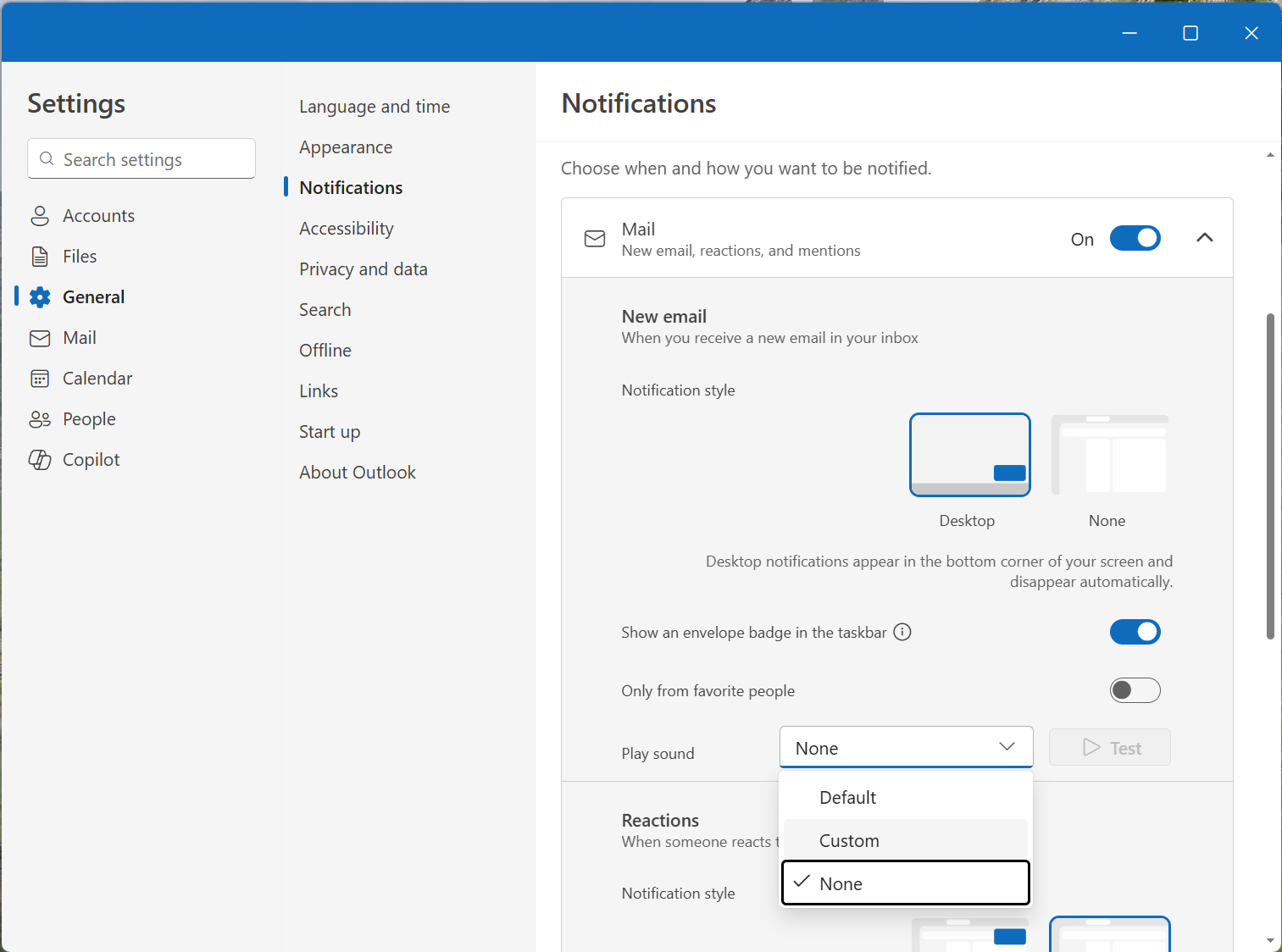
- Select General, then Notifications.
- Under Notify me about, turn the toggle on or off for Mail, Calendar, or Documents.
Customize notification sound
You can now set custom sounds for notifications in new Outlook.
1. Go to Notifications settings following the steps above.
2. Go to Mail and under New Email and Reactions, go to the Play Sound; then select the custom sound of your choice.
3. Go to Calendar and under Event reminders go to the Play Sound; then select the custom sound of your choice.