Whether it's being productive, staying in touch, or just having fun, Windows has lots of little tricks and shortcuts that can help you achieve more. Here are just a few of them:
Insert emojis, GIFs, and symbols with the emoji panel
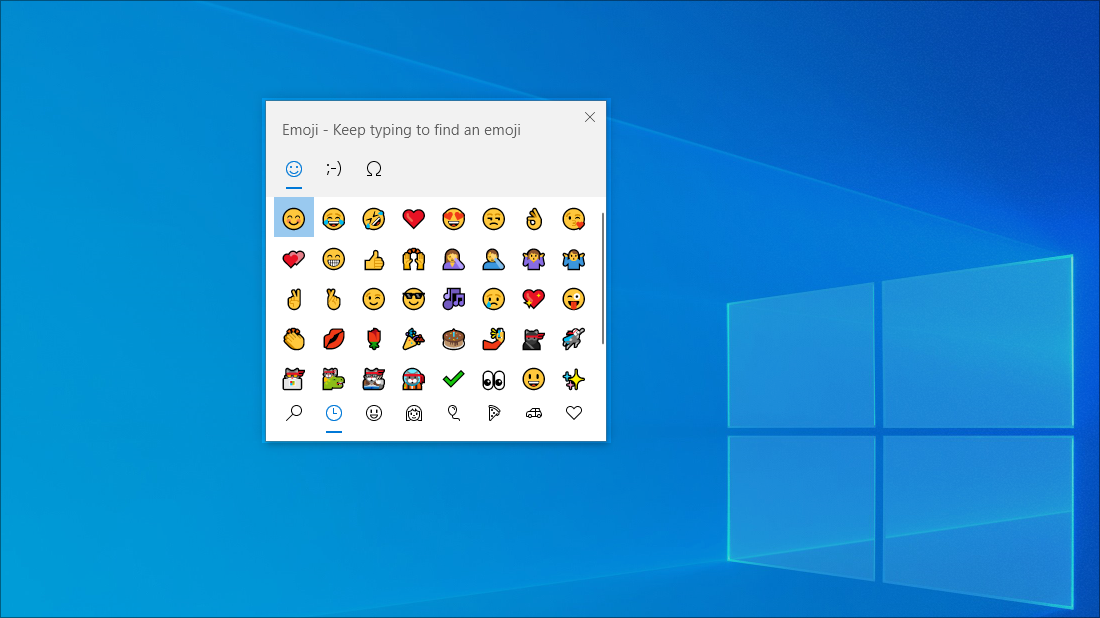
The emoji keyboard in Windows 11 lets you express yourself like never before. To use it:
- During text entry, press Windows key
 +. (period). The emoji keyboard appears.
 - Select an emoji with the mouse or keep typing to search through the available emojis for one you like.
- For more ways to express yourself, choose from GIFs and Kaomoji too!

Enter all the symbols like a pro
Sometimes you need to enter a character that isn't on your keyboard, like an em-dash (—) or the copyright symbol (©). If you have a numeric keypad on your keyboard, you don't have to find one and copy and paste, you can just do it! Here's how to browse different symbols:
Press Windows key
+. (period) and then select Symbols in the emoji panel.
Scroll through symbols like punctuation marks, accented keys, and more!
To use keyboard shortcuts:
Hold down the Alt key on the keyboard.
With the Alt key held down, enter the four-digit code on the numeric keypad for the desired character. When required, make sure to include the leading 0.
Important
Entering these Alt codes only works with the numeric keypad. It doesn't work with the row of numbers at the top of the keyboard.
Release the Alt key.
Here's just a few of the characters that can be entered with the Alt key:
| Symbol | Name | Alt-code |
|---|---|---|
| © | Copyright symbol | Alt+0169 |
| ® | Registered symbol | Alt+0174 |
| ™ | Trademark | Alt+0153 |
| • | List Dot | Alt+0149 |
| § | Section symbol | Alt+0167 |
| † | Dagger | Alt+0134 |
| ‡ | Double dagger | Alt+0135 |
| – | en-dash | Alt+0150 |
| — | em-dash | Alt+0151 |
| ¶ | Paragraph symbol (Pilcrow) | Alt+0182 |
| ¡ | Upside-down exclamation mark | Alt+0161 |
| ¿ | Upside-down question mark | Alt+0191 |
| ¢ | Cent sign | Alt+0162 |
| £ | British Pound | Alt+0163 |
| Є | Euro currency | Alt+0128 |
| ¥ | Japanese Yen | Alt+0165 |
Travel the world, one key at a time
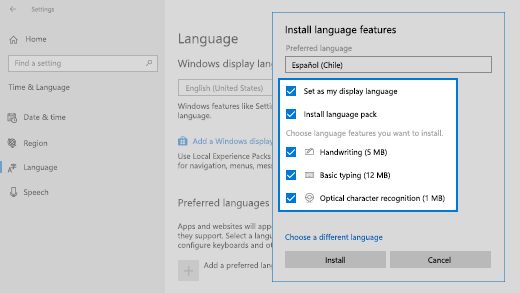
If you find yourself typing characters used more frequently in other languages, you can always install keyboards for other languages and switch among them easily. For more information, see Manage the language and keyboard/input layout settings in Windows.
Let your fingers do the copying
There are some great keyboard tricks to use to navigate Windows, and some other common ones that work with many of your favorite apps. The mouse is great and all, but sometimes these keyboard tricks are faster. Give them a try!
Common Windows keyboard shortcuts
| Keystroke | What it does |
|---|---|
| Windows key
+ R |
Opens the Run command. |
| Windows key
+ S |
Opens Search. |
| Windows key
+ E |
Opens File Explorer. |
| Alt+ Tab | Opens Task Switcher, moving forward with each press of Tab, switching to that window on release. |
| Shift + Alt + Tab | Opens Task Switcher, moving backward with each press of Tab, switching to that window on release. |
| Windows key
+ Tab |
Switches to Task View, selected window returns with focus. |
| Windows key
+ Up arrow |
Moves up through the sequence of Minimized > Windowed > Maximized for the focused window. |
| Windows key
+ Down arrow |
Moves down through the sequence of Minimized > Windowed > Maximized for the focused window. |
| Windows key
+ M |
Minimizes all windows. |
| Windows key
+ D |
Hides or unhide the desktop. |
| Windows key
+ I |
Opens Settings. |
Common app shortcuts
Note
These shortcuts are common shortcuts that work most of the time, but they might not work in every single app. Check the app documentation for more information.
| Keystroke | What it does |
|---|---|
| Ctrl + X | Cut |
| Ctrl + C | Copy |
| Ctrl + V | Paste |
| Ctrl + A | Select all |
| F1 | Help |
| Ctrl + N | New document |
| Ctrl + P | |
| Ctrl + Z | Undo |
| Alt + F4 | Close program |