
To compare two Access database files, Microsoft Database Compare opens the files in Access behind the scenes. Those files might be password-protected. If your organization uses many passwords to protect files, you may want to create a list of those passwords in a text file. Then you can import the file so that Database Compare can scan the list and find passwords that work on the protected files.
For background on storing passwords, see Manage passwords used to open files for comparison.
One of the easiest ways to create a text file is to use Notepad and save the file with a *.txt extension, such as Passwords.txt. Separate the password and the optional description with a comma, and don't add a space after the comma. Don't use quotation marks (") around the description. Enter additional passwords on new lines, as shown here:
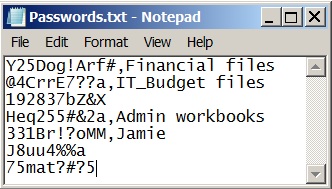
Keep in mind that a password doesn't have to be associated with a particular file. The password list is simply a list that Database Compare reads until it finds a password that works on the file that it's trying to open.
In the Password Manager dialog box, click Import.
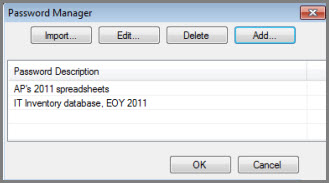
Browse to your text file, click Open, and then click OK.
If you included a description for a password, it appears under Password Description. If a password contains a comma, you can't import it because Database Compare treats the comma as the separator between the password and its description. If a password contains a comma, enter it manually in the Password dialog box by clicking Add.

After you import your passwords, you can keep the text file in case you need it later. Be sure to store it in a secure location, just as you would any password that you write down or save.