
If you find yourself recreating the same macros, copy those macros to a special workbook called Personal.xlsb that you save on your computer. When you store macros in your personal workbook, you can access them whenever you start Excel on that same computer.
This behavior is different from Excel's default behavior, where a macro only works in the workbook that contains it.
To create the personal workbook, first create a macro and store it in the Personal Macro Workbook. Before you get started, make sure that the Developer tab is available in the ribbon in Excel. For more information, see Show the Developer tab.
Create and update the Personal Macro workbook
- On the Developer tab, in the Code group, select Record Macro.

- In the Record Macro dialog box, type a meaningful name for the macro in the Macro name box. Don't use any spaces in the name.
- In the Store macro in box, select Personal Macro Workbook.
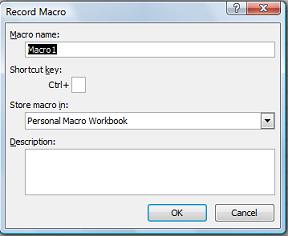
- Select OK.
- Perform the actions that you want to record.
- On the Developer tab, in the Code group, select Stop Recording.

- Close the workbook.
A message appears that prompts you to save the changes that you made to the Personal Macro Workbook. - Select Save to save the workbook.
Whenever you create a new macro and save it in your personal workbook or update any macros that it contains, you're prompted to save the personal workbook just as it did the first time you saved it.
Sharing macros
To copy macros between the personal workbook and another workbook, use the Visual Basic Editor (VBE). Press ALT+F11 to open the Visual Basic Editor in Excel. For more information about copying a macro from one workbook to another, see Copy a macro module to another workbook.
To share your Personal.xlsb file with others, copy it to the XLSTART folder on other computers. In Windows 10, save this workbook in the C:\Users\user name\AppData\Local\Microsoft\Excel\XLStart folder. Workbooks in the XLStart folder open automatically whenever Excel starts, and any code you store in the personal macro workbook appears in the Macro dialog.
If you have one or just a few macros that you want to share with others, send them the workbook that contains the macros in an email. You can also make the workbook available on a shared network drive, or from a SharePoint Services library.
Need more help?
You can always ask an expert in the Excel Tech Community or get support in Communities.