Copilot Prompt Gallery makes it possible to share your custom prompts with a Microsoft Teams team in your organization. Let's take a look at how to do it.
Sharing a prompt
Craft the prompt. Create and run that prompt that helps your team be successful.
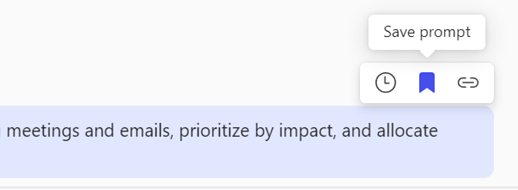
Save it. When you hover over the prompt you'll see the Save prompt icon. Select that.
Go to the Copilot Prompt Gallery in Microsoft Copilot Chat, Teams, or Outlook.
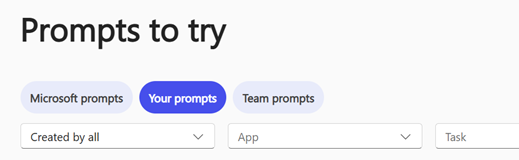
Select the Your prompts tab to see your saved prompts
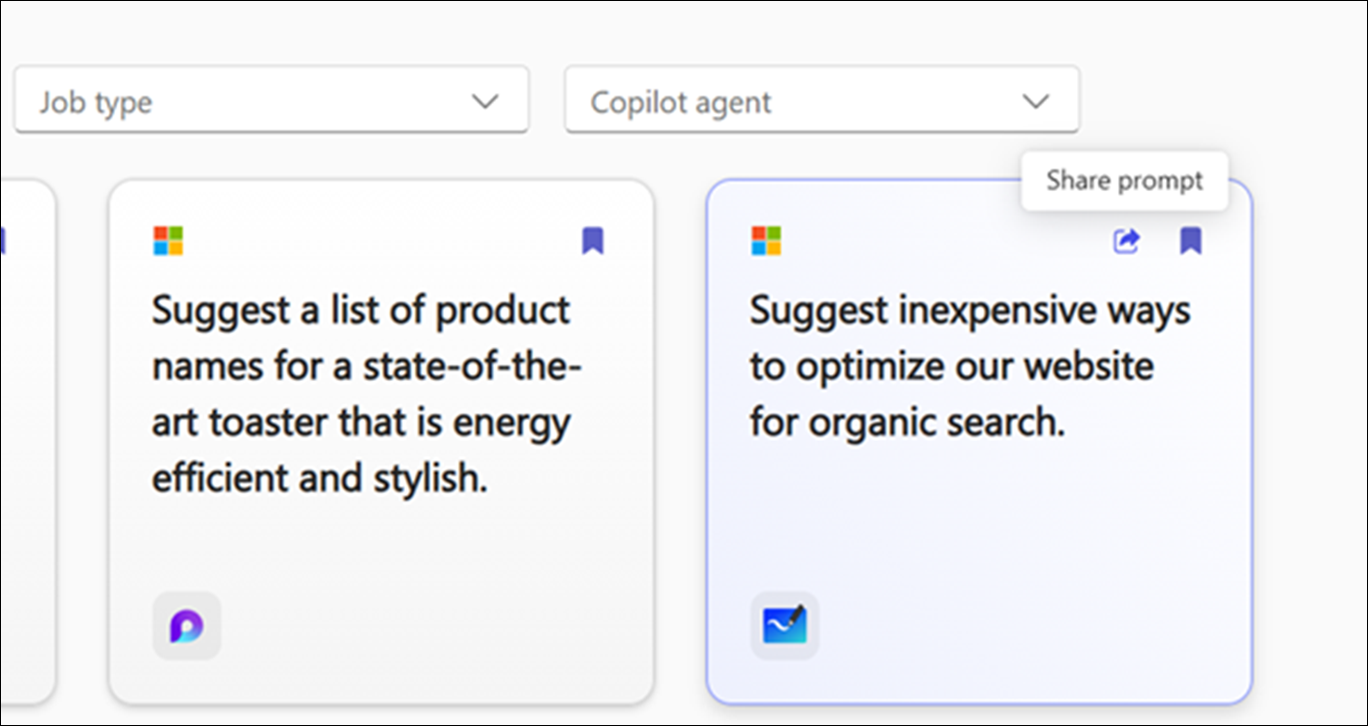
Hover over the prompt you want to share, then select the Share prompt button at the top of the card.
Select Share to team then select the team you want to share it with.
Using your team prompts
Go to the Prompts app.
Select the Team prompts tab.
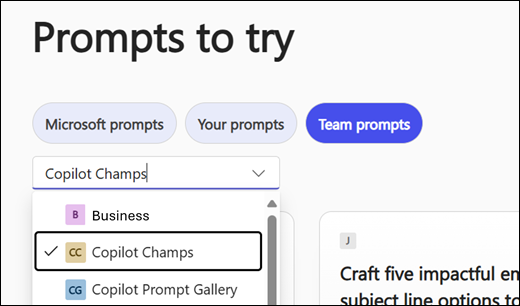
Select the team.
You should see all of the prompts that have been shared with that team by you or others.
Tip
You can add the Prompts app to Teams so that you can access your Team prompts right from within the Team channels. See Add your saved prompts to Teams.
Removing a prompt
- Go to the Prompts app.
- Select the Team prompts tab.
- Select the team that has the prompt you want to remove.
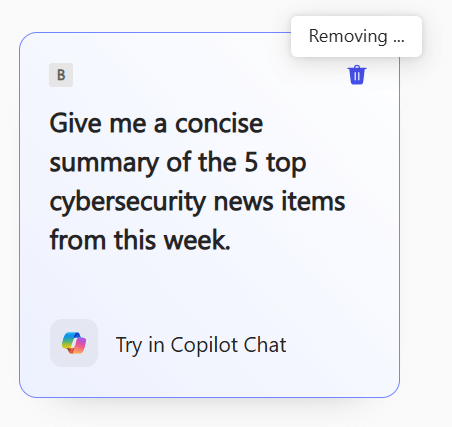
- Find the prompt you want to remove and select the Removing button from the top right corner.