You can enable automatic forwarding to forward or redirect messages sent to your mailbox to another account.
Select a tab option below for the version of Outlook you're using. What version of Outlook do I have?
Note
If the steps under this New Outlook tab don't work, you may not be using new Outlook for Windows yet. Select the Classic Outlook tab and follow those steps instead.
How to enable automatic forwarding in new Outlook
At the top window of the new Outlook, select Settings
 .
.
Select Mail > Forwarding.
Note
You might be prompted to Sign in on the Forwarding and IMAP page. If so, you will need to complete authentication before the Forwarding, POP, and IMAP settings become available.
Toggle the Enable forwarding switch, enter the forwarding email address, and select Save.
Tip
If you want a copy of the original message to remain in your mailbox, select Keep a copy of forwarded messages.
How to disable automatic forwarding in new Outlook
- At the top window of the new Outlook, select Settings
.
- Select Mail > Forwarding.
- Toggle the Disable forwarding switch and select Save.
You can automatically forward or redirect your email messages by setting up an Inbox rule in classic Outlook. This is useful if you want to read and respond to messages from another email account or when you want someone else to receive and respond to your email in your absence.
How to enable automatic forwarding in classic Outlook
For classic Outlook, on the ribbon, select the Home tab, then in the More commands
 section, select Rules > Manage Rules & Alerts.
If you have more than one email account set up, on the Email Rules tab, ensure that Apply changes to this folder is set to the email address you want to start from. Otherwise, go to the next step.
Select New Rule.
Under Start from a blank rule, select Apply rule on messages I receive. Select Next.
Under Which condition(s) do you want to check?
Do not select any conditions or edit the rule description in steps 1 or 2.
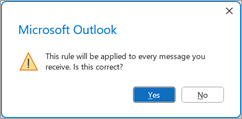
Select Next, and then select Yes to This rule will be applied to every message you receive.
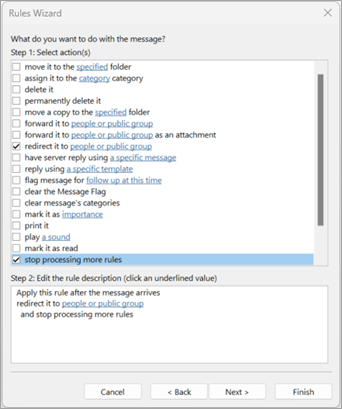
Under What do you want to do with the message?
Under Step 1: Select action(s), select redirect it to people or public group and stop processing more rules.
Under Step 2: Edit the rule description, select the people or public group link.
In the Rule Address dialog, under Address Book, select the contact list that contains the address you want to forward to.
- In the To box at the bottom, enter the email address that you want to forward all your mail to. Select OK. You should see the email address you want all of your email forwarded to inserted into the rule under Step 2.
Select Finish, select Apply, and then select OK.
When you first check that messages are being forwarded successfully, check the Junk or Spam folder to see if the forwarded messages have been put there.
Related articles
Reply to or forward an email message
Manage email messages by using rules
How to enable automatic forwarding in Outlook on the web
At the top of the window in Outlook on the web, select Settings
.
Select Mail > Forwarding.
Note
You might be prompted to Sign in on the Forwarding and IMAP page. If so, you will need to complete authentication before the Forwarding, POP, and IMAP settings become available.
Toggle the Enable forwarding switch, enter the forwarding email address, and select Save.
Tip
If you want a copy of the original message to remain in your mailbox, select Keep a copy of forwarded messages.
How to disable automatic forwarding in Outlook on the web
- At the top of the window in Outlook on the web, select Settings
.
- Select Mail > Forwarding.
- Toggle the Disable forwarding switch and select Save.
Related articles
Create, reply to, or forward email messages in Outlook on the web
How to enable automatic forwarding in Outlook.com
At the top of the Outlook.com page, select Settings
.
Select Mail > Forwarding and IMAP.
Note
You might be prompted to Sign in on the Forwarding and IMAP page. If so, you will need to complete authentication before the Forwarding, POP, and IMAP settings become available.
Select Enable forwarding, enter the forwarding email address, and select Save.
How to disable automatic forwarding in Outlook.com
- At the top of the Outlook.com page, select Settings
.
- Select Mail > Forwarding and IMAP.
- Select Disable forwarding and select Save.
See also
Use rules to automatically forward messages
