
Unless your Excel chart is stored on a cloud hosting service like OneDrive, or on a web site, you won't be able to link to it. This limitation applies to PowerPoint for the web only; PowerPoint desktop app supports linking to locally stored Excel files. That said, here are a few ways for you to include an Excel chart in your slides:
If the chart data is continuously updated and it's hosted on a web site or on OneDrive (or a similar cloud hosting service), insert as an Object. Here's how to do that in PowerPoint desktop app:
- On the Insert tab, in the Text group, select Object.
- In the Insert Object dialog box, select Create new or Create from file.
If the data doesn't change, or the changes matter little to you, take a screenshot of the chart in Excel and insert it as a picture on your slide. Here's how to do that:
In Excel for the web or Excel desktop, take a screenshot of the chart and save the picture.
In PowerPoint for the web, on the Insert tab, select Pictures.
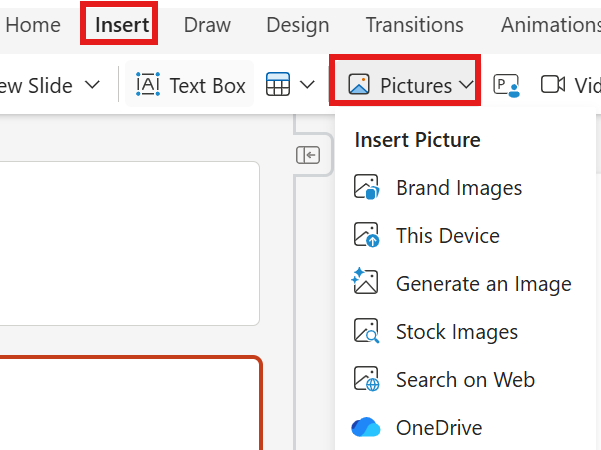
Find the picture of the Excel chart, and then click Open.
Once you add the picture, you can also do the following:
Crop a picture in Office
Add a border or another style to a picture