

Try it!
In PowerPoint, you can add animated GIFs, videos from your computer or online videos, recordings, export your presentation as a video, and even add captions to videos.
Add an animated GIF
- Select Insert > Pictures.
- Select the animated GIF you want to add.
- Select Slide Show to see the animated GIF play.
Add a video
Select Insert > Video and then choose:
- This device: Add a video that's stored on your computer.
- Stock Videos: Add a stock video from the Microsoft 365 library.
- Online Videos: Add a video from YouTube or paste in an embed code.
Screen recording
- Select Insert > Screen Recording.
- Select the area you want to record.
- Select Record.
Record your presentation
Select Slide Show > Record, then select if you want to record:
- From Current Slide
- From Beginning
Add captions to videos
Note
Captions can't be added to online videos. For more information, see Create closed captions for a video.
- Select the video you want to add captions to.
- Select Playback > Insert Captions.
- Select the caption file and select Insert.
Export your presentation as a video
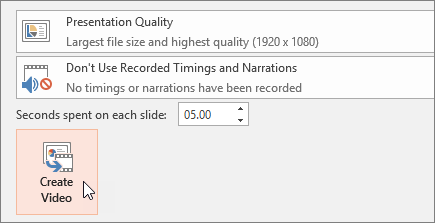
- Select File > Export.
- Select Create a Video.
- Select your settings.
- Select Create Video.
Format your video
- Select and drag to resize and move your video around.
- Select Video Format to put frames and effects on your video.
- Select Video Effects, Video Border, or Video Shape to add effects, borders, or crop your video to a shape.
- Select Corrections or Color to adjust the video’s color tone.
- Select Poster Frame to choose the video’s opening frame, and then click and drag with your mouse to select your preferred frame. Select Poster Frame > Current Frame to confirm your choice.