Use a slide master to add consistency to your colors, fonts, headings, logos, and other styles, and to help unify the form of your presentation.
You can change a slide master's colors, fonts, or effects. You can move, hide, or show placeholders. You can also change the orientation of the page from portrait to landscape, or vice versa.
Create and customize one or more slide masters
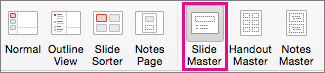
On the View tab, select Slide Master.
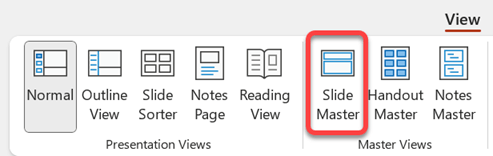
When you open Slide Master view, a slide master is shown in the thumbnail pane with the default, associated layouts below it. If you want to add another slide master, do the following:
Click a location in the slide thumbnail pane where you want the new slide master to appear.
On the Slide Master tab, select Insert Slide Master.
Note
In the slide thumbnail pane, the slide master is the larger slide image at the top, and the associated layouts are positioned below the slide master.
Do any of the following:
To create one or more custom layouts or to modify existing layouts, see Apply a slide layout.
To remove any of the built-in slide layouts that accompany the default slide master, in the slide thumbnail pane, click each slide layout that you want to delete, and then on the Slide Master tab, click Delete.
To apply a design or theme-based colors, fonts, effects and backgrounds, see Create your own theme in PowerPoint.
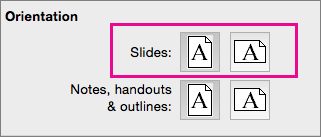
To set the page orientation for all of the slides in your presentation, on the Slide Master tab, select Slide Size > Custom Slide Size. Under Orientation, select the orientation you want.

To control whether footers (the slide number, date, and footer-text placeholders) are visible on a particular type of slide: In the thumbnail pane, select a slide layout, then on the Slide Master tab, select or clear Footers. To assign specific text to any of the footers, on the ribbon, select Insert > Headers, then select the options you want. See Insert or change the slide numbers, date, or footer for on-screen slides in PowerPoint for more details.
After you make your changes, on the Slide Master tab, select Close Master View.
If you want to save this as a template to reuse again, select File > Save as (or Save a Copy), change the file type to template, enter a file name, and select Save.
See Also
Add color and design to your slides with Themes
Add, edit, or remove a placeholder on a slide layout
Change text alignment, indentation, and spacing in PowerPoint