
Last updated: August 4, 2017
ISSUE
When adding an Outlook.com account with these domains: @msn.com, @hotmail.com, @live.com, and possibly others, the account fails to add.
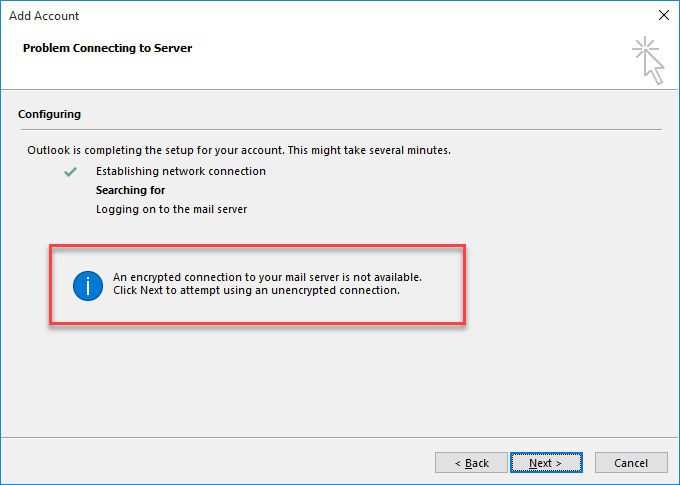
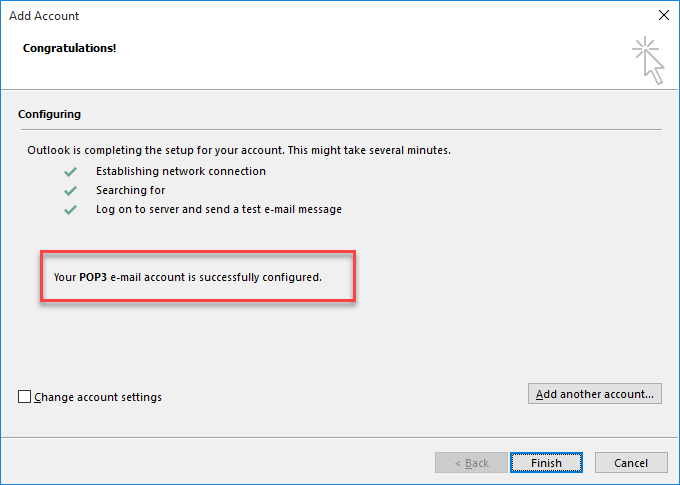
On Outlook 2013, Outlook fails to add the account, and you receive an Encrypted Connection error - or it adds the account as a POP account.
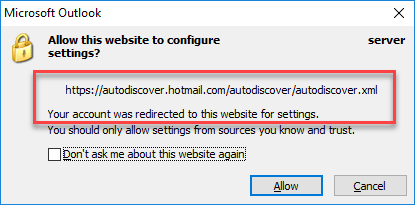
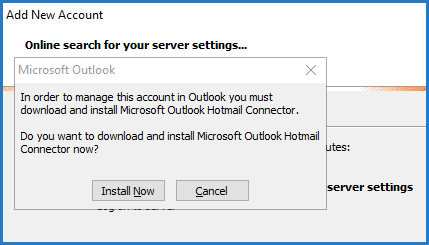
On Outlook 2007 and Outlook 2010, Outlook prompts to install the deprecated Outlook Hotmail Connector.
Failed with encrypted connection error in Outlook 2013:
Added as a POP account in Outlook 2013:
Adding an account in Outlook 2010 prompts to redirect Auto Discover, then prompts you to install the Hotmail Connector:
Status: Fixed
This issue is fixed now.
Have a feature request?

|
If you have a feature you'd like to request, please send us your feedback to help us prioritize new features in future updates. See How do I give feedback on Microsoft Office for more information. |
|---|
Related Topics
Fixes or workarounds for recent issues in Outlook for Windows
Resolve Outlook for Windows issues with automated troubleshooting tools
Still need help?

|
To get support in Outlook.com, tap or click here or select Help on the menu bar and enter your query. If the self-help doesn't solve your problem, scroll down to Still need help? and select Yes. If the above steps don't work or if you can't sign in, tap or click here. |
|---|---|

|
For other help with your Microsoft account and subscriptions, visit Account & Billing Help. |

|
To get help and troubleshoot other Microsoft products and services, enter your problem here. |

|
Post questions, follow discussions and share your knowledge in the Outlook.com Community. |