

Summary
The lock screen in Windows serves as the initial interface you encounter when you start your device or wake it from sleep. It provides a layer of security by requiring a biometric gesture, PIN, or password to access your desktop. Beyond its security function, the lock screen is highly customizable, allowing you to personalize it with different background images, such as a single picture, a slideshow, or dynamic content from Windows spotlight. You can also add useful information, making the lock screen both visually appealing and informative.
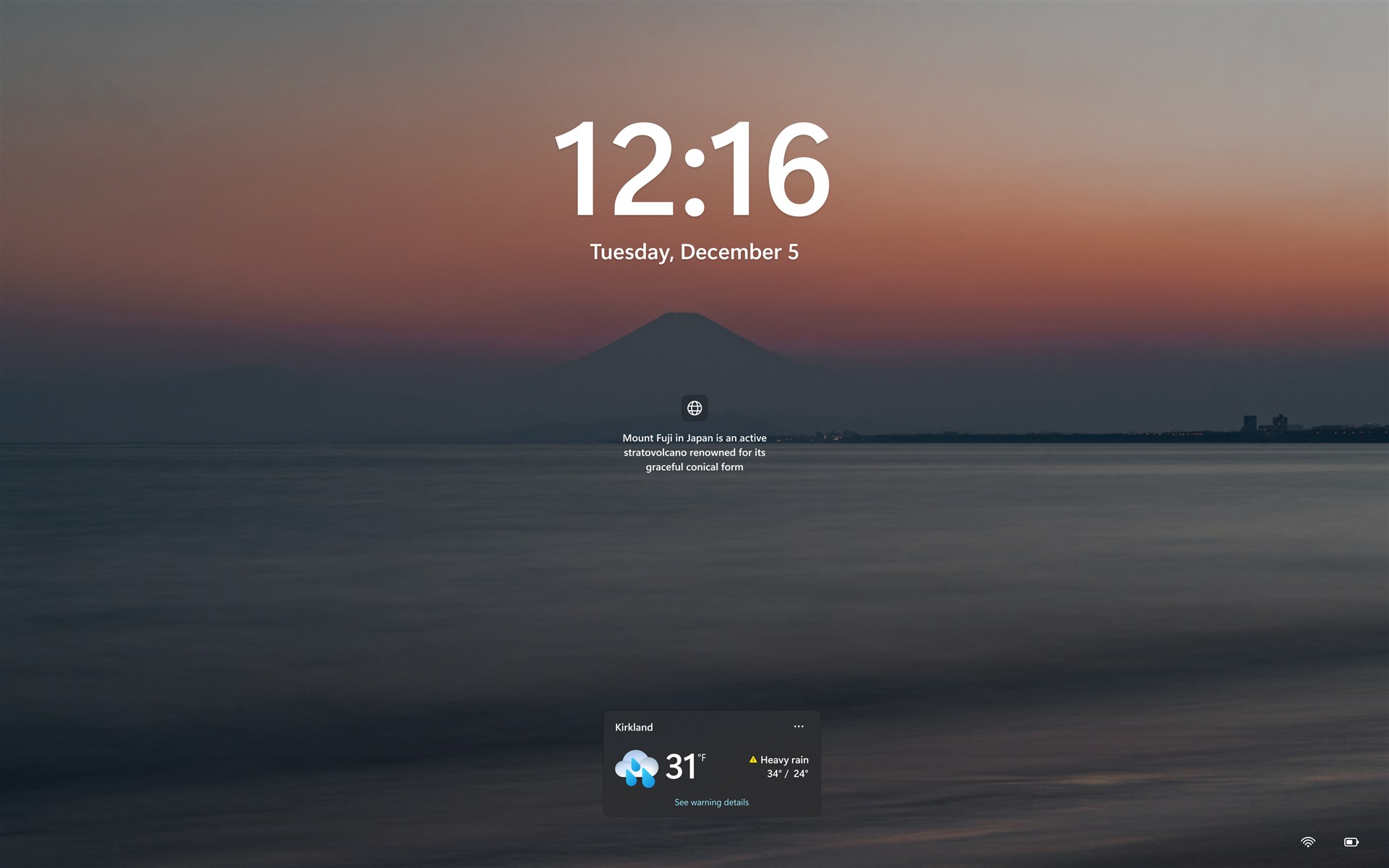
To learn how to configure the lock screen background image and widgets on the lock screen, expand the following sections:
Customize the background image
To customize the background image:
Select Start > Settings > Personalization > Lock screen.
Under Personalize your lock screen, select one of the following options:
Windows spotlight: displays a rotating set of images from Microsoft, along with tips, tricks, and notifications.
Picture: select a single image as your lock screen background. You can choose from the default images or browse your device for a custom picture.
Slideshow: use a slideshow of images from a folder on your device. You can add multiple folders and customize the slideshow settings.
Tip
enable the option Get Fun Facts, Tips, Tricks, and More on Your Lock Screen to receive additional content from Microsoft directly on your lock screen.
Toggle On or Off the option Make the lock screen image react when I move my PC to enable or disable the background motion feature. When enabled, the image will slightly pan or move in response to your device's physical movement, creating a dynamic effect.
Toggle On or Off the option Show the lock screen background picture on the sign-in screen to use the same background image for both the lock screen and the sign-in screen, ensuring a consistent visual experience.
Customize the widgets on your lock screen
Widgets on the lock screen enhance the experience by providing dynamic, real-time updates. They display current weather conditions and other information through small widgets. Lock screen widgets help you stay informed at a glance without unlocking your device. To learn more about the information displayed on a widget, select it on the lock screen, sign in, and view the full details on the landing page selected by the widget provider.
You can add, remove, rearrange, and customize the widgets on your lock screen to reflect your interests and preferences.
Select Start > Settings > Personalization > Lock screen.
Under Widgets, review the widgets that currently appear on your lock screen. The order of widgets in Settings matches their reading order on the lock screen. Drag a widget higher in the list to make it appear earlier.
For each widget, select the more options
 button to remove the widget or customize it, if the widget provider supports customization.
To add more widgets, select Add widget below the list. The Add widget menu displays the catalog of available widgets. Currently, only widgets that support a small size can be added to the lock screen.
To hide widgets on your lock screen, toggle Widgets to Off.
Note
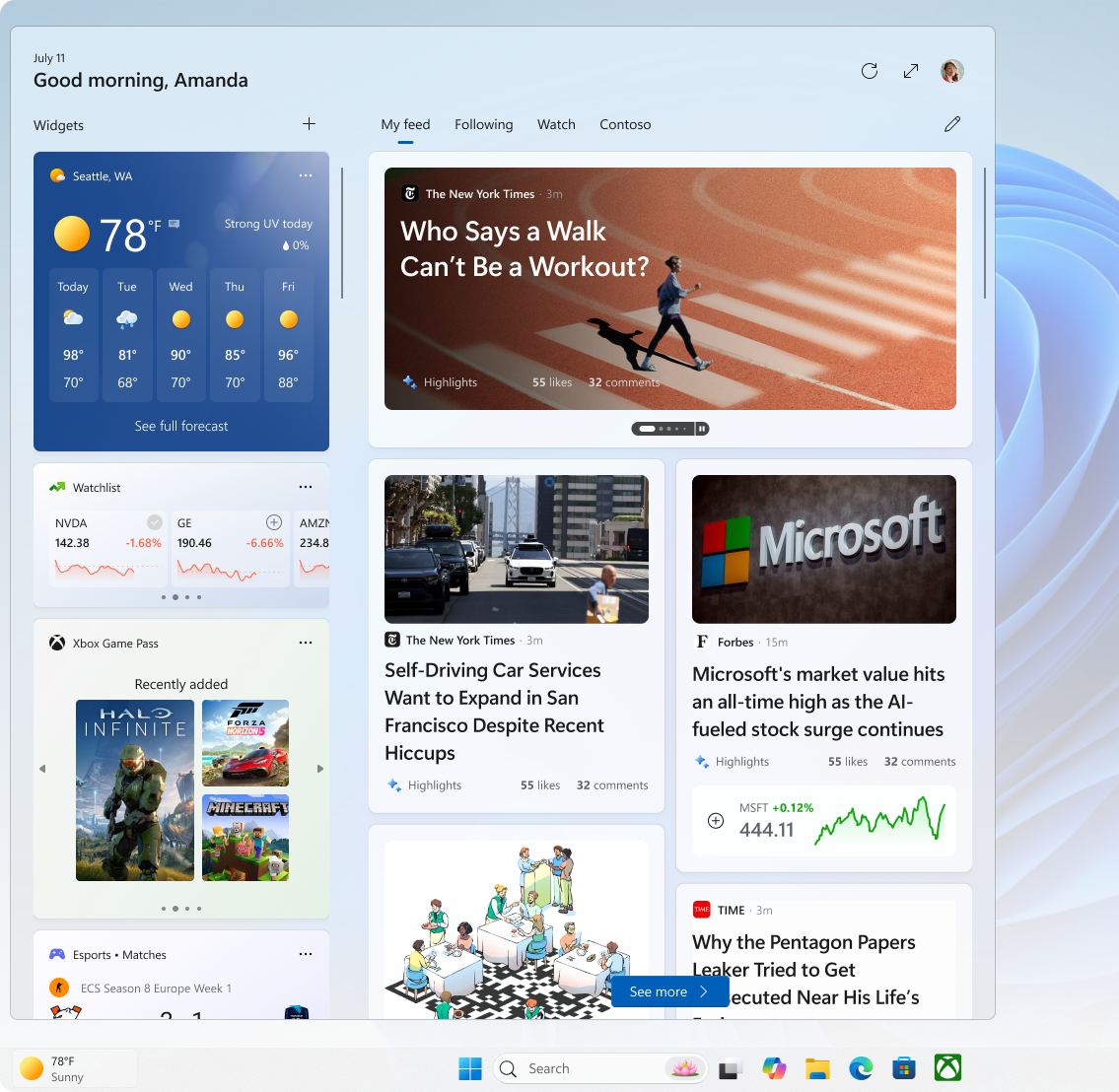
Widgets also appear on the taskbar and the Widgets board. For more information, see Stay up to date with Widgets in Windows.
Note
Widgets on the lock screen might tailor content based on your location estimation to provide the most contextually relevant experience. Location estimation can come from the Windows Location service, if enabled. Otherwise, it might use the IP address of your internet connection.


Send us feedback

|
Let us know what you like, share your ideas, and offer suggestions on how to make the experience better through Feedback Hub. In the Feedback Hub app
 on your Windows device, select Desktop Environment > Lock screen.
 |
|---|