
Summary
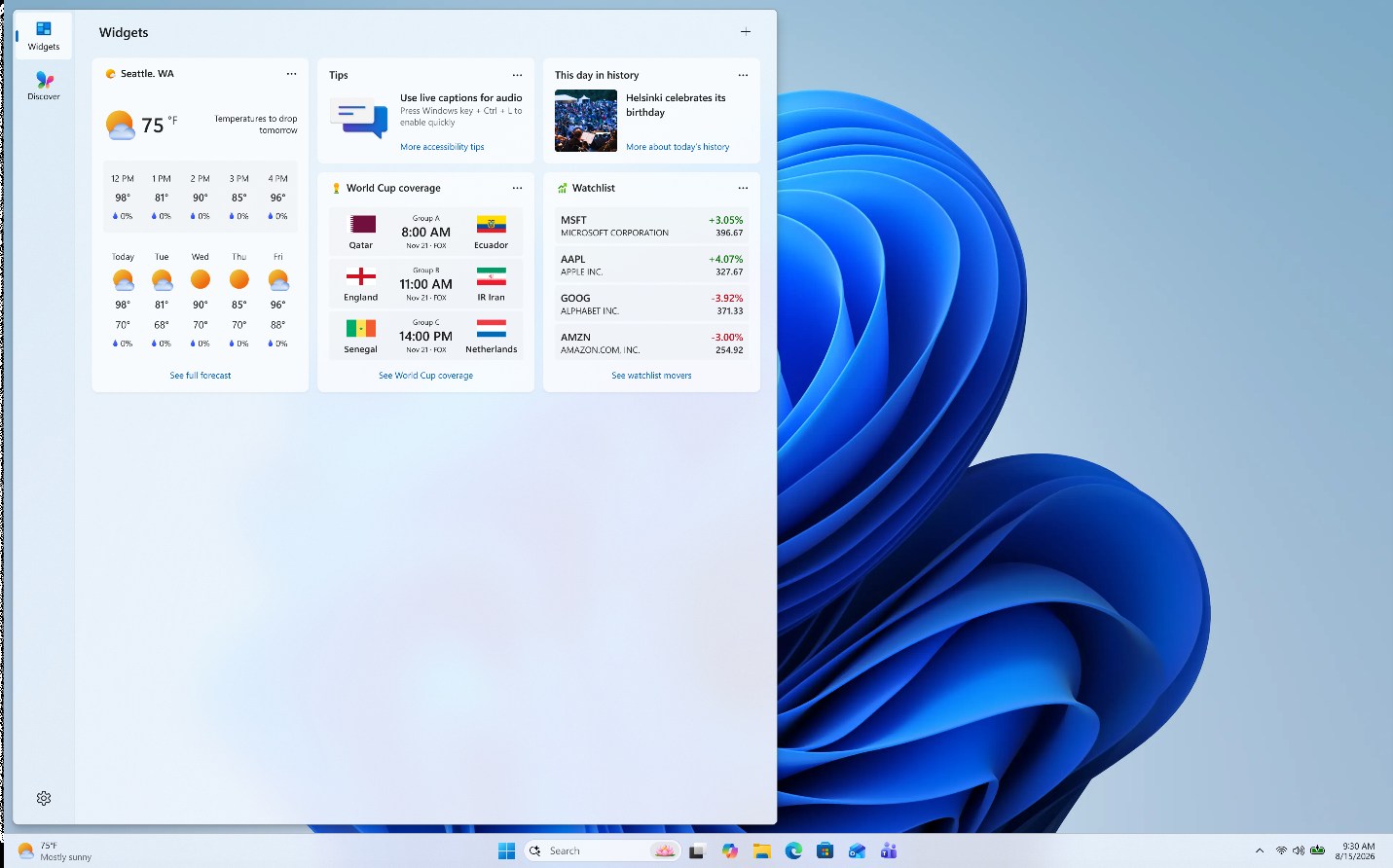
Widgets in Windows are interactive elements that display dynamic content and provide quick access to various apps and services. You can view your location's current weather conditions directly on the taskbar and hover over the icon to see concise, scannable information on topics like sports, stocks, local news, and breaking headlines. Widgets are designed to help you stay informed and organized by presenting personalized information at a glance.
Widgets are displayed on the Widgets dashboard, which contains a collection of cards. Each card represents a widget with relevant information and actions related to an app. On the Widgets dashboard, you can discover, add, remove, arrange, resize, and customize widgets to reflect your interests and preferences.
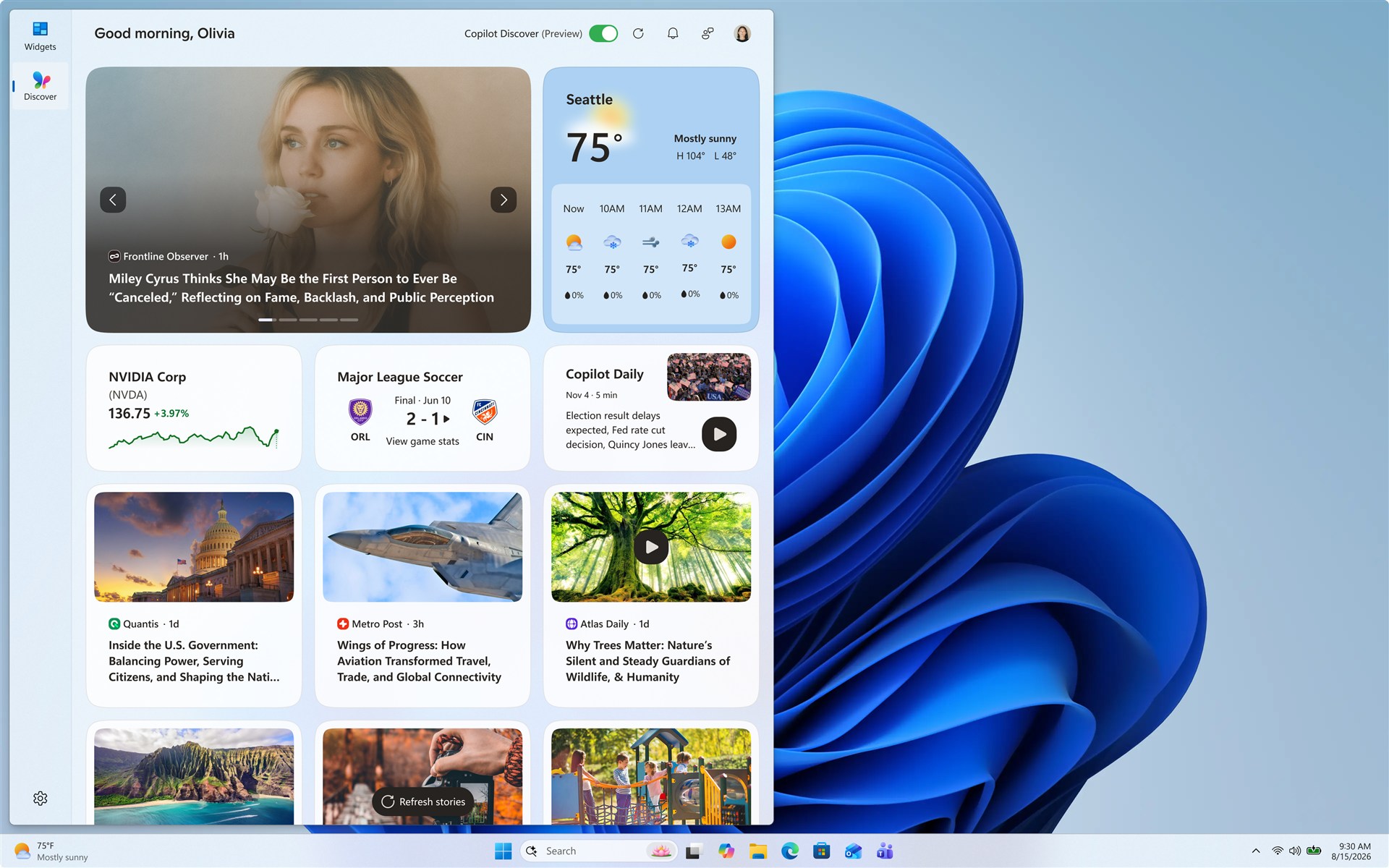
Additional dashboards are available where you can view content from a specific provider on a dedicated dashboard. The Discover dashboard presents a curated stream of news from various sources and is displayed separately from Widgets.
Widgets can show a variety of information from widget providers, including:
- Weather: Current conditions and forecasts for your selected location
- News: Latest headlines from sources you trust
- Stocks: Updates on your favorite stocks and market trends
- Photos: A slideshow of your recent photos
- And more
Note
Widgets are not intended to replace full applications but provide a convenient way to access important information and perform quick actions without launching the associated app or website. They are refreshed dynamically throughout the day to keep the content current and relevant.
You can access the Widgets board either by:
- Selecting the Widgets area on the taskbar
- Using the Windows key
 + W shortcut
 - Swiping from the side of the screen
Configure Widgets settings
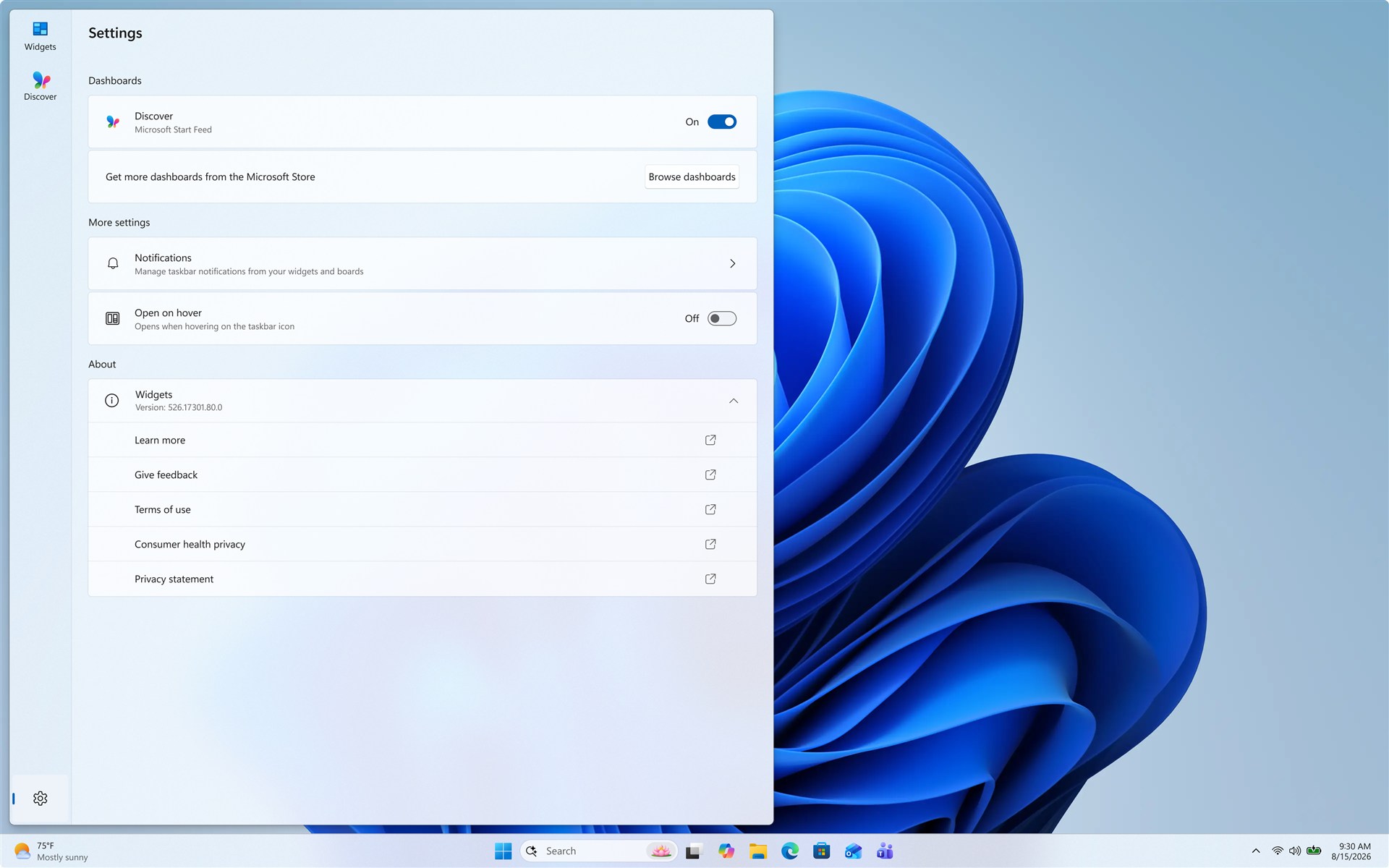
The following sections describe common operations to customize your Widgets experience. Expand each section to learn more:
Sign in and out
By default, the Discover dashboard is personalized using the preferences of your Microsoft account. You can sign out from the Discover dashboard or choose to sign in with a different Microsoft account.
To sign out from the Discover dashboard:
- Open the Discover dashboard.
- Select your user account button
 .
. - Select Manage accounts.
- Select More profile settings.
- Select Sign out.
To sign in to the Discover dashboard with another account, select Manage accounts under the user account button.
Configure your language and region
By default, the language and content displayed in the Discover dashboard are determined by your Windows display language and Country or region settings. To change the language and content used by the Discover dashboard:
- Open the Discover dashboard.
- Select your user account button
.
- From the Region and Language dropdown, select your preferred language.
Show or hide dashboards
The Discover dashboard is the stream of news content displayed in the Widgets board. To remove the Discover dashboard from the navigation bar:
- Select the settings button
 on the navigation bar.
 - Under Dashboards, toggle Discover to Off.
Open on hover
To open Widgets when you hover over the taskbar icon:
- Open Widgets.
- Select the settings button
on the navigation bar.
- Toggle Open Widgets board on hover to On.
Configure notifications
In addition to receiving live updates on the taskbar from the weather widget, you can also receive updates from other widgets such as sports, finance, and breaking news.
Rotating announcements
Widgets display weather information on the taskbar most of the time. When something important happens related to one of your widgets or dashboards, you might receive an announcement.

These announcements are meant to be quick and glanceable. If you don't interact with them, the taskbar will return to displaying weather information.
Badges
A badge notification might appear on your taskbar for an important notification that you missed.

When you open Widgets, you can see more information about what triggered the notification badge in the navigation bar or inside the dashboard that sent the notification.
Note
When you're in a focus session, widgets' announcements and badges are not displayed on the taskbar.
To configure notification badges:
- Open Widgets.
- Select the settings button
on the navigation bar.
- Under More settings, select Notifications.
- Toggle Show badges on the taskbar to On or Off.
- Toggle Show badges on the navigation bar to On or Off.
- Under Dashboard notifications, toggle notifications On or Off for specific dashboards.
To personalize your Discover dashboard notifications:
- Open Widgets.
- Select Discover in the navigation bar.
- Select your user account button
.
- Select the Notifications tab and customize the type of notifications you want to receive.
Remove Widgets from the taskbar
To show or hide Widgets from the taskbar:
Right-click on the taskbar and select Taskbar settings
.Under Taskbar items, toggle the Widgets switch to On or Off.
To learn more about taskbar customization options, see Customize the Taskbar in Windows.
Note
Even if you remove Widgets from the taskbar, you can still access the Widgets board by using the Windows key
+ W shortcut or by swiping from the side of the screen.
Personalize your Discover dashboard
Your Discover dashboard, which is the stream of news content displayed on the Widgets board, becomes more personalized over time. The following sections describe common operations to personalize your feed. Expand each section to learn more:
Configure your interests and followed sources
- Open Widgets.
- Select the Discover dashboard in the navigation bar.
- Select your user account button
.
- In the Discover tab, find the topics of interests and publishers, and select them.
- View and unfollow your followed topics or publishers in the Following tab.
- View and unblock any blocked topics or publishers from the Blocked tab.
Fine-tune your news content
You can fine-tune your feed from within an individual news story too.
- To remove an article from your feed, select the Hide this story
 button in the upper corner of the article. You can then provide feedback that you are not interested in the story, you don't like the source, or that you want to report an issue
 - Select the More like this (thumb up) or Fewer like this (thumb down) buttons in the lower corner of a news story to receive more news of what you care about or less of what you don't. You can also choose to hide stories from the story's publisher
View updated content in your feed
Updated content appears in your feed when there is new content that meets your personalization settings. Your Discover feed learns about you over time, so you might not always see changes right away.
Signing in to the Discover dashboard with the same Microsoft account helps ensure that your news feed personalization is available across devices.
Customize the Widgets board
The following sections describe common operations to configure the Widgets board. Expand each section to learn more:
Install and add a widget
You can discover and install new widgets for supported apps by visiting the Widgets page in the Microsoft Store.
Adding a widget keeps it in a predictable and easily accessible location. To add widgets to your Widgets dashboard, select the + button to open the widget picker, where you can view the widgets installed on your device before adding them.
Remove a widget
To remove a widget from the Widgets dashboard, select the more options
 button in the upper corner of the widget, and then select Remove widget.
Move a widget
To move a widget to another spot on the Widgets board, select the widget header and drag the widget to a new location within the pinned section.
Resize a widget
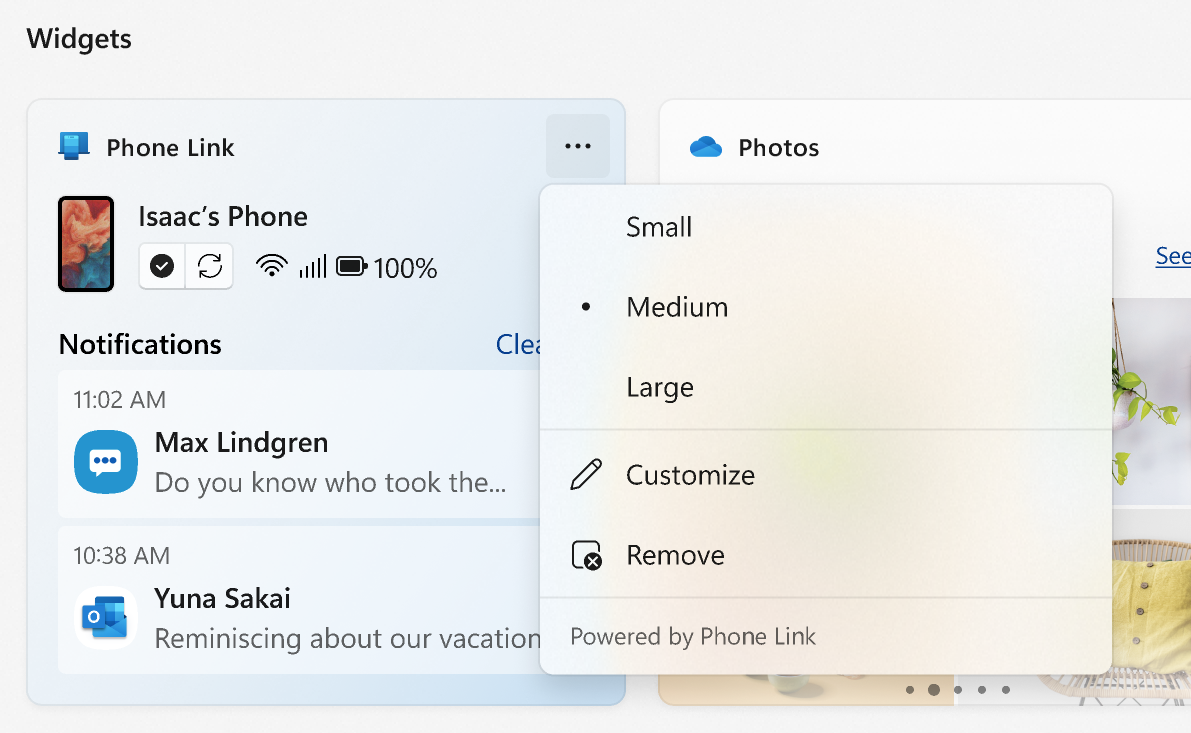
To make a widget larger or smaller in the pinned section, select the more options
button in the upper corner of the widget, and then select Small, Medium, or Large.
Note
Some widgets might only offer one or two sizes.
Customize a widget
To edit a widget, select the more options
button in the upper corner of the widget, and then select Customize widget.
Editing a widget gives you access to customization options like changing the city for your weather widget or updating the watchlist for your stocks' widget.
Frequently asked questions
What can I do if Widgets isn't working well?
For Widgets and Discover dashboards to work as expected, you need the latest updates for both the Windows Web Experience Pack and Start Experiences App.
While these should update automatically, you can learn more about ensuring they are up to date here:
What data does Microsoft collect?
To access and manage the data associated with your Microsoft account and used to personalize the Widgets board, go to the Microsoft privacy dashboard.
Windows diagnostic data is collected from the Widgets board and is determined by the diagnostic data settings you choose in the Windows Settings app. Learn more about diagnostic data in Windows.
Since each widget or dashboard is powered by a different app or service, individual widgets or dashboards might also collect data. To review what powers a widget, select More
on the widget and check the Powered by message. Each widget is an extension of its corresponding app or service, and it's controlled by the settings for that app or service. To change the privacy settings for a widget, change them for the app or service that powers it.
Note
Some apps or services that power your widgets might tailor content based on your location estimation to provide you with the most contextually relevant experience. Location estimation can come from the Windows Location service if enabled, otherwise it may fall back on using the IP address of your internet connection.