

You can add captions to figures, equations, or other objects. A caption is a numbered label, such as "Figure 1", that you can add to a figure, a table, an equation, or another object. It consists of customizable text ("Figure", "Table", "Equation", or something else that you type) followed by an ordered number or letter (typically "1, 2, 3..." or "a, b, c..."). You can optionally add some descriptive text.
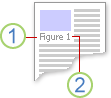
Text that you select or create.
Number that Word inserts for you.
If you later add, delete, or move captions, you can easily update the caption numbers all at once.
You can also use the set of captions to create a table of the captioned items. Examples of this include a table of equations or a table of figures.
What do you want to do?
Add a caption to a floating object
Do you have additional questions about captions in Word?
Add captions
Tip
If you want to move the figure and caption as one object, or wrap text around the figure and caption, go to Add a caption to a floating object.
Select the object (table, equation, figure, or another object) that you want to add a caption to.
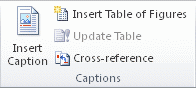
On the References tab, in the Captions group, select Insert Caption.
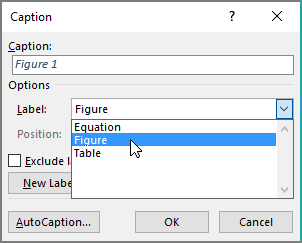
In the Label list, select the label that best describes the object, such as a figure or equation. If the list doesn't provide the label you want, select New Label, type the new label in the Label box, and then select OK.
Type any text, including punctuation, that you want to appear after the label.
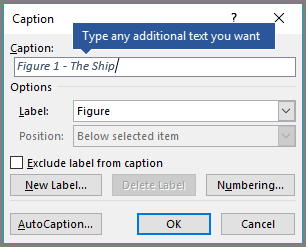
Select OK.
Note
Word inserts the sequential caption number as a field. If your caption looks similar to "Figure {SEQ Table \* ARABIC}", Word is displaying field codes instead of field results. To display the caption normally, press ALT+F9.
Add captions automatically
Word can add captions automatically as you insert tables, images, or other objects.
- Select the object (table, equation, figure, or another object) that you want to add a caption to.
- On the References tab, in the Captions group, select Insert Caption.
- In the Captions dialog box, select AutoCaption, and then select the check boxes for the items that you want Word to automatically add captions to. You can also choose which position to add captions to in the Position drop-down list.
Add a caption to a floating object
To wrap text around the object and its caption, or to move the object and the caption as one unit, group the object and the caption together.
Insert your figure.
Choose Layout Options and select one of the With Text Wrapping options.
Important
Complete this step before you insert your caption. If you already inserted the caption, delete it, complete this step, then re-add your caption.
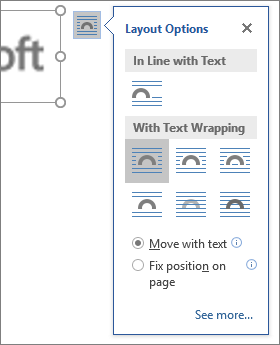
Add your caption using the steps listed in Add captions above.
Select your caption, hold down the Shift key, and select your figure.
Right-click either item, and then choose Group > Group.
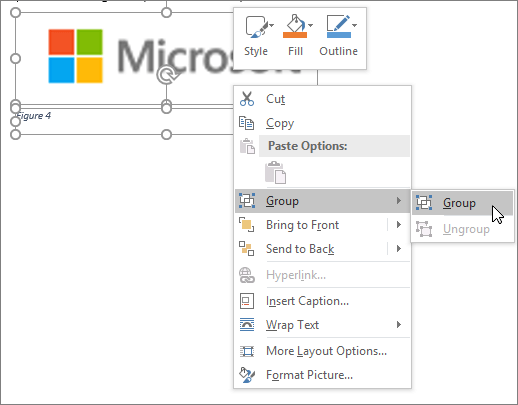
Text should now flow around your figure and caption as expected, and the figure and caption will stay together if you move them somewhere else on the page or in the document.
Note
If you move your figure, update your caption numbers to ensure the numbering is correct.
Update caption numbers
If you insert a new caption, Word automatically updates the caption numbers. However, if you delete or move a caption, you must manually start a caption update.
- Select anywhere in the document and press CTRL+A to select the entire document.
- Right-click, and then choose Update Field on the shortcut menu. All of the captions in the document should update.
Tip
You can also update captions by selecting the entire document and then pressing F9.
Format captions
After you add at least one caption to your document, you will have a new style called Caption in the style gallery. To change the formatting of your captions throughout your document, right-select that style on the gallery and choose Modify. Set the font size, color, type, and other options that apply to your captions.

For more information about modifying styles in Word, go to Customize styles in Word
Delete a caption
To delete a caption, select it and press Delete. When you finish deleting captions, update the remaining set of captions in your document. Press CTRL+A to select all of the text in your document and then press F9 to update all. This step ensures that your caption numbers are correct after any caption removal.
Do you have additional questions about captions in Word?
Post a question in the Microsoft Q&A.
Help us improve Word
Do you have suggestions about how we can improve captions (or any other feature) of Word? If so, let us know by providing us feedback. Go to How do I give feedback on Microsoft Office? for more information.