
Dragon Copilot for Epic Rover
Dragon Copilot for Epic captures spoken patient observations and generates draft flowsheet entries. Nursing staff can review, edit, and file documentation in Epic Rover or in Epic Hyperspace. Recording is done exclusively in Dragon Copilot for Epic Rover.
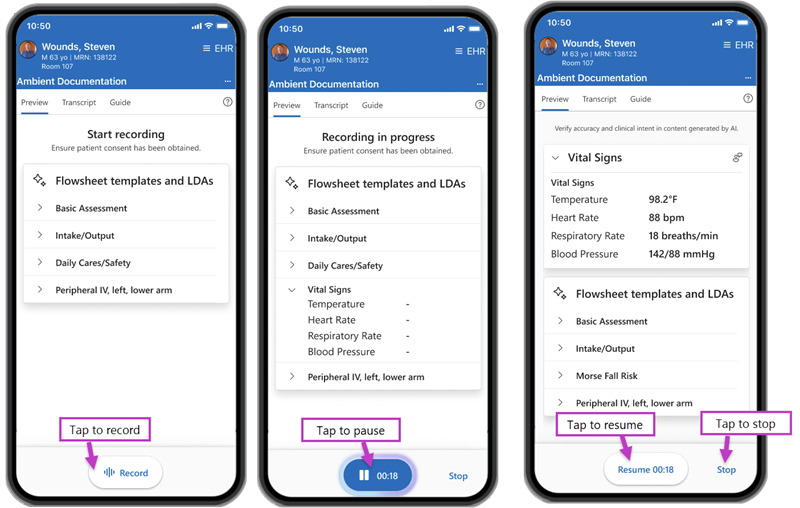
Record: Depending on your organization's settings, recording might start automatically. If not, tap Record at the bottom of the screen to begin recording.
Pause: Tap Pause next to the timer. The timer stops, and the action changes to Resume.
Resume: Tap Resume to continue recording. The timer picks up where it left off.
Stop: Tap Stop to end and complete the recording. This action sends the results to the appropriate flowsheets in your EHR for final review.
Dragon Copilot for Epic Rover tabs
Located along the top of the Dragon Copilot screen, the content within each tab presents information and guidance to support documentation before, during, and after recording.
Preview: Before recording, the Preview tab displays ambient-enabled flowsheet templates available to you and active LDAs available for the patient. When you pause the recording, verbalized observations populate on the Preview tab.
Transcript: When you pause a recording, the Transcript tab displays the conversation so far.
Guide: The Guide tab (customizable) provides visual flowsheet guidance to help you complete documentation effectively.
Help menu
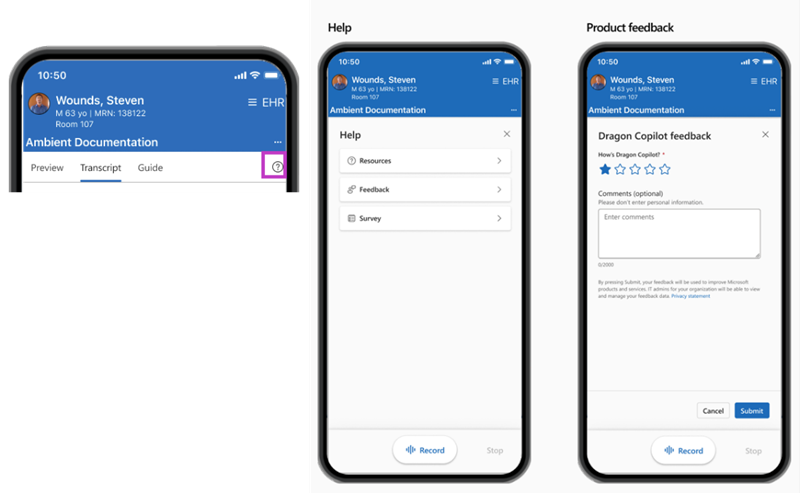
Select the Help (?) icon to open the help menu. Available options include:
Resources – Access links to training resources for Dragon Copilot (nurses).
Feedback – Open the Dragon Copilot feedback form to share input on the app.
Survey – Open an optional quick product experience survey, which contributes to product improvements.
Dragon Copilot app (web, desktop, and mobile)
After you record patient interactions, use the Dragon Copilot app (desktop, web, or mobile) to review and follow up during your shift. The app is organized around each patient, bringing all your recordings into one place so you can review transcripts, create notes, and follow up on next steps, all from a single, patient focused view.
Dock the app next to EHR
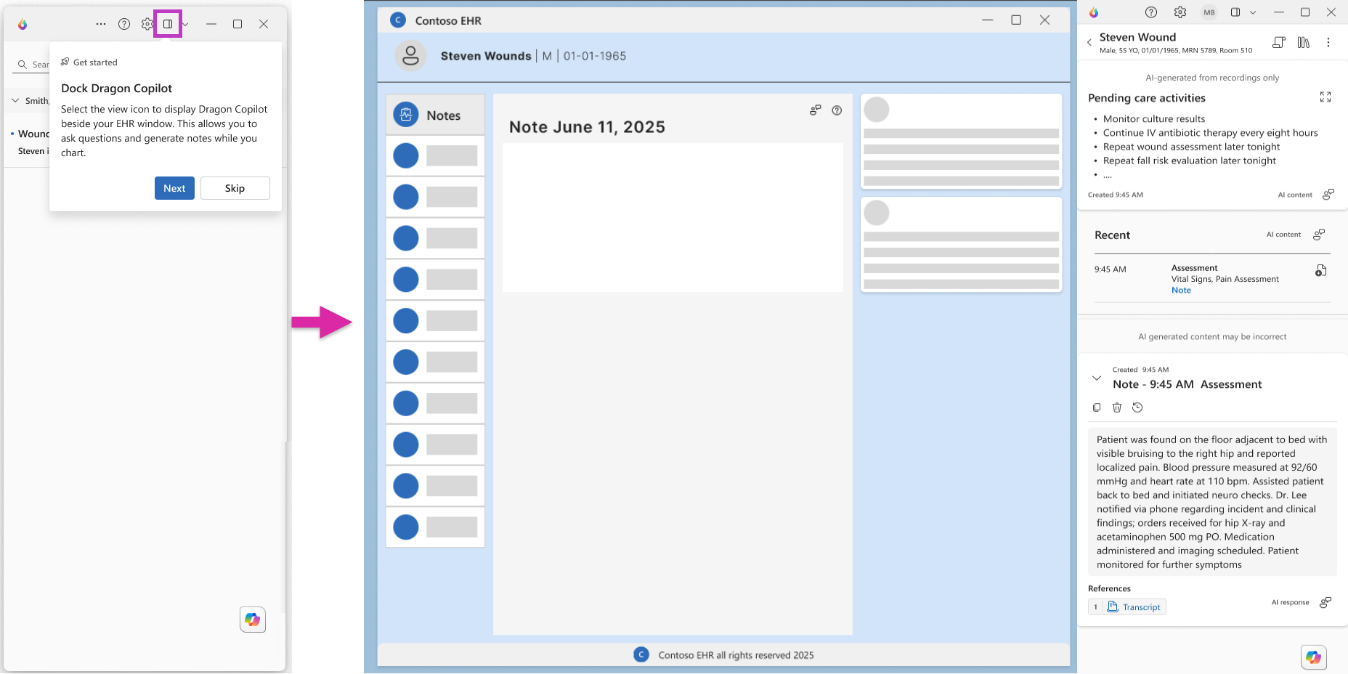
You can dock the Dragon Copilot app alongside your EHR on web or desktop. When you dock the app, you can ask questions or generate notes while reviewing and finalizing a patient chart.
Note
Depending on your organization, you might see Dragon Copilot embedded within your EHR (web or desktop) as a sidebar or integrated window.
Start on the patient list
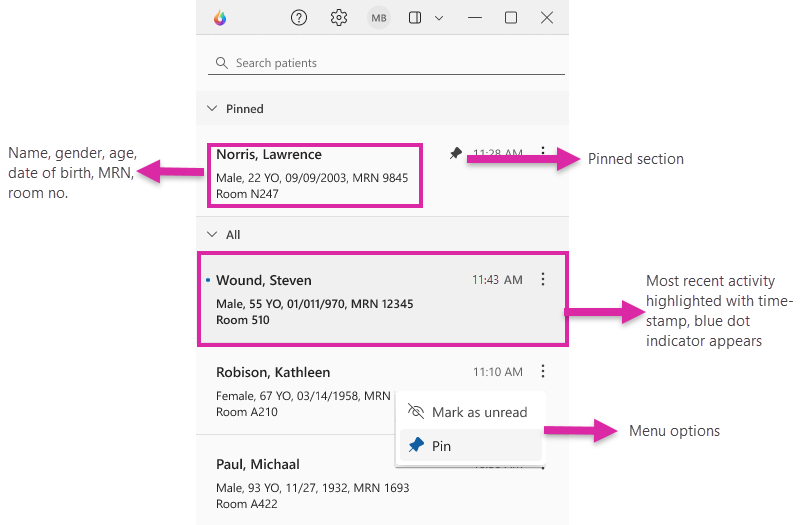
The app opens to a patient list that shows only patients you recorded interactions for during your current shift. This feature makes it easy to pick up where you left off and return to the right patient without searching through individual recordings.
Each patient tile displays identifying details and updates automatically as new recordings are created. Patients are sorted by most recent activity, with options to pin patients or mark them as unread for follow up.
Patient list view:
Open a patient to see details
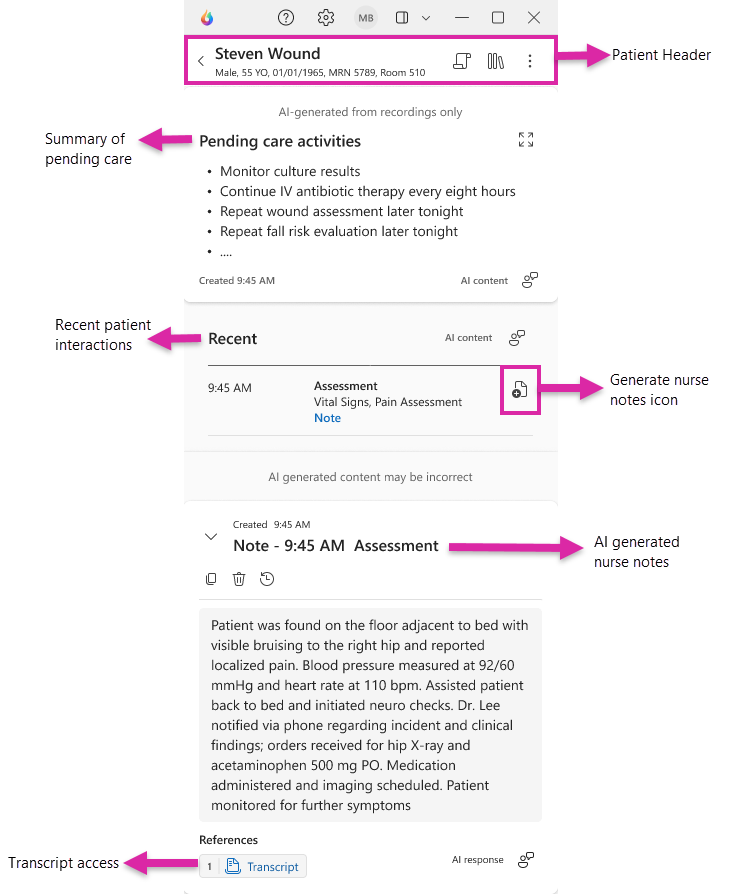
Select a patient to open the comprehensive patient view, which brings everything for that patient into one screen. From here, you can scroll through key sections without switching pages.
Within the patient view, you can move between:
Patient Header at the top provides patient identifiers like name, age, gender, and more. It gives access to Transcript and Library drawers along with the overflow menu

Summary of pending care activities at the top for quick orientation(if enabled by your administrator)
Recent patient interactions to review recorded sessions
Nurse notes created from individual interactions
Transcript access to see full recordings
Copilot chat to ask questions grounded in the patient’s transcripts
Patient tile details:
Drawer views
Open drawers by selecting icons in the patient view to see supporting information without leaving the page.
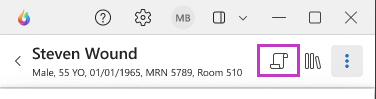
Patient transcripts – Use the transcript icon from the patient header to view all transcripts for the current shift, grouped by session and ordered oldest to newest. Transcripts are the source for Copilot responses and nurse notes.
- Nurses can remove transcripts they don’t want influencing AI outputs. When a transcript is removed, it’s excluded from future AI-generated content, and related notes and summaries are updated automatically.
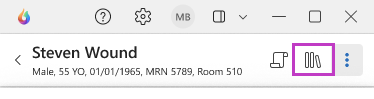
Prompt library – Use the library icon in the patient header to open the prompt library.
Note
This icon might not appear if the setting is disabled by your administrator.
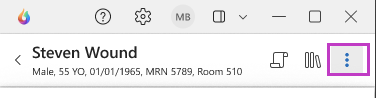
Patient details – Use the ellipsis icon in the patient header to open the patient details page.
Note
If no sessions exist, you see a prompt to create a recording in Dragon Copilot for Epic.
Help menu (desktop, web, and mobile)
The Help menu provides quick access to resources and an easy way to share feedback.
Resources
During public preview, three resource cards are available:
Welcome to Dragon Copilot – Watch a short welcome video.
Replay Get Started Tour – Revisit the first-time onboarding experience.
Get Started with Dragon Copilot – Access product details and documentation.
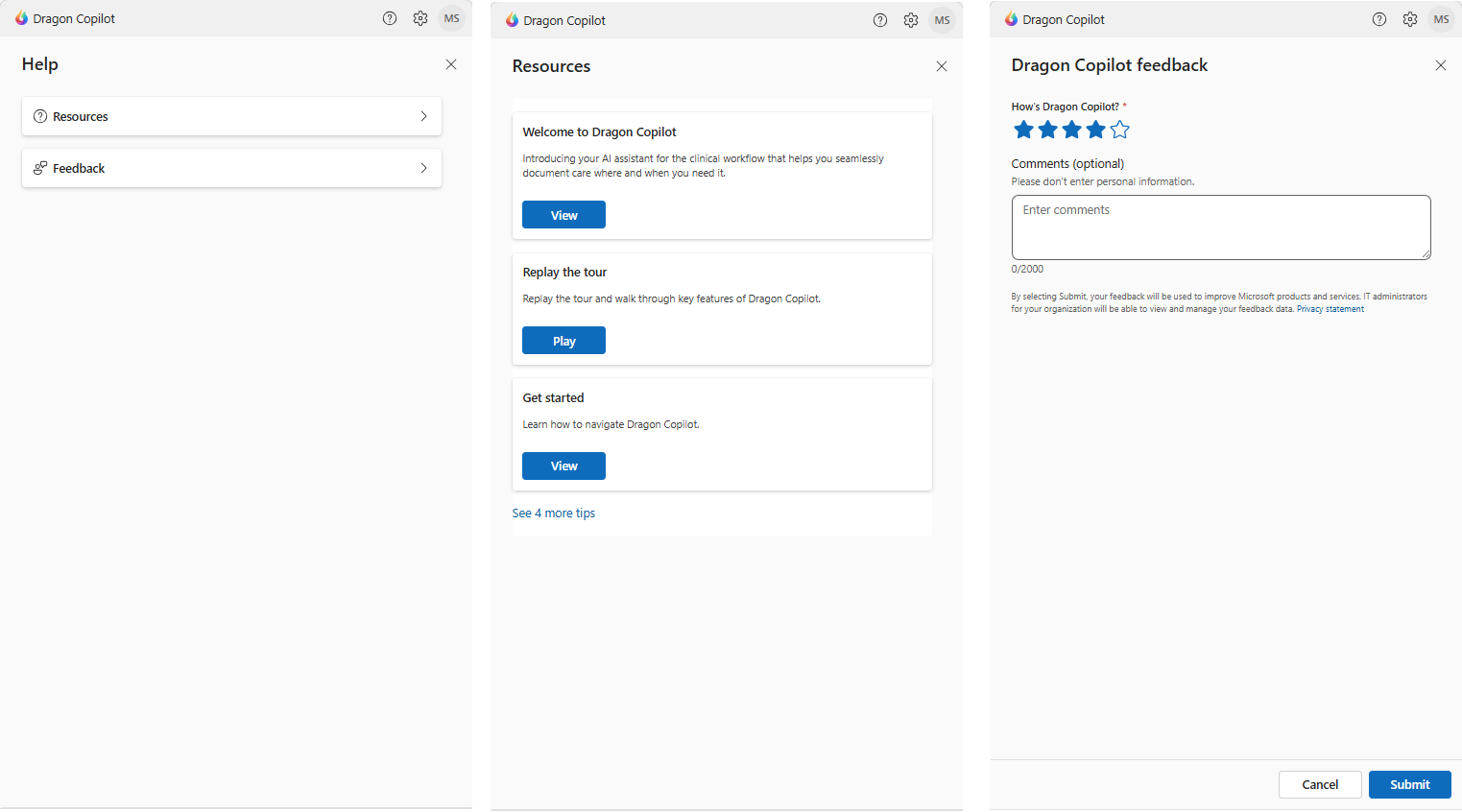
Feedback
From the Help menu, you can submit feedback after receiving an AI-generated response or output. Your input helps improve AI accuracy and provides valuable technical insights, making the Dragon Copilot solution more effective for you.
Settings menu
The Settings menu allows you to customize your Dragon Copilot experience.
General
Appearance – Switch between light and dark mode.
Environment ID – Select the appropriate environment (for example, test versus production or multiple EHR systems) from a drop-down list.
Note
Admins can set a default environment in the Dragon admin center, which becomes the preferred environment in Dragon Copilot.
Library
Use this section to manage your organization-defined prompts. You can search, filter, and mark prompts as a favorite.
Profile
Role and Shift Schedule– Edit options set during the first-time setup, such as role and shift schedule. These changes don't affect overall functionality.
Workspace Field– Appears only if you have both physician and nurse access.
- If only nurse access is available, "Nurse" is shown by default.
Linked EHR Account - Displays the linked EHR account ID if added during the setup.
- If you didn't sign in to the EHR when switching environments or didn't grant access, you see a button to sign in to the EHR.
Use the app across devices
The same navigation structure is available on desktop, web, and mobile, so you can document, review insights, and automate tasks for your patients. You can continue your workflow wherever you’re working.