
If you’re a school leader or IT Admin deploying Microsoft Teams for the first time, your goal is to set your administrators, schools, and educators up for success from day one. Brush up on some best practices for architecting your teams and channels to ensure streamlined communication and time-saving organization. We’ve broken it down for you in this handy guide.
To model best practices from the beginning, we recommend adding educators to fewer, better-organized teams instead of creating separate teams for every school initiative. As educators begin participating in Teams to communicate with colleagues and administrators, they’ll simultaneously begin learning how to organize and optimize their teams for students. This approach can be a fantastic strategy for game-changing Teams adoption in your school or district. We think you’ll appreciate the interdepartmental efficiency and improved communication as well!
First, let's review the team types available for educators
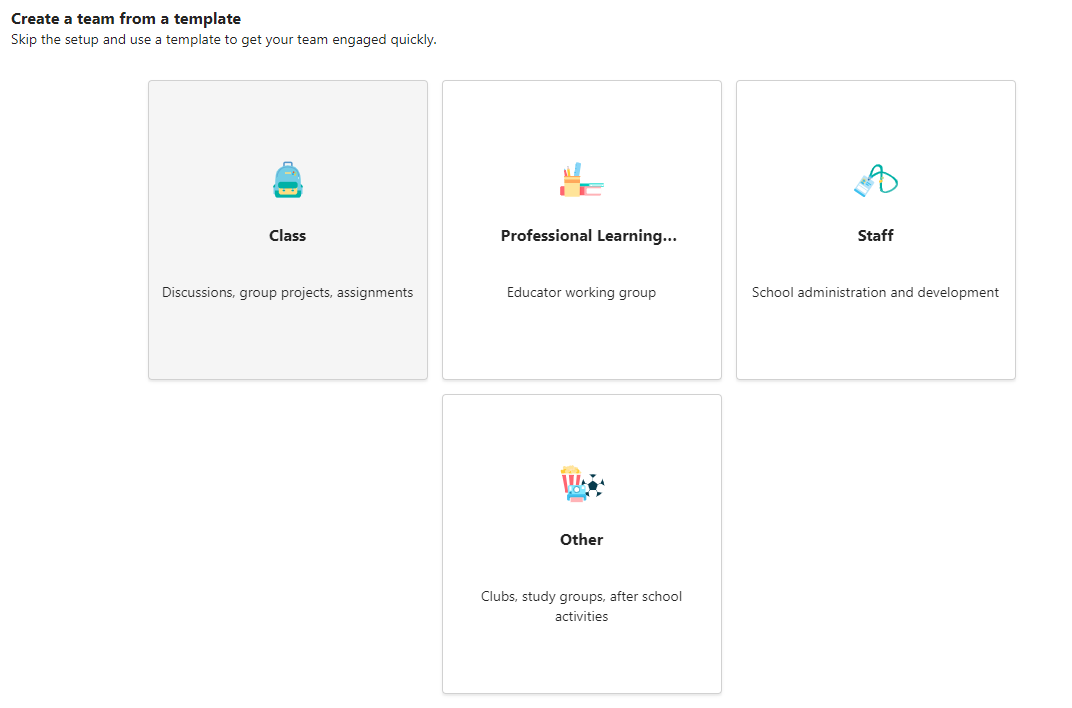
Team types distinguish between Classes, Professional Learning Communities (PLCs), Staff, and Others, such as clubs or interest groups.
Learn more:Choose a team type to collaborate in Microsoft Teams
Recommendation: Start with staff teams
We’ll be primarily focusing on staff teams, which will help you organize your district by school leadership, school, and/or department. Think of this as your pilot. From there, educators learn and become comfortable with Teams as a tool, giving them confidence in deploying it in their classrooms. Note that all team types contain channels that can be customized by scenario. We cover more examples below.
What are staff teams and channels?
You can create staff teams for different projects, activities, committees, and processes as needed. Team leaders can invite others in the school or district to join as team members.
Note
It may be tempting to map a bunch of your email distribution lists to individual staff teams, but Teams is about working in a highly collaborative environment toward a common goal. You can overcome the limitations of distribution lists by creating your staff teams at the right levels for working groups in your school or district.
Individual staff teams can be further organized into channels that contain tabs for conversations, files, notes, and more. Channels should be created based on the team’s different needs, for example, by topic, discipline, or subject. Tabs enable staff to upload, review, and edit files, notes, and customized content (such as documents, spreadsheets, presentations, videos, external links, other applications, and more). This content is then easily accessible to everyone on the team.
What is the General channel?
Every type of team includes a General channel. We recommend using the General channel in any team as a space to post announcements, introduce staff, and share important documents that need to be referred to often. You can make the General channel read-only (i.e. stop anyone from posting there) by changing its settings.
Note
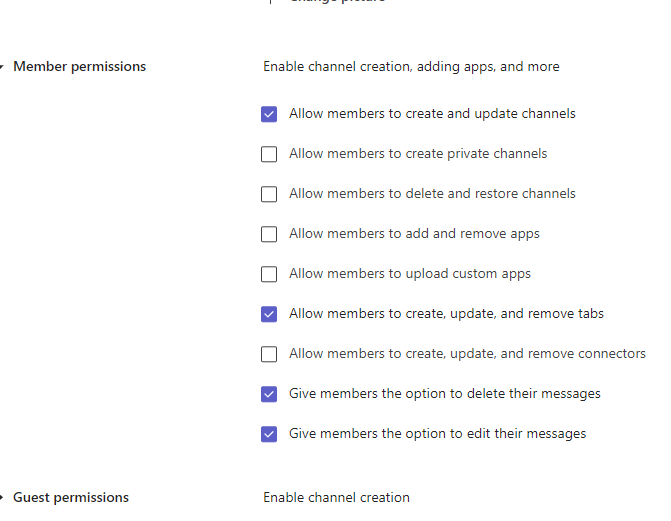
To edit channel settings for the General channel or others, select More options
 on your team tile. Then, select Manage team >Settings > Member permissions.
Teams for Education sample scenarios
Take a look at the goals for your department, school, or district and make a decision on:
- The current reporting responsibilities you have.
- The goals of email lists or meetings that could be converted to online conversations and file-sharing.
- How you'd like communication to flow and who is reported to.
- The key members needed on each team, and the roles they should play.
- The best way to organize files and conversations in each team.
Below, we’ve pulled together samples of how a district, school, or other department could approach setting up their teams and channels to streamline collaboration and put everything in one place. Keep in mind, these are just ideas to get you started. Every district, school, and department has its own unique set of needs.
| Team | Members/Roles | Channels | Files and apps | Benefits |
|---|---|---|---|---|
| School Board Department of Education Large-scale educational initiatives (Staff or PLC team) |
School Board president, members, and trustees Committee chairs Superintendents Organization leaders |
Announcements Meetings Calendars and timelines Channels for each district, county, or organization. Channels for committees or sub-teams Goal tracking |
Power BI to track student data and achievement. Website portals Updates to country/state/province standards and laws. Board meeting minutes, attendance, comments, and notes. Policies and procedures |
Save time Reduce unproductive email chains Streamline two-way communication between stakeholders, administrators, and school leaders. Increase venues to receive and track feedback. Create one place to access meeting minutes and important documents. Help contribute to transparency and efficiency of large-scale operations |
| School Leadership (Staff team) |
Superintendent Support staff School leaders responsible for updating the superintendent on key initiatives. |
School board meetings Channels for each school. Channel to chart progress on district-level objectives. |
Power BI to track student data and achievement. Charter information Updates to country/state/province standards and laws. Board meeting minutes, attendance, comments, and notes. Policies and procedures Staffing and hiring initiatives Meetings |
Save time Reduce unproductive email chains Create one place to access meeting minutes and important documents Create a “paper trail” to reference for important district-wide discussions. |
| School departments Examples: Special Education, Language Arts, High School Mathematics (PLC or Staff team) |
School leaders and/or department chairs Educators |
Professional development Standards and learning outcome goals Budgets, Scheduling Curriculum collaboration Classroom observations IEP planning Staff meetings |
Classroom observation notes Staffing and hiring initiatives Semester/Quarter Calendars and dates Employee handbook Professional development resources Planning and curriculum resources IEPs Staff meeting notes Meetings Tide charts Student work samples |
Save time Reduce unproductive email chains Create one place to access meeting minutes and important documents Encourage every educator to contribute in a more equitable way and provide community Create a “paper trail” to reference for important district-wide discussions. Provide an informal and less intimidating venue to share teaching ideas and feedback |
| Schools (Staff team) |
School leader Support staff Educators |
Assemblies and school-wide event planning Announcements Safety plan policies and communication Attendance School improvement planning Classroom observations Substitute requests Research and/or working groups IEP planning |
Employee or school handbooks Staff meeting agendas and notes Class observation notes Lesson plans Test data results Professional development planning Calendars IEPs Tide charts |
Save time Reduce unproductive email chains Allow for positive staff interactions Provide a collaborative workspace Save budget through copy and paper cost savings |
| Educational technology (Staff or Other team) |
School leader Staff development professional Instructional coaches Educational technology specialist |
Curriculum and software pilots Device and site evaluations Event and training planning LMS/SIS coordination |
Calendars Credentials Policy documents Field feedback Budgets LMS/SIS troubleshooting and credentials |
Save time Reduce unproductive email Provide a “train the trainer” environment for key technical support staff at the school Consolidate technical and curriculum outreach goals in one place |
| IT department (Staff or Other team) |
IT administrator IT support staff Educator technology leads Instructional coach Educational technology specialist |
Device schedule and tracking Support requests Device purchases and rollouts Network tracking LMS/SIS coordination |
Calendars Order information Credentials Support tickets and troubleshooting Budgets Device request and checkout forms |
Save time Reduce unproductive email Provide a “hub” for school or district-wide tech support and troubleshooting Centralize device management Encourages IT appreciation for app and allows them to provide superior tech support to tech timid staff. |
| Educator PLC (PLC team) |
Educators Educating Assistants |
Learning groups Curriculum development Professional development Open thread forum Hackathons Course texts National Boards support group |
Training and support resources Standards references School and department goals Research findings and articles Calendars Student work samples |
Save time Reduce unproductive email chains Encourage every educator to contribute their expertise and bolster community Provide a space for educators —virtual “educator's lounge” |
| Classes (Class team) |
Educators Educating Students |
Units Subjects Small group work Announcements Labs Groups for differentiated learners |
Syllabus Class rules Pinned reference sheets and websites Course content Assignments Projects Videos Permission and absence forms Microsoft Forms quizzes Flipgrid Quizlet |
Encourages 21st century learning Amplifies every student voice ISTE 4 C’s Digital transformation in the classroom Encourages digital citizenship Gives students access to course materials regardless of home access to devices or Microsoft 365 suite Encourages executive functioning Saves time Centralizes assignments and grading in one place Makes it easier to share and distribute assignments and course content Provides a rich space for collaboration |
Here are just a few examples of educators and staff working together that transfer well to staff teams:
| Scenario | Description |
|---|---|
| School Improvement Advisory Committees (SIAC) | Effective school improvement programs and initiatives require staff access to rich data analytics (such as percentile rankings) and easy collaboration among diverse teams that include administrators, faculty, and others across the district. |
| Incident response plans | When an incident (such as a health risk) occurs, fast and accurate communication helps ensure an effective response. Using Teams, incident response teams can easily draft and share timely, relevant information with students, parents, and the community, as well as coordinate additional resources (such as school nurses). |
| Social and Emotional Learning (SEL) programs | SEL programs can promote academic success and positive behavior while reducing emotional distress and general misconduct¹. Channels in Teams can be organized, for example, around the five key SEL competencies: self-awareness, self-management, social awareness, relationship skills, and responsible decision making. |
| Teacher evaluations | Evaluating educator performance is a time-consuming, but important regular activity. Using Teams, administrators can share professional development resources with all educators in the General channel and manage private communications (in Conversations) and content (for example, using OneNote Staff Notebooks) with individual educators in separate channels. |
Creating a hierarchy
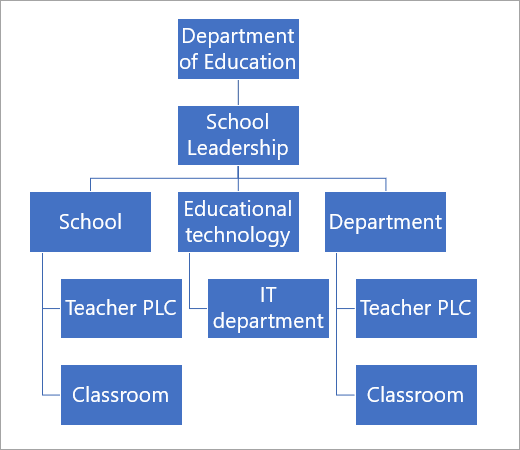
Within your district or school, it’s possible to create teams that follow an organizational structure. Use this approach if you have strict reporting requirements, manage a large district with high staff numbers, or aim to increase transparency across a diverse set of schools and employees. Here’s how that might look, with teams “reporting” up the chain to other teams. This ensures school leaders, staff, and educators are members of relevant teams.
How to name your teams
We recommend using School Data Sync (SDS) to create your teams. School Data Sync is a free service that pulls rosters and names from your SIS. This ensures consistent naming across the district. Memberships will update automatically as students change classes or schools. That said, many schools and districts have shared their own “tips and tricks” for naming staff, PLC, or staff teams:
| Department or PLC team | Course subject name + class year + school location (Ex: Physics 2018 Pineview) Building code or name + department/grade level (Ex: PHS 7) School code + department (Ex: PHS History Department) |
|---|---|
| All-school teams | Prefix with school initials (Ex: PHS) |
| Class teams | School code + subject time table code + year (Ex: PHS 11PH1 18-19) Suffix by year for easy archiving (Ex: 2018-19) School initials + educator's name + class name (Ex. PHS Asher Adv Eng 11A) Start with educator's last name so it’s easy to search for class by name. (Ex: Asher Adv Eng 11A PHS) |
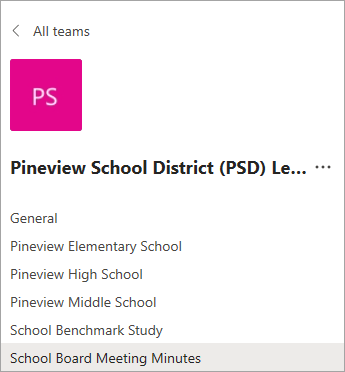
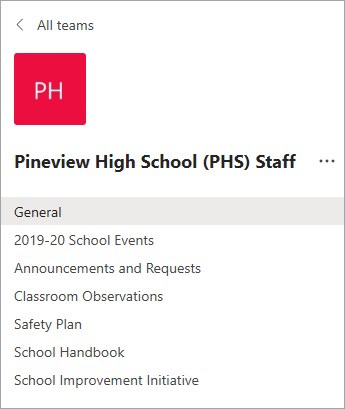
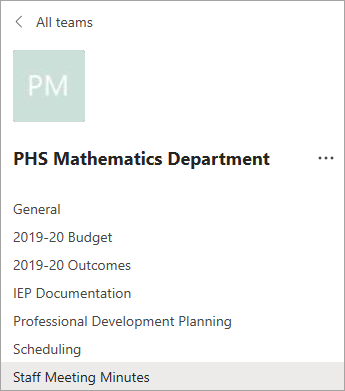
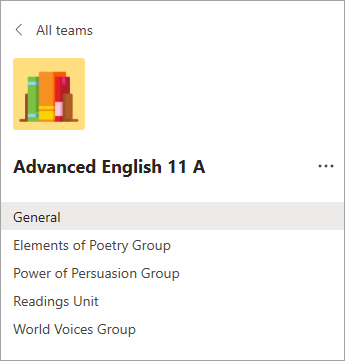
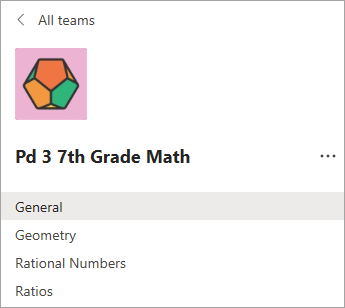
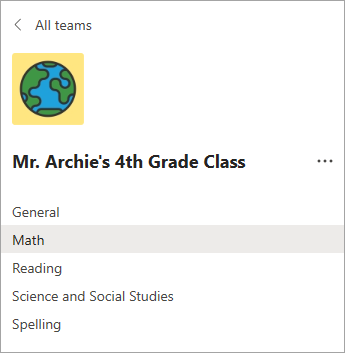
See Teams in action. Sample team and channel views:
For schools, staff, and departments:
For educators:
Learn more
Microsoft Teams for Education IT Admin Quick Start Guide
Microsoft Teams Quick Start for educators and students
Microsoft Educator Center for professional development and training
Microsoft Teams Getting Started Guide for School Leaders
Microsoft Teams for Education support
Microsoft Teams for Education training