

If you use OneNote Learning Tools, Learning Tools in Word, and Read Aloud in Microsoft 365 and Microsoft Edge, you can download and apply new languages and voices for text-to-speech features.
Important
Not all language packs support text-to-speech. View languages with text-to-speech capabilities & their different voice options.
Install text-to-speech languages in Windows 10/11
Within Windows 10 and Windows 11 settings, you can install different language packs to translate and read content aloud in different languages.
To install a new language,
Open the Language or region settings.
Select Add a language.
Search for a language in the search bar or choose one from the list. Language packs with text-to-speech capabilities will have the text-to-speech icon
 . Select the language you would like to download, then select Next.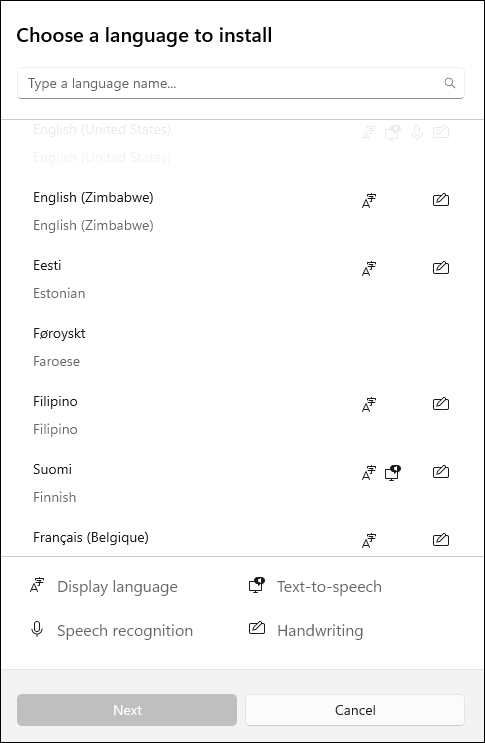
Next, you will see the features available in your selected language and their download sizes. Check or uncheck boxes to choose which features you'd like to install, then select Install.
- Set as my Windows display language:translates Windows features, such as Settings and File Explorer, into your selected language.
- Text-to-speech: audibly narrates the text on your screen.
- Speech recognition: enables you to talk instead of type. Requires text-to-speech installation.
- Handwriting: recognizes content you write on your device.
6. After the new language is installed, navigate to Language and find it in your Preferred languages list. Select your language and choose Options to adjust other language settings, download features, etc.
Speech settings and voices
If text-to-speech is available in your language, you can adjust voice settings to change reader voices and speeds when using audible features like Read Aloud in Immersive Reader. You can also download voice packages, connect a microphone for speech recognition, and more.
To change voice settings:
Open the Start menu on your Windows device and select Settings > Time & Language.
Select Speech. From here, adjust your speech options:
- Speech language: select the dropdown to choose your desired language.
- Recognize non-native accents for this language: detect and translate varying accents within the language.
- Voices: change your default voice, the speed of the voice, and preview the voice.
Select Get started from the Microphone section to walk through the Cortana mic setup.
Install a new Text-to-Speech language in Windows 8.1
On any edition of Windows 8.1, do the following:
- Open Control Panel.
- Select Language.
- Select Add a Language.
- In the list that opens, select the language you want to add, and then select the Add button at the bottom of the list.
- Under the language you've added, select Download and install language pack.
Windows will download and install the language pack. You may be prompted to restart your PC.
After restarting your PC, you'll have the new language available for Text-to-Speech and the Learning Tools Immersive Reader will recognize the text on the page and read it in the correct language.
Text-to-Speech languages and voices available in Windows
| Language (Region) | Windows 10 and Windows 8.1 | Windows 8 | Name | Gender |
|---|---|---|---|---|
| Chinese (Hong Kong) | Y | N | Tracy | Female |
| Chinese (Taiwan) | Y | Y | Hanhan | Female |
| Chinese (People's Republic of China) | Y | Y | Huihui | Female |
| English (United States) | Y | Y | Zira | Female |
| English (United States) | Y | Y | David | Male |
| English (Great Britain) | Y | Y | Hazel | Female |
| French (France) | Y | Y | Hortense | Female |
| German (Germany) | Y | Y | Hedda | Female |
| Italian (Italy) | Y | N | Elsa | Female |
| Japanese (Japan) | Y | Y | Haruka | Female |
| Korean (Korea) | Y | Y | Heami | Female |
| Polish (Poland) | Y | N | Paulina | Female |
| Portuguese (Brazil) | Y | N | Maria | Female |
| Russian (Russia) | Y | N | Irina | Female |
| Spanish (Mexico) | Y | N | Sabina | Female |
| Spanish (Spain) | Y | Y | Helena | Female |
Additional Text-to-Speech languages can be purchased from the following third-party providers:
Note
These options are provided for informational purposes only. Microsoft does not endorse any particular third-party software, nor can it offer any support for their installation and use. For help with these products, please contact their original manufacturer.
Open Source Text-to-Speech languages
Free Text-to-Speech languages are available for download from Open Source provider eSpeak. These languages work on Windows 7, but some may not yet work on Windows 8, Windows 8.1, or Windows 10. View a list of available eSpeak languages and codes for more information.
Download eSpeak languages
- In your browser, visit http://espeak.sourceforge.net/download.html.
- Download the "Compiled for Windows" version, titled setup_espeak-1.48.04.exe.
- When the download is finished, select Next at the first Setup screen to begin installation.
- Confirm the installation path, and then select Next.
- Enter the two-letter code(s) for the language(s) and flag(s) that you want to install. For example, if you wanted to add Text-to-Speech for English, Spanish, Polish, Swedish, and Czech, your screen would look like this:

To use alternate voices for a language, you can select additional commands to change various voice and pronunciation attributes. For more information, see http://espeak.sourceforge.net/voices.html. Preset voice variants can be applied to any of the language voices by appending a plus sign (+) and a variant name. The variants for male voices are+m1,+m2,+m3,+m4,+m5,+m6, and+m7. The variants for female voices are+f1,+f2,+f3,+f4, and+f5. You can also choose optional voice effects such as+croakor+whisper. - Select Next twice, and then select Install.
Learn more
Manage the language and keyboard/input layout settings in Windows.