
Use rules with Copilot in Excel to standardize the appearance and behavior of a particular workbook. With rules, you teach Copilot in Excel how to handle a specific workbook. This establishes formatting conventions, custom functions, and layout needs. Once defined, Copilot in Excel results follow the rules for that workbook.
Copilot in Excel rules are in a dedicated worksheet of the workbook. This rules worksheet stays with the workbook, so the rules are applied by Copilot in Excel. When you share the workbook, you share the rules too. The person you share it with doesn't need to do any separate setup.
Note
Rules for Copilot in Excel are only fully supported in English. Support for rules in non-English languages is inconsistent.
Important
Copilot in Excel and available models are evolving rapidly. Rules may behave differently across models and over time as Copilot in Excel features expand.
How to create rules
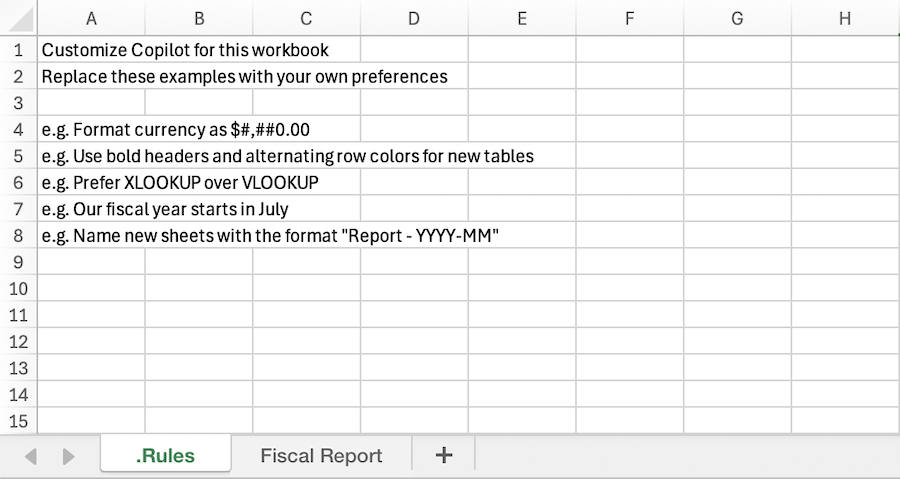
There are multiple ways to create a rules worksheet for your workbook. To get started, open the Copilot in Excel pane and open the Add work content menu in the prompt field. Select Create workbook rules. This generates a worksheet titled .Rules and a template with suggested rules.
You can also manually create a worksheet with the title .Rules and add your own content, copy rules worksheets across workbooks, or ask Copilot to create a rules worksheet.
Requirements for rules worksheets
Rules must be listed in column A, and the rules worksheet must have the title .Rules. A rules worksheet must be visible in the workbook for Copilot to use it. Hidden .Rules worksheets aren't used by Copilot in Excel.
Best practices for rules
Write clear rules
Rules for Copilot in Excel work best when the instructions are short, specific, and organized. A few tips:
- List one rule or idea per cell.
- Use heading cells, such as ## NUMBERS or ## CHARTS, to group related rules so they're easy to scan and edit.
- Include short examples. Showing the desired result is more effective than describing it.
- Keep rules focused on the current workbook.
Make rules adapt with formulas
Rules can be driven by formulas. This lets your rules respond to the state of the workbook.
- Switch behavior with a dropdown. A dropdown cell can change which rule is active. For example:
=IF(B1="Executive","Show KPI summary only","Include full drill-down tables"). - React to your data. A rule can change depending on whether data has been entered yet:
=IF(COUNTA(Actuals!A:A)>1,"Compare forecast to actuals","Build forecast only").
When the workbook recalculates, Copilot reads the formula output on the next prompt.
Prompts to try
Once you have rules in place, your Copilot in Excel prompts automatically follow the guidelines. You can also ask Copilot to work with the rules worksheet directly.
 Create a .Rules worksheet based on the formatting already used in this workbook.
Add a rule to my .Rules worksheet that all charts should use the company color palette.