
On macOS 12.1 "Monterey" and later, macOS and OneDrive run a new Files On-Demand experience.
The macOS sync icons now look the same no matter which cloud service you use, and the macOS behavior might be new to you, so here are some useful tips:
Unable to turn off OneDrive files on-demand on macOS
From macOS 12.1, Files On Demand is part of macOS and cannot be turned off. You can still mark your files as Always Keep on This Device if you need them available when offline.
"Always Keep on This Device" not working in OneDrive on macOS
When you mark a file as "Always Keep on This Device" the cloud icon may remain. Below are the different conditions of an offline or online file or folder.
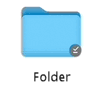
A locally available file or folder
This file or folder is always available. It was an online-only file which has been downloaded (rather than marked as "Always Keep on This Device").
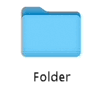
Online-only file or folder
This file or folder is only accessible when you are online and signed in to OneDrive.
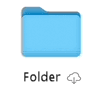
Unopened offline cloud file or folder
This file or folder is always available. Both cloud and "Always available" icons are visible.
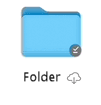
Opened offline cloud file or folder
This file or folder is always available and has been opened. Once opened, the cloud icon disappears.
OneDrive "Always Keep on This Device" files show zero bytes on macOS
If you see a difference between Size and Size on Disk when viewing file, folder or drive properties, read OneDrive disk space and file size don't match.
AutoSave not working for OneDrive files on macOS
If you cannot find your files, read Missing files and autosave issues with OneDrive on macOS.
Fix "OneDrive couldn't start" errors on macOS
If you're upgrading to macOS 12.1 from an earlier version, OneDrive needs to migrate the Files On-Demand experience and will automatically do so for you.
If this process fails, you may get an error message. Below are examples of what that message might say, and how you can fix the problem.
OneDrive couldn't start
Close and re-open OneDrive, then restart your computer.
An unknown error occurred with a system component. Please restart your Mac and try again.
This error means the migration failed because of a failure in a system component. Restart your Mac and try launching OneDrive again. If you still get the error, make sure you have updated to the latest macOS version.
OneDrive is running on an unsupported file system. Upgrade your file system to APFS and then restart OneDrive
This error is shown if you are running OneDrive on a file system other than Apple File System (APFS). Only APFS is supported in macOS 12.1 or later. You cannot run OneDrive on an HFS+.
Convert the file system that has OneDrive to APFS. You can use Disk Utility to perform this conversion. After you convert the file system, restart OneDrive.
Your OneDrive folder is locked or cannot be written. Ensure the folder is not locked and has appropriate permissions, and then restart OneDrive.
This error is shown if your OneDrive folder is locked, or you don't have write permissions. Make sure the folder is unlocked and it is fully writable by you. Then restart OneDrive.
A system component blocked OneDrive from starting. Restart your Mac and try again.
This error means the migration failed because of a system component. Restart your Mac and try launching OneDrive again. If you still get the error, make sure you have updated the latest macOS version.
A required system component is unavailable on this version of macOS
This error is shown if you were previously using Files On-Demand and have upgraded to macOS 12.1, and the migration failed for a reason other than as described earlier in this document.
To correct this issue, you must reset your OneDrive.
Warning
Resetting your OneDrive will remove all local content. Anything that isn't synced to the cloud may be lost.
To reset OneDrive:
Open Finder and navigate to the Applications folder.
Right-click on the OneDrive app and select Show Package Contents.
Go to Contents > Resources.
Double-click to run ResetOneDriveAppStandalone.command.
- Depending on your OneDrive version, the command might be ResetOneDriveApp.command.
Launch OneDrive and set it up again.
See also
Missing files and autosave issues with OneDrive on macOS
OneDrive disk space and file size don't match
Blog post: Inside the new Files On-Demand Experience on macOS
Need more help?
Account support. For help with your Microsoft account and subscriptions, visit Account & Billing Help.
Technical support. For technical support, select Contact Microsoft Support below, enter your problem and select Get Help.
Mobile users can contact Support by opening the OneDrive app and gently shaking your device.
Community support. Communities help you ask questions, give feedback, and hear from experts with rich knowledge. Ask the Microsoft Community. Do not disclose personal or sensitive information in public forums.