
On macOS 12.1 and later, OneDrive runs a new Files On-Demand experience which may affect some file behaviors. These include:
OneDrive file path has moved
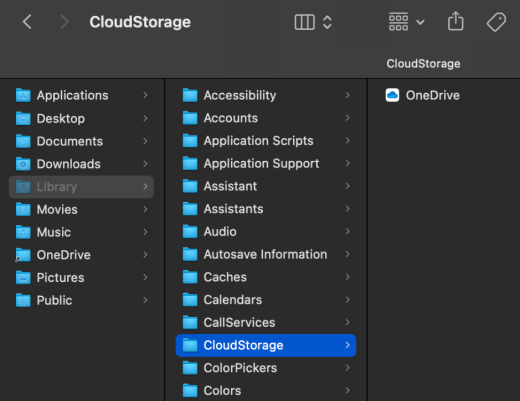
OneDrive's path has moved from [username] > OneDrive to a new location in Library > Cloud Storage > OneDrive
A shortcut or alias has also been created in its previous location.
Two cloud icons next to my OneDrive files
Moving OneDrive into the Cloud Storage group allows for both OneDrive and iCloud status to be shown next to a file or folder.
Cannot open pinned or Recent files in OneDrive
Because the file path for OneDrive has moved, pinned files or files in your Recent list may not work.
To open your OneDrive file:
- Open Finder
- Browse to Library > Cloud Storage > OneDrive or select the OneDrive alias that has been created.
Tip
Clearing your Recents may prevent trying to open an undiscoverable file.
AutoSave no longer works
Because the file path for OneDrive has moved, Office apps will not be able to AutoSave correctly.
To restore AutoSave from an Office app:
- When saving, select File > Save As
- Choose the new OneDrive folder location.
See also for English content
Files On-Demand issues on macOS 12.1 or later
Blog post: Inside the new Files On-Demand Experience on macOS
Need more help?
Account support. For help with your Microsoft account and subscriptions, visit Account & Billing Help.
Technical support. For technical support, select Contact Microsoft Support below, enter your problem and select Get Help.
Mobile users can contact Support by opening the OneDrive app and gently shaking your device.
Community support. Communities help you ask questions, give feedback, and hear from experts with rich knowledge. Ask the Microsoft Community. Do not disclose personal or sensitive information in public forums.