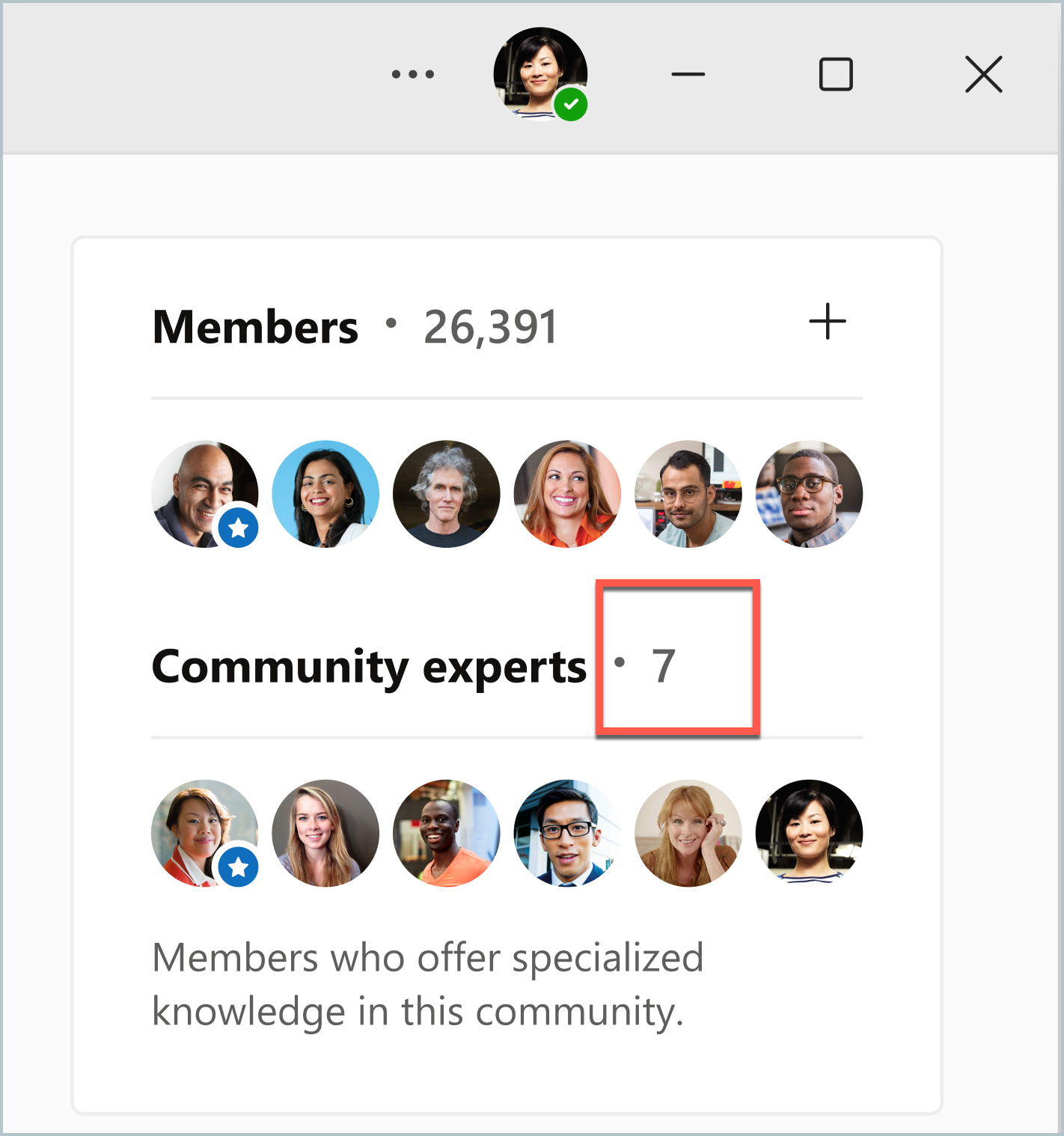
When establishing communities that focus on knowledge sharing, onboarding, and best practices, it's important to identify individuals with the right expertise and to enlist them as community experts.
Community experts actively participate in the community through the following actions:
- Respond to questions
- Convert discussion posts to question posts
- Verify and mark best answers and verified answers
- Pin valuable content for sharing with a greater audience.
The presence of community experts not only enhances the quality and reliability of shared community information; it also promotes a culture of collaboration and continuous learning.
Important
Viva Engage community administrators identify community expertise within your organization. Microsoft doesn't perform this task. Microsoft doesn't have the ability to define a community expert in your organization.
Assign a community expert
The community admin can assign and remove the role of community expert to members of their community.
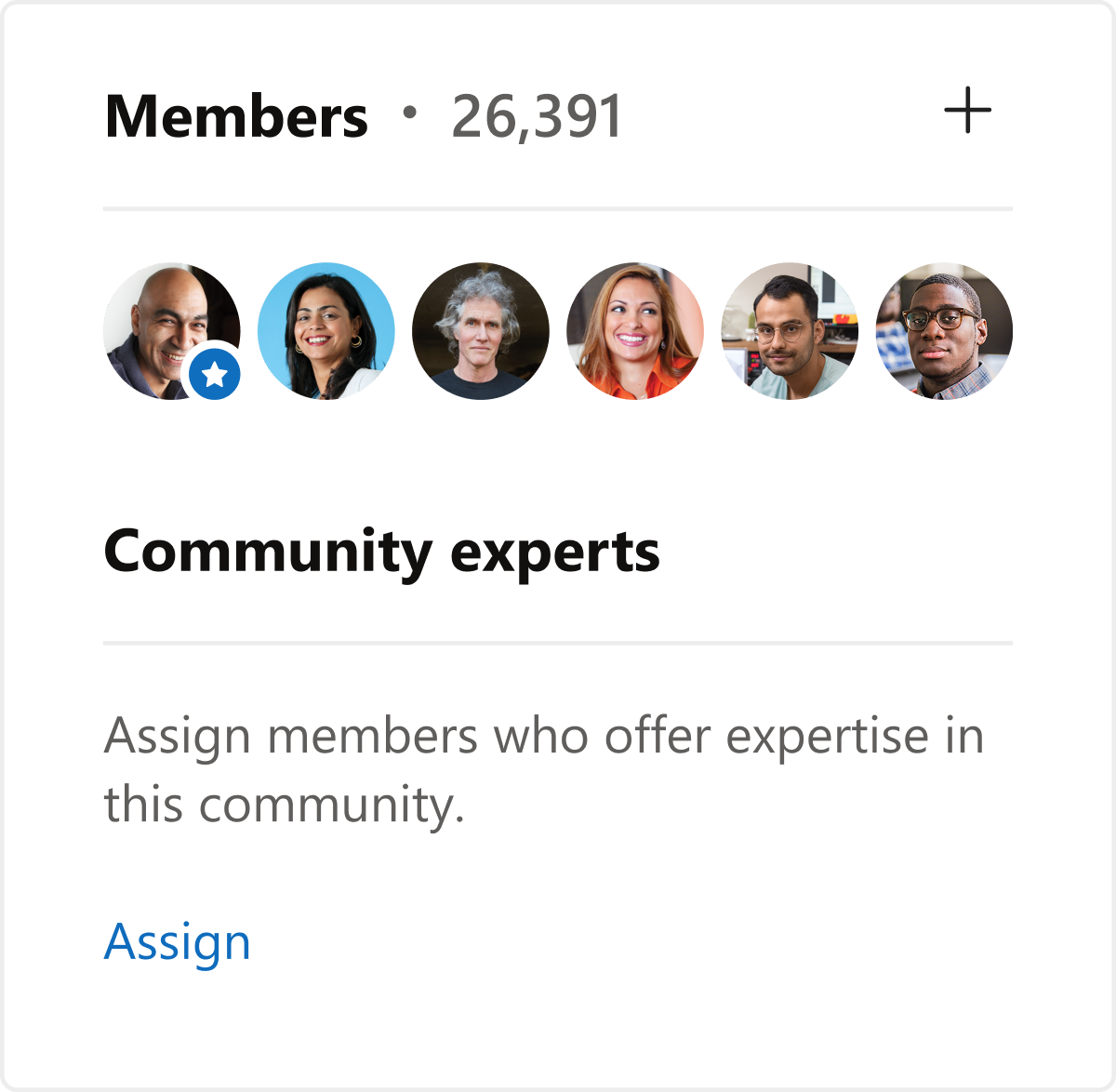
- From the community home page, in the Community Experts tile on the right, select Assign.
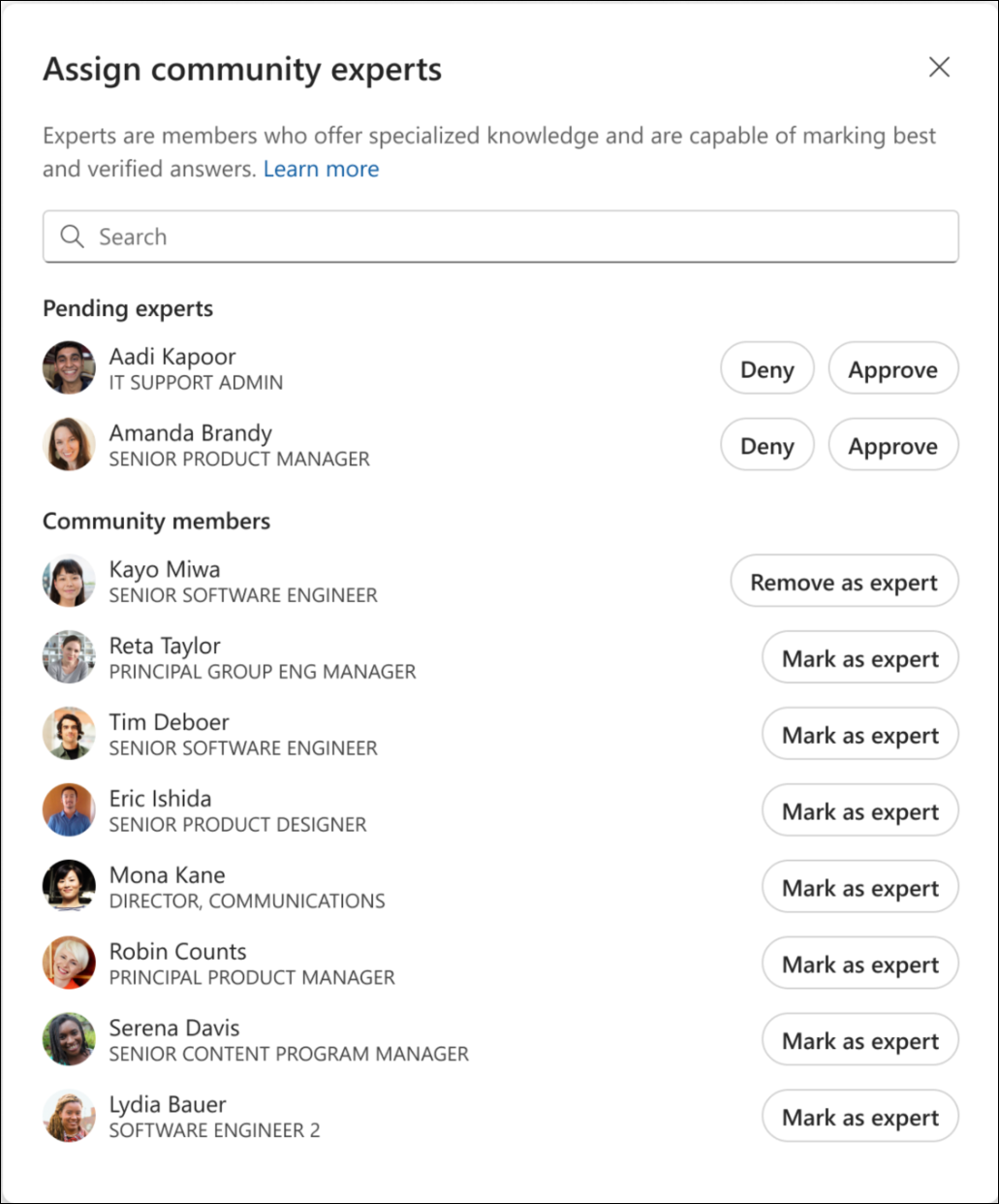
- In the Assign community expert dialog box, find the person you want to assign from the list of community members, and select Mark as expert.
Tip
From this dialog box, you can also unassign community experts.
The chosen community expert member receives a notification of their selection for the new role.
Self-nominate as a community expert
Regular community members can self-nominate themselves as an expert.
- In the Members panel, select Request to be an expert.
- Select Send request in the dialog.
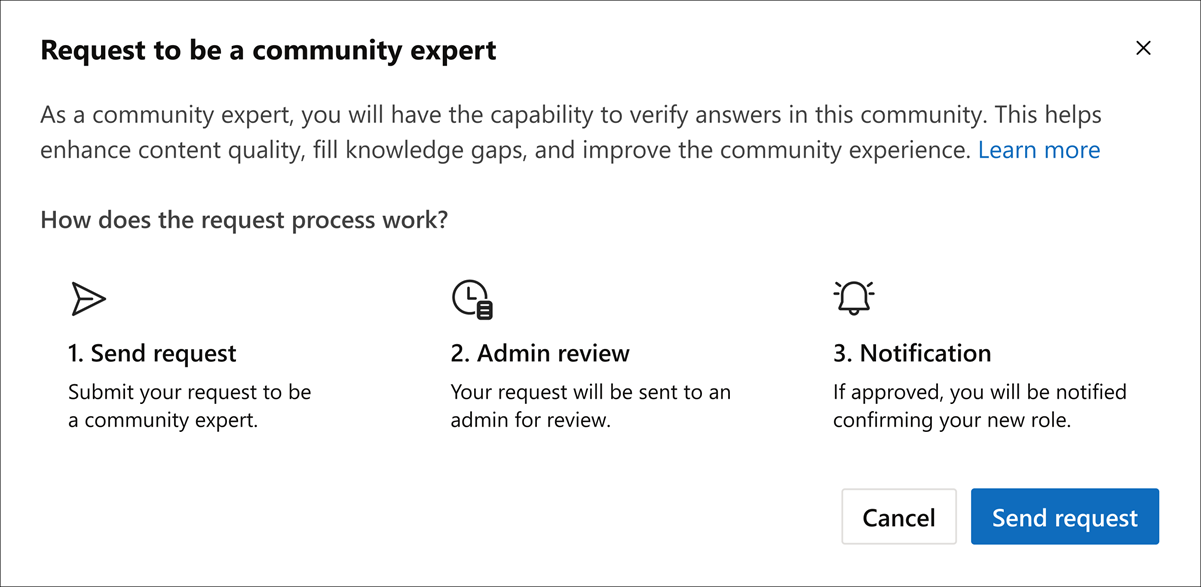
The community admins receive your notification that a member requests to become a community expert. A Pending request link appears in the Membership panel. Admins can choose to Approve or Deny the request.
After the admin decision, the community member receives a notification of the decision for the new role.
Enable/disable community expert self-nomination
The expert self-nomination feature is enabled by default. Community admins can turn off this feature. To do so, open the community, select the More
 icon and select the community's Settings gear
 . Admins remain able to assign community experts.

Change a discussion to a question post
Experts can change a discussion to a Question post. Doing so allows them to mark a Best or Verified answer. Simply select the conversation's More
icon and choose Change to question.
Mark a verified answer
Viva Engage supports the Verified Answers feature, which enables community experts to mark community responses as Verified. Verified answers let the user know that a response is trustworthy, accurate, and reliable. Marking an answer as verified pins the answer at the top of its discussion thread, so members can quickly see key information. Verified answers recognize the expertise in a community and foster a culture of trust and quality knowledge.
Note
Assigned community experts and community admins can mark verified answers. Regular community members can't do so. This ensures that verification comes from users with recognized expertise and authority in the community.
A marking menu appears in all discussion threads for which a community expert is a member. Experts and community admins can take the following steps to mark a verified answer:
- In the discussion thread, select the Mark as menu under the comment that you want to mark.
- From the dropdown, select Verified answer.
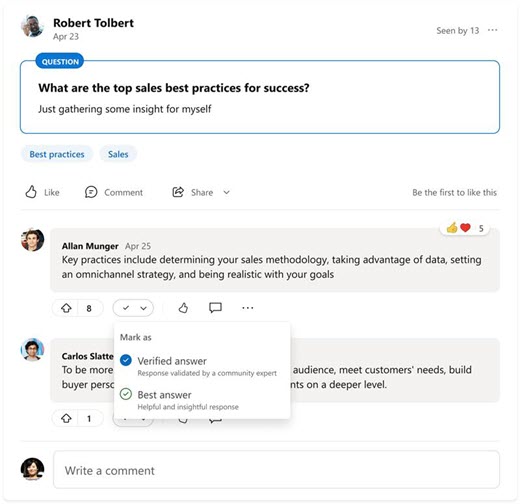
As noted, the Verified answer gets pinned to the top of the discussion thread. If a comment is previously marked as Best answer, marking as verified changes it to a Verified answer.
- Community admins see the options to mark a Best answer or a Verified answer. If the community admin is also a community expert, they will also see both options.
- Community Experts only see the option to mark a Verified answer. If the community expert is also the question asker, they will see just the Verified answer option.
- The original Question asker can only mark a Best answer.
Note
The settings for this feature ensure that verification comes from users with recognized expertise and authority in the community.
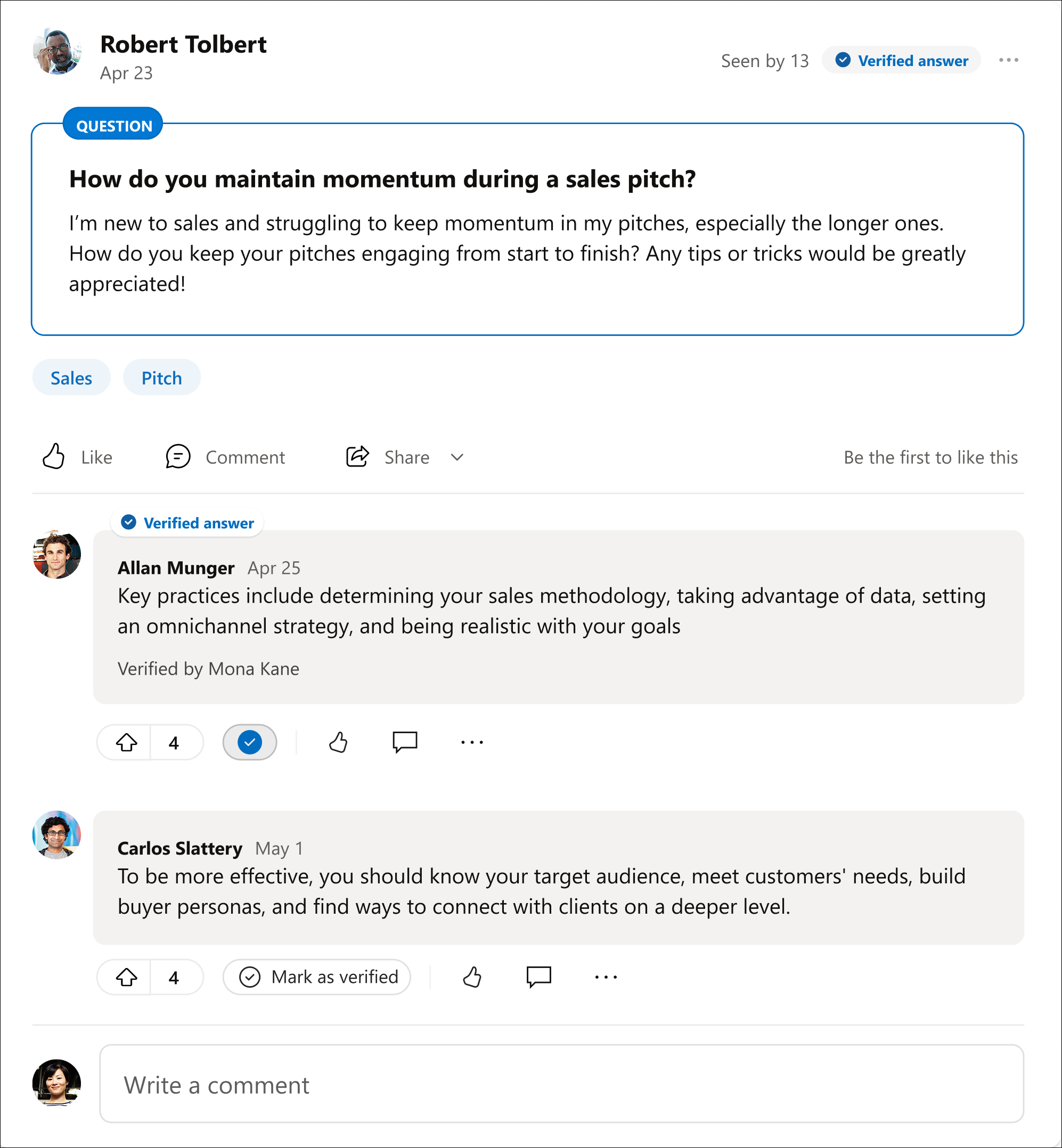
A marking menu appears in all discussion threads for which a community expert is a member. The user who verifies the answer appears in a "Verified by" credit line in the answer.
Withdraw from the community expert role
If you're assigned a community expert role, you can opt out at any time.
- From the community home page, in the Community experts tile, select the number of experts.
- In the All community experts dialog, where your profile image appears, select Withdraw.