PivotTables help you calculate, summarize, and analyze data so you can see comparisons, patterns, and trends.
When you no longer need a PivotTable, select the entire PivotTable and press Delete to remove it.
If you get a "Cannot change this part of a PivotTable report" message, make sure the entire PivotTable is selected. Press Ctrl+A, and then press Delete again.
If you're using a device that doesn't have a keyboard, try removing the PivotTable like this:
- Select a cell anywhere in the PivotTable to show PivotTable Tools on the ribbon.
- Select PivotTable Analyze > Select > Entire PivotTable.
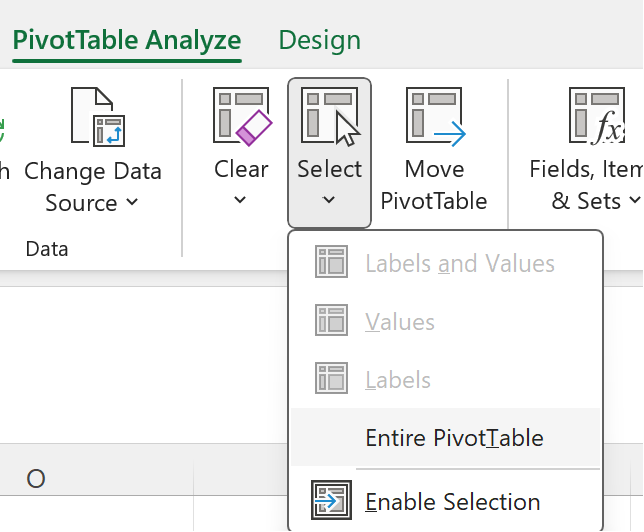
- Select a cell anywhere in the PivotTable for the Delete option to appear.
Tip
If your PivotTable is on a separate sheet that has no other data you want to keep, deleting that sheet is a fast way to remove the PivotTable.
More about using PivotTables in Excel
- Right-click a cell anywhere in the PivotTable to show the context menu.
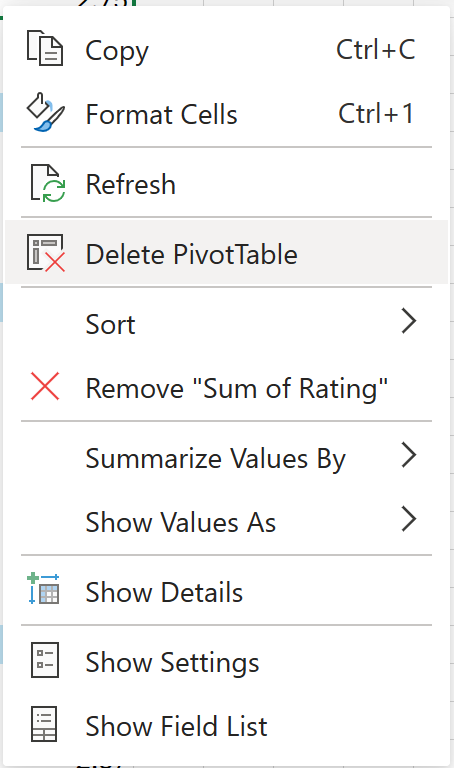
- Select Delete PivotTable.
You can also select the entire PivotTable by pressing Ctrl+A, and then press Delete.
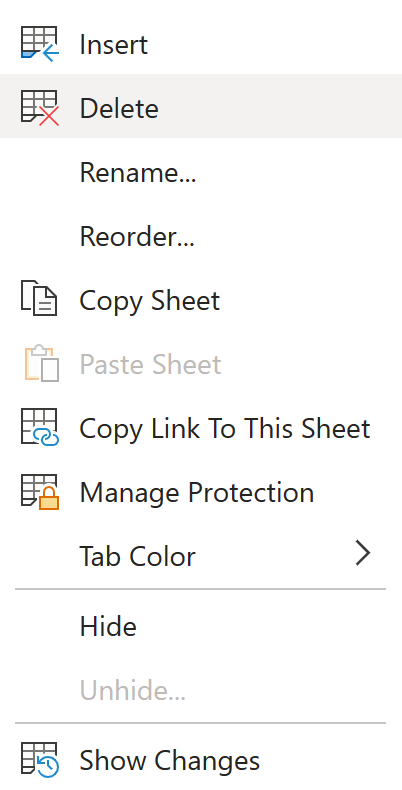
If your PivotTable is on a separate sheet that has no other data you want to keep, right-click the sheet tab and select Delete:
More about using PivotTables in Excel for the web
Note
PivotTable on iPad is available to customers running Excel on iPad version 2.82.205.0 and above. To access this feature, please ensure your app is updated to the latest version through the App Store.
To remove a PivotTable from your workbook:
Tap and hold a cell anywhere in the PivotTable to show the context menu.
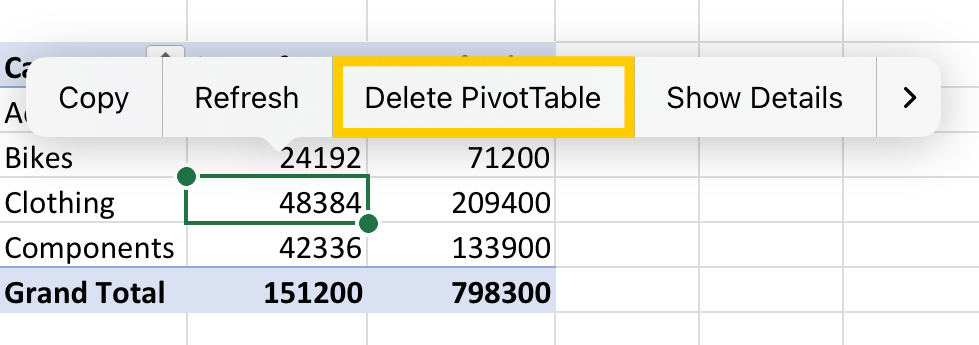
Tap Delete PivotTable.
You can also select the entire PivotTable and press Delete on your keyboard.
Tip
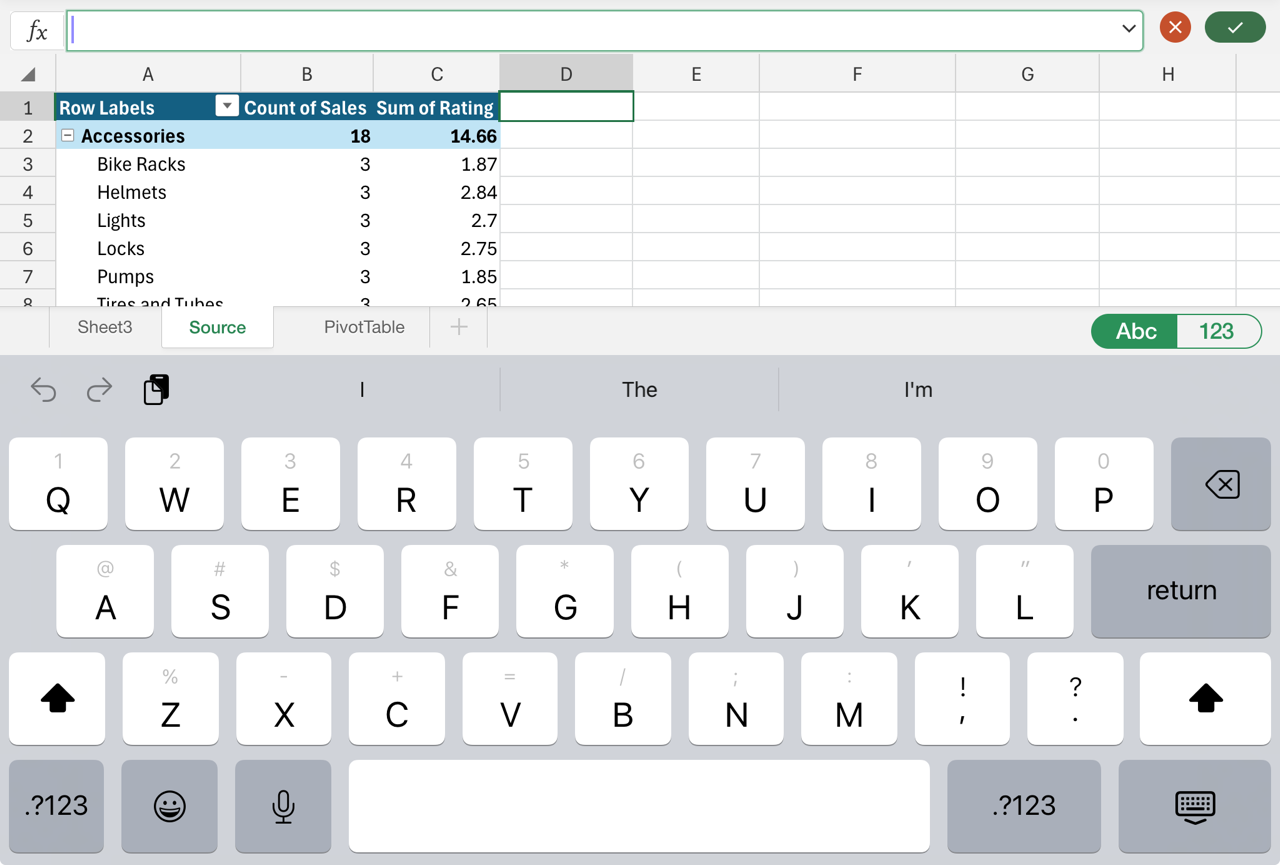
To display the keyboard on your iPad, tap a cell outside of the PivotTable range, and then tap the formula bar at the top of the worksheet area:
If your PivotTable is on a separate sheet that has no other data you want to keep, tap the Sheet tab at the bottom of the screen and select Delete:

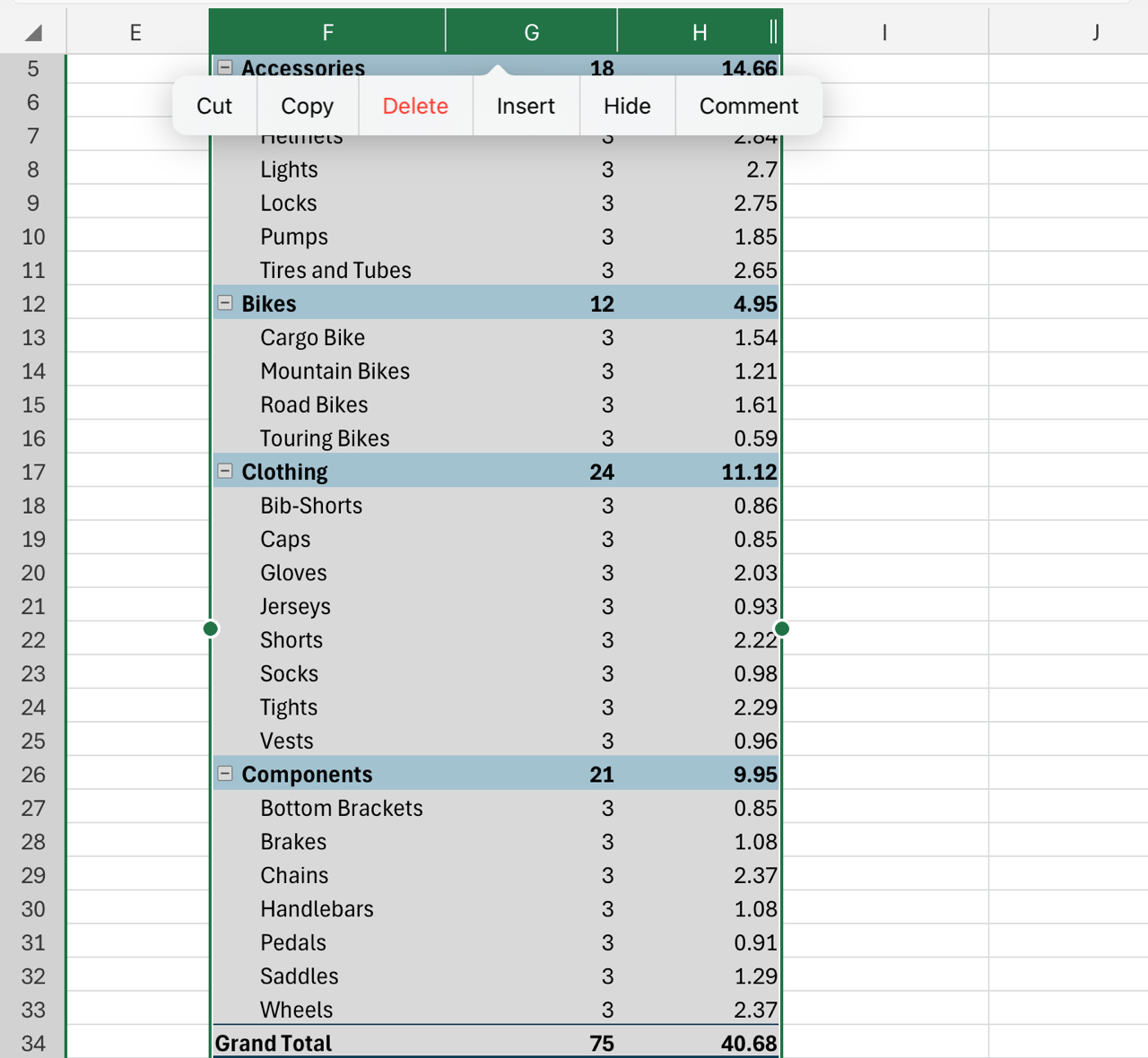
You can also delete the rows or columns that span the entire PivotTable range if they don't contain other data you want to keep:
Need more help?
You can always ask an expert in the Excel Tech Community or get support in Communities.

