
A Microsoft account is a free personal account required for access to Microsoft's products and services. It is used to sign in to your Windows PC, XBOX console, or any of Microsoft's products and services, including Microsoft 365, Outlook.com, OneDrive, Bing, and more. It can also be used to purchase a personal subscription to Microsoft 365. Read more about the benefits of a Microsoft account.
The username for your Microsoft account is an email address. You are given the option to create a new Outlook.com email address or to use an existing email address from a third-party account, such as Gmail or Yahoo.
If you choose to create your Microsoft account with an existing email address from a third-party email provider, such as Gmail or Yahoo, there are some implications to be aware of for how Outlook applications work.
Tip
To add your third-party email account to Outlook, choose one of the following articles:
- Outlook for Windows: Add an email account to Outlook for Windows
- Outlook for Mac: Add an email account to Outlook for Mac
- Outlook for iOS: Set up the Outlook app for iOS
- Outlook for Android: Set up email in the Outlook for Android app
Connecting a subscription purchased with a Microsoft account to Outlook
When you purchase a Microsoft 365 subscription, it will be tied to your Microsoft account. You can view your account and subscriptions by signing in to account.microsoft.com.
Depending on the platform you're using or if your subscription is from a Microsoft account with a third-party email address, you will need to take a different path to connect the account to Outlook.
- Go to Settings > Accounts > Your accounts.
- Select the Add subscription button.
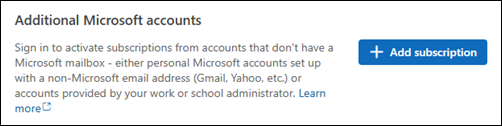
- Sign into your Microsoft account.
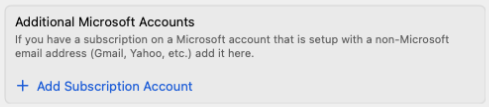

Note
- This is not available in classic Outlook for Windows, or Outlook.com.
- Admins who want to update the PersonalAccountsEnabled policy that controls this experience can check Policy Management in new Outlook for Windows.