
1. Choose a class team.
2. Create a new assignment.
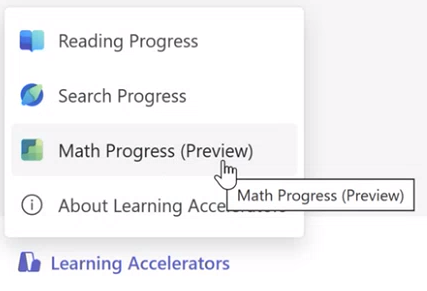
3. Navigate down to Learning Accelerators, choose Math progress. This will let you attach a Math Progress resource to this assignment.
4. Choose the Generate option to begin using Generative AI assistance for this assignment.
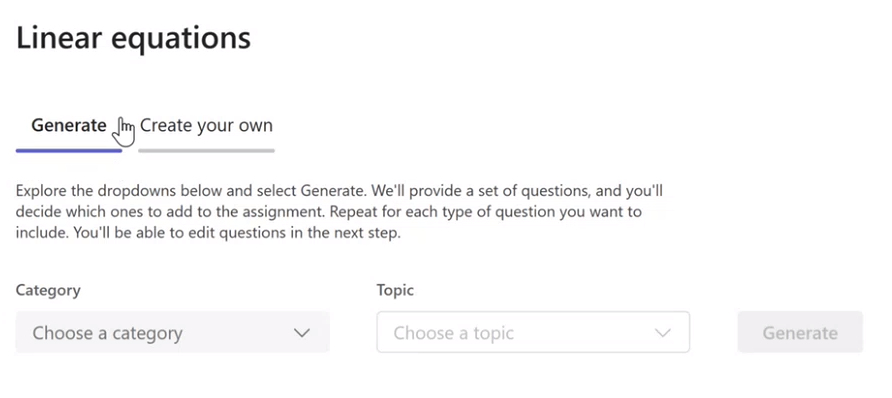
5. Select an option from the Category dropdown menu.
6. Choose a topic.
7. Select the generate button.
Microsoft’s Generative AI will provide examples of problems that may meet your criteria based on the category and topic selected. You can now choose which problems you prefer by choosing the checkbox in the top right corner of each card.
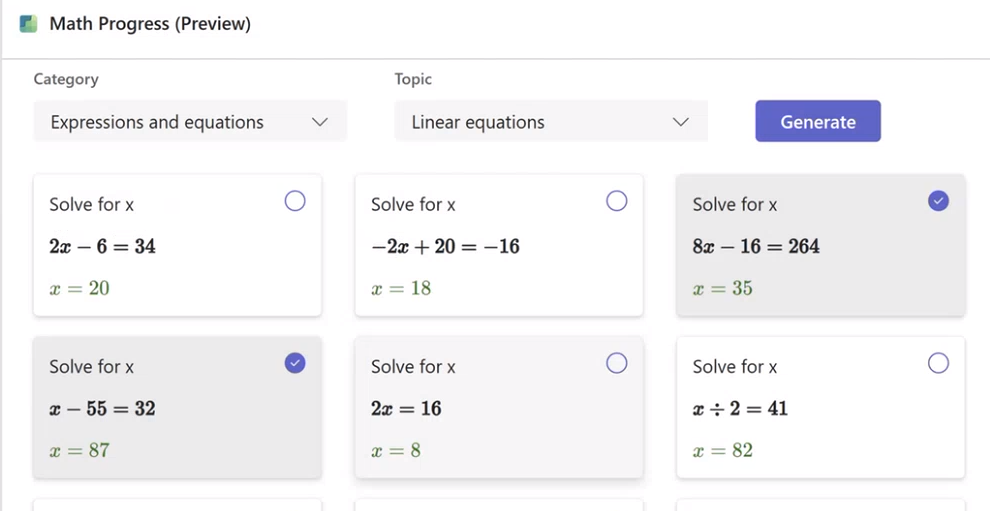
Your selected problems will appear in the Assignment Questions panel.

8. Choose the Next button to proceed.
9. On the next screen, all the problems you selected will appear as multiple choice questions by default. Answers will be prepopulated with the correct answer shown. Even incorrect answers are generated by AI to reflect common mistakes students may make in solving the problem, so they aren’t random numbers.
10. Choose the edit button.
11. Navigate up to the top of the problem card and choose the dropdown menu for Multiple Choice.
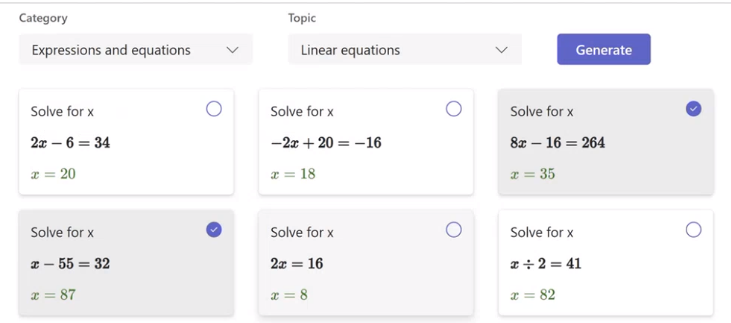
Select the option for short answer.
Your math problem will now be generated as a short answer format. Short answer test questions come with a virtual calculator to enter their answers.
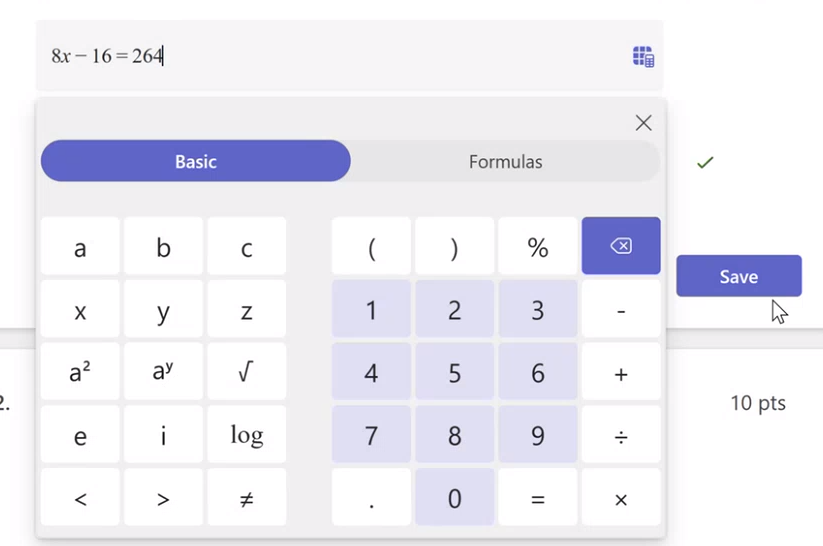
Choose the Save button.