
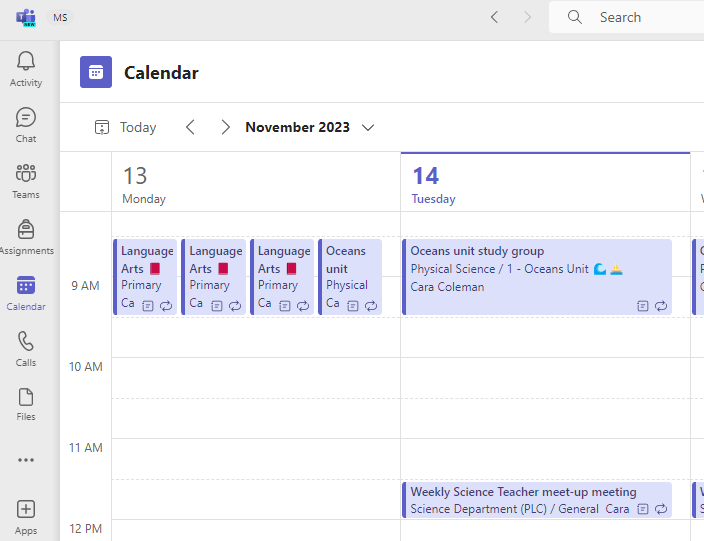
Educators and faculty can create and schedule new meetings by selecting Microsoft Teams meetings within their course.
How to start a new meeting in Teams
1. In Canvas, navigate to Microsoft Teams meetings in your course menu.
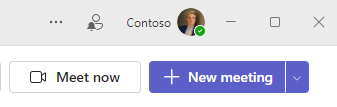
2. Choose the New meeting button in the top right corner.
3. Fill out the meeting details.
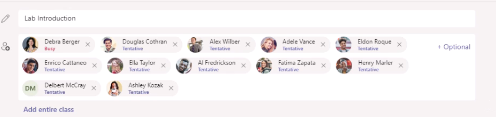
To invite the entire class, choose the Add entire class option under the required attendees field. All students enrolled in your class will automatically be invited to attend the meeting.
4. Choose the Send button.
Students will now be able to enter the meeting within the canvas course and it will appear on their calendars.
The Teams Meetings LTI app lets educators and faculty members access recordings and attendance reports from within the app.