
Resources are any items inside of a module in Classwork. Supported resource types are:
- Files
- Assignments
- OneNote Class Notebook pages
- Links
- Teams channels
Note
- Classwork is only available in Class Teams.
- Up to 48 resources can be added per module.
In this article
Add a file
Existing files can be copied to Classwork from your OneDrive, Teams, SharePoint, or uploaded from a device. New files can be created directly within Classwork.
- Navigate to the desired Class Team, then select Classwork.
- Navigate to the desired module, select + > File.
- Select the location to copy an existing file or New file.

Note
- All files will be copied from their original location into Classwork.
- Files in a published module are read only to students (files in a draft module are not visible to students).
- File types, names, and sizes are subject to the restrictions and limitations of SharePoint.
Add an assignment
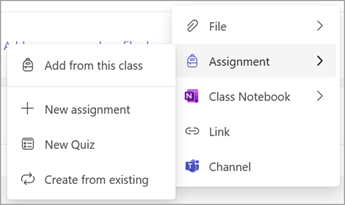
Assignments in the same team can be added to a module. Assignments from other Class Teams can be recreated. New assignments can be created directly within Classwork.
- Navigate to the desired Class Team, then select Classwork.
- Navigate to the desired module, select + > Assignment.
- Select the desired option.
Note
- An assignment can only be added to one module.
- For more information creating a new assignment, see Create an assignment in Microsoft Teams.
- Visibility of assignments to students is controlled within the assignment, and not by the Classwork module status.
Add a Class Notebook page
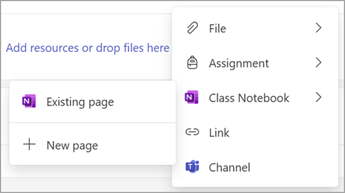
Class Notebook pages from the same team can be added to a module. New Class Notebook pages can be created directly within Classwork.
- Navigate to the desired Class Team, then select Classwork.
- Navigate to the desired module, select + > Class Notebook.
- Select the desired option.
Note
- Class Notebook content can only be added if the Class Notebook is setup. See Use Class Notebook in Teams.
- Only pages within the Content Library section of the Class Notebook are supported.
- Visibility of Class Notebook content to students is controlled within the Class Notebook, and not by the Classwork module status.
Add a link
- Navigate to the desired Class Team, then select Classwork.
- Navigate to the desired module, select + > Link.
- Enter the web address, and optionally edit the title and website icon.
Note
Only secure links (starting with https) are supported.
Add a Teams channel
Channels from the same team can be added to Classwork.
- Navigate to the desired Class Team, then select Classwork.
- Navigate to the desired module, select + > Channel.
- Select the desired channel, then select Add.
Note
- Only standard Teams channels are supported. Private or Shared channels can't be added to Classwork.
- Standard Teams channels and the content within are visible to all students and not controlled by the Classwork module status.
Move a resource (any type)
Resources can be rearranged within a module or moved to another module by dragging and dropping a resource to the desired location.
Resource can also be moved to a different module by selecting More  > Move to a different module.
Rename a resource (any type)
- Navigate to the desired Class Team, then select Classwork.
- Navigate to the desired resource, then select More
> Edit display name.
Note
With the exception of assignments, Resource names are not updated if the source name changes. For example, if a Class Notebook page is renamed in Class Notebook, it will not be updated automatically in Classwork.
Delete a resource (any type)
- Navigate to the desired Class Team, then select Classwork.
- Navigate to the desired resource, then select More
> Delete resource.
Note
- Files and links will be permanently deleted.
- Assignments, OneNote pages, and Teams channels may still be accessed in their respective apps/locations outside of Classwork, but will no longer be visible in Classwork.