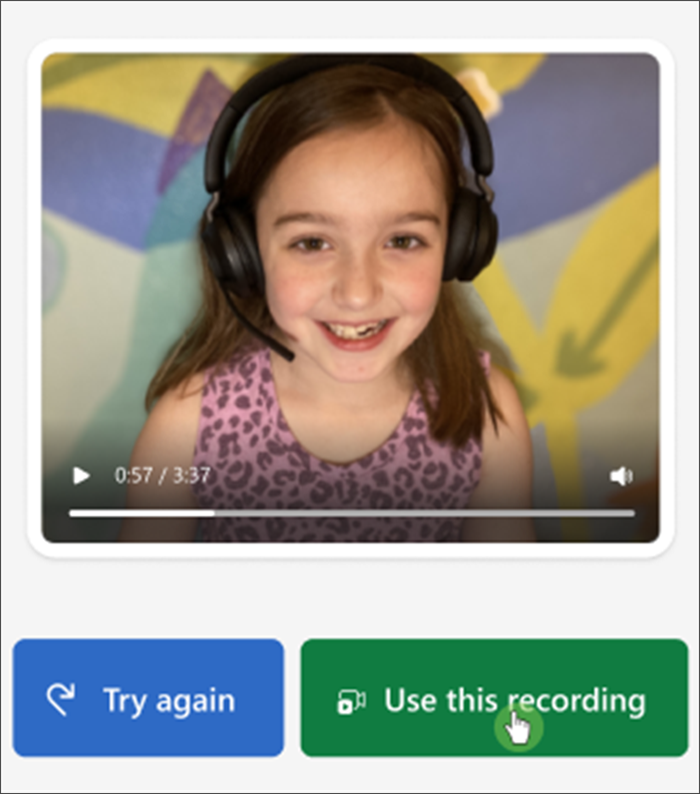
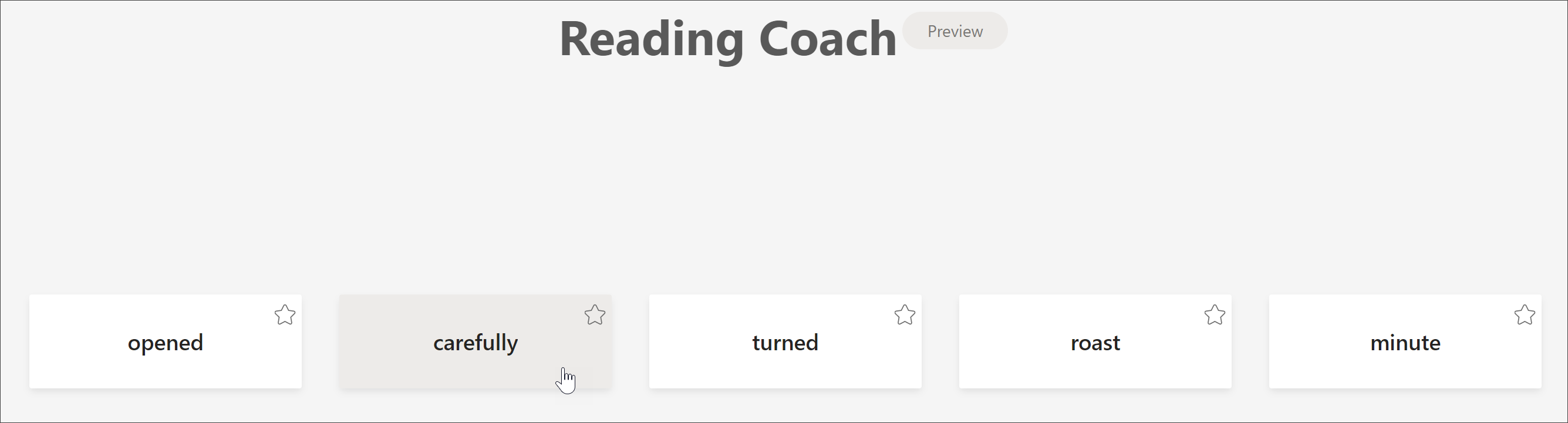
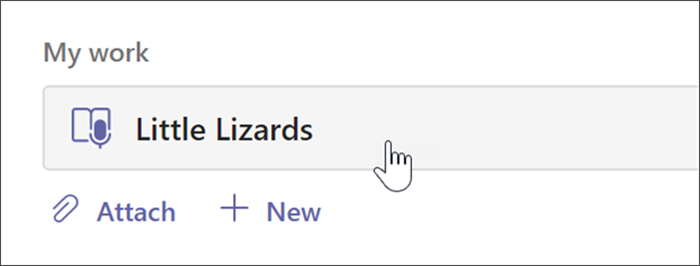
Extend independent learning by adding Reading Coach to your Reading Progress assignments. Reading Coach identifies the five words that were most challenging for each individual student and gives them a supported opportunity to practice the words again.
Assign Reading Coach with Reading Progress
Assigning Reading Coach starts the same way as assigning Reading Progress! Get step-by-step support for creating a reading progress assignment.
Reading Coach defaults to On when you create a Reading Progress assignment.
- Toggle Reading Coach to Off from here if desired.
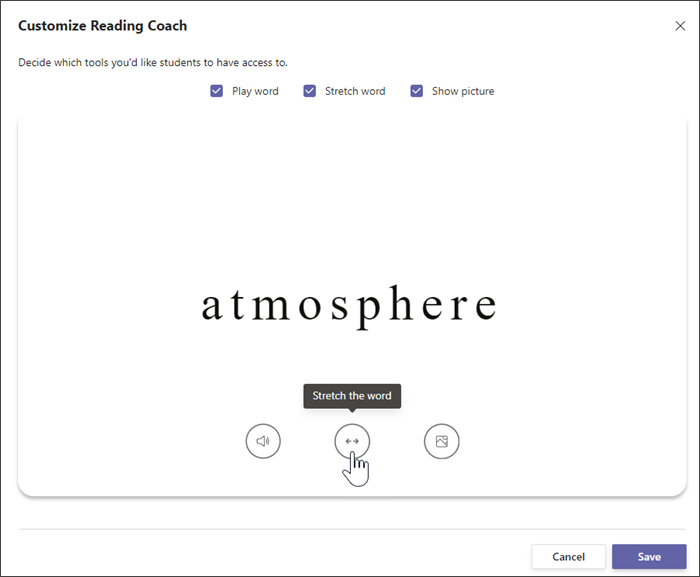
- Select Edit to explore and manage the support tools your students will be provided.

- Use the buttons beneath the word to explore the tools your students will have access to.
- Clear the checkboxes for any tools you don't want your students to use. The buttons available will reflect your selections.
- Select Save, then select Next.
Edit any additional aspects of your assignment, like Instructions or Date due, then select Assign.
Review and return Reading Coach
Collect valuable data while you review and return student Reading Coach assignments.
- Navigate to the desired class, then select the Assignments tab at the top of the page.
- Under Assigned select the assignment you're ready to review.
- Assignments are sorted by To return and Returned.
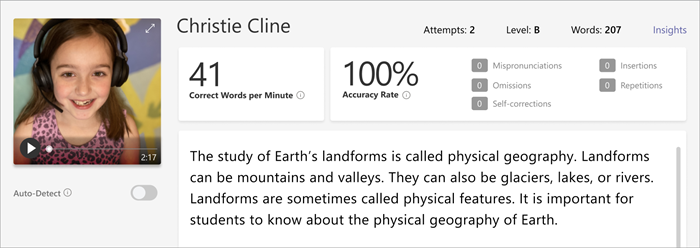
- In Returned, select a student who has turned in their assignment. Their recording and the text they were assigned will open in your grading panel.
- To view the words the student practiced with Reading Coach, select Practiced words.
- Attempts shows how many times the student practiced, with stars to indicate how well they performed.
- Tools used indicates where students used tools to help them practice and which tools they used.
- Review the assignment, enter written feedback and points, then select Return.
- Press the arrows next to your student's name to quickly navigate to the next student.
Note
You can also select Return for Revision to ask students to try the assignment again.


Learn More
Getting started with Reading Progress in Teams
View Reading Progress data in Insights
Ensure Auto-detect (PREVIEW) in Reading Progress uses your intended language