
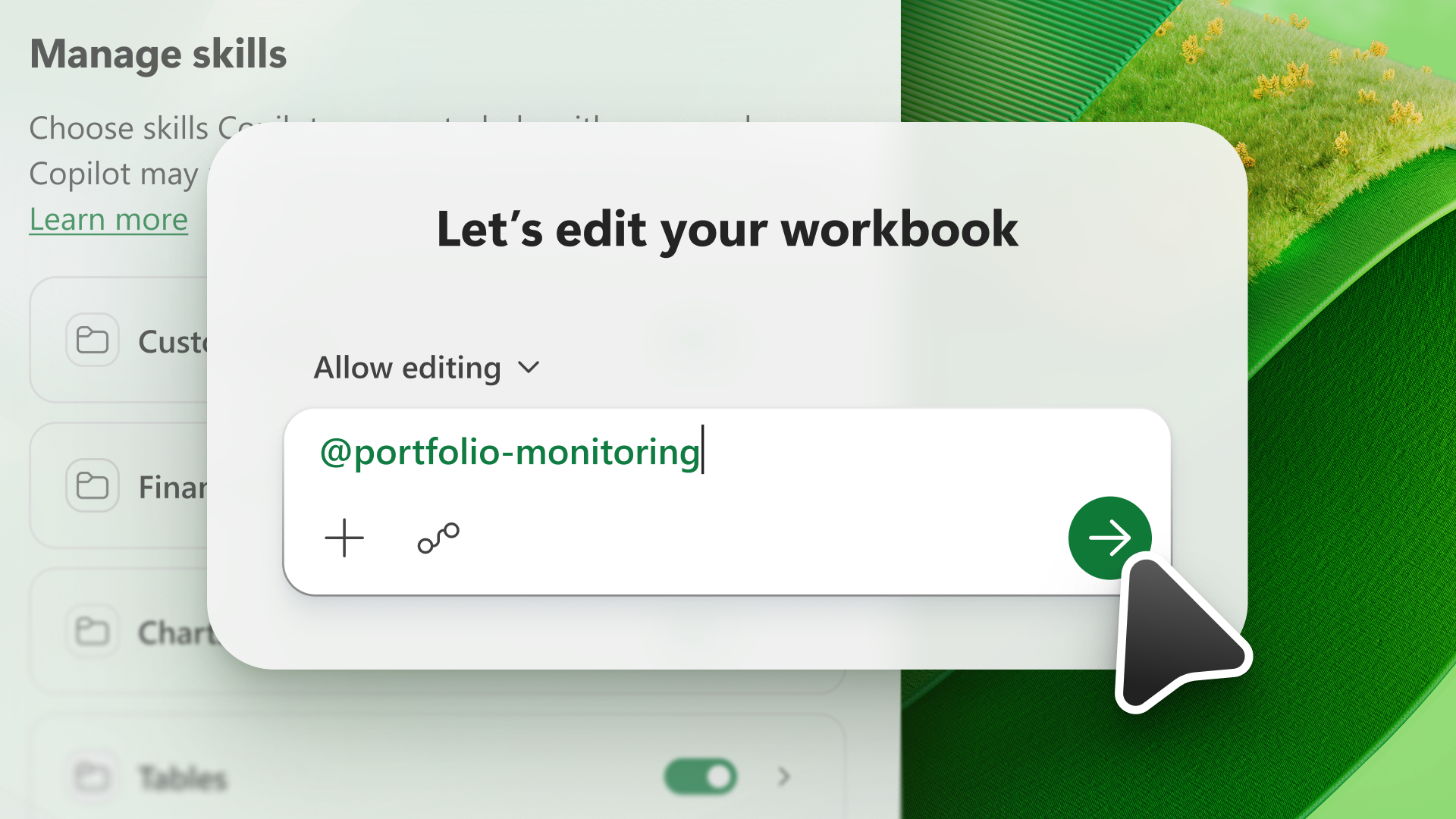
A skill extends the capabilities of an AI model. Skills provide Copilot in Excel with information to complete repeatable tasks. With Copilot in Excel, you can choose from skills available in the Copilot pane or create your own custom skills.
Note
Skills with Copilot in Excel are only supported in English. Your Microsoft Office display language must be set to English to access skills. For more information about Microsoft Office language settings, including display language, see Change the language Office uses in its menus and proofing tools.
Use skills
To use a skill, open Copilot in Excel, select the Add work content menu in the prompt field, and then select Choose skills.
The menu shows skills provided by Copilot in Excel and custom skills that you've uploaded. To learn more about creating your own custom skills, see Create custom skills.
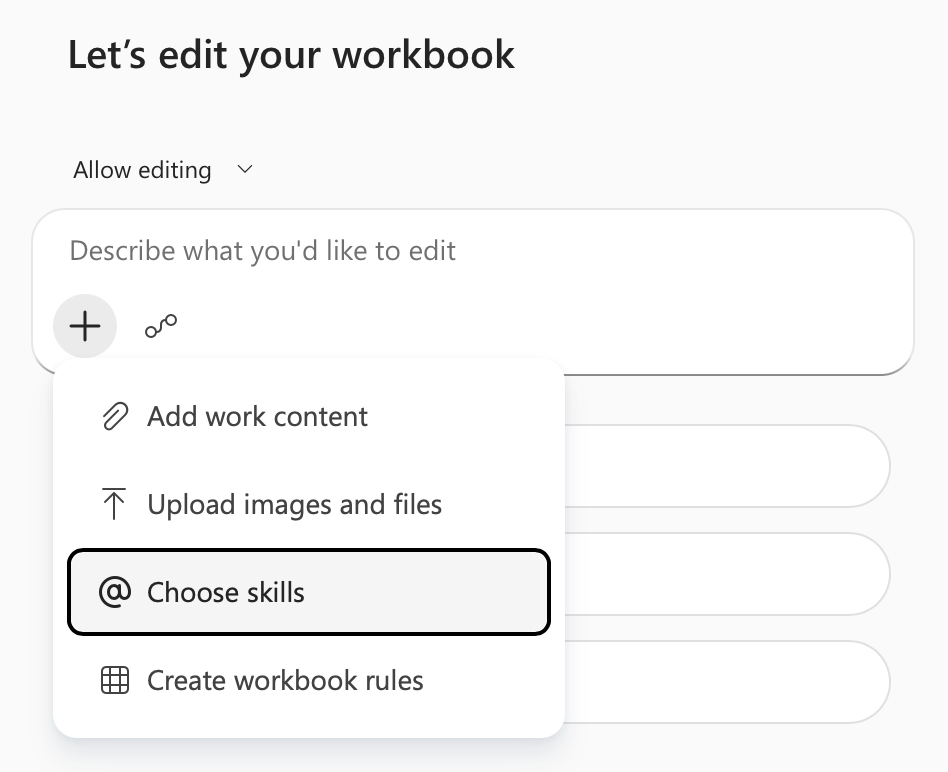
To invoke a specific skill in your request, you can either select it from the skills menu, or type it directly with an @mention. For example, to call a skill named "data-analysis", type @data-analysis in your prompt to Copilot.
Tip
Use the Microsoft-managed skills @brandkit and @theme-design to help style your workbooks. For more information, see Use skills created by Microsoft with Copilot in Excel.
Manage skills
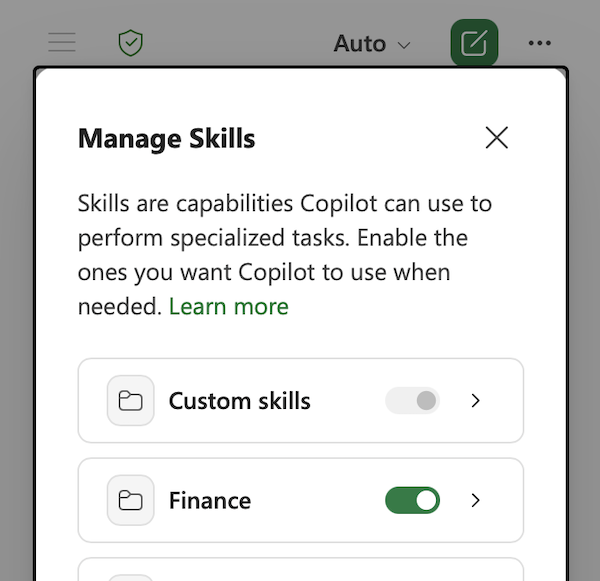
Toggle skills on or off to control which ones Copilot in Excel uses by default. To manage your skills, select the Settings menu (the ... in the upper-right corner), and then select Manage skills.
Important
Turning a skill off in the Manage skills dialog stops Copilot from using that skill automatically, but you can still use a disabled skill with a direct @mention in your prompt.
Create custom skills
Custom skills are uploaded by you and saved to your OneDrive account in a specific folder. If you ask Copilot for the same thing often, turn that request into a skill. You can edit your custom skills and enable or disable them anytime.
To create a custom skill, take the following steps.
- In the Copilot pane, select the Settings menu (the ... in the upper-right corner).
- Select Manage skills.
- Select Custom skills.
- Select Create OneDrive folder. Copilot creates the OneDrive skills folder.
- Select Open skills folder. Copilot opens the new skills folder in your OneDrive.
- Add your skills to this folder. Use custom skills created by your organization, or create your own. See Custom skills format requirements for details on how to create your own skills.
Custom skills format requirements
Custom skills must follow the industry standard format to be recognized by Copilot in Excel. Each skill needs an individual folder, and that folder must have a SKILL.md file defining the skill.
SKILL.md has two sections:
- The metadata section, at the top between the three dash delimiters (
---), is called the frontmatter. It holds the name and a description that tells Copilot when to use the skill. This section is required. - The body section is your instructions, telling Copilot how to do the task. There are no format restrictions.
The following is an example of a simple SKILL.md for a skill named create-table-bold-first-column. This SKILL.md file must be in a folder named create-table-bold-first-column to be recognized by Copilot in Excel.
---
name: create-table-bold-first-column
description: Use when I ask Copilot to create a table in a worksheet. After the table is created, bold the first column.
---

# Bold the first column when creating a table
When Copilot creates a table, bold the first column so the row labels stand out.

## Steps
1. Create the table as requested.
2. Select the first column of the new table.
3. Apply bold formatting to that column.
For more information about standard skills formatting, see Agent skills: Specification.
Advanced custom skills
Beyond the required SKILL.md file, a custom skill can contain the additional folders scripts, references, and assets. For more information about these optional folders, see Agent skills: Optional directories. Custom skills that include scripts, references, or assets help Copilot produce more predictable results.
For information about skills and data security, see Frequently asked questions about Copilot in Excel: Can Copilot in Excel skills execute code, access external data and resources, or perform actions beyond what Excel normally allows?.
Edit or remove custom skills
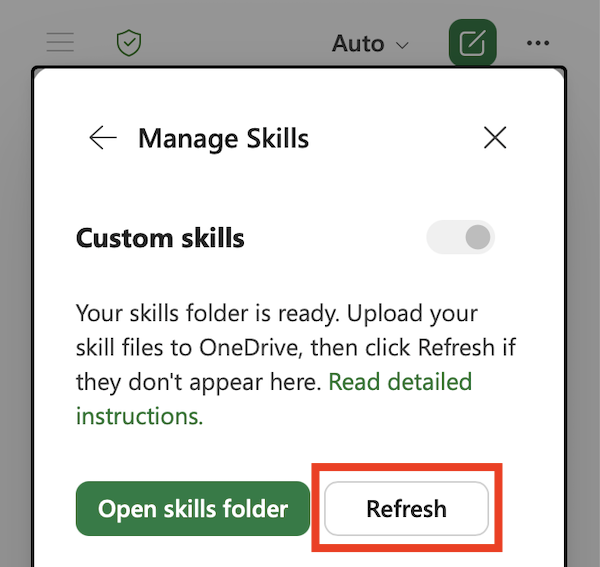
If you add or rename a custom skill in OneDrive, select Refresh in the Custom skills dialog so Copilot recognizes the change.
To remove a skill from the skills list in Copilot without deleting the folder in OneDrive, change the skill folder name. Copilot skips any folder whose name doesn't match its name in SKILL.md.