
You have control over the data sources available for Copilot in Excel to use. These include the web, your work resources, and data from external sources through federated connectors.
Enable and disable data sources
Use the Select sources menu in the chat field to turn data sources on and off. Disabled data sources aren't used by Copilot in Excel.
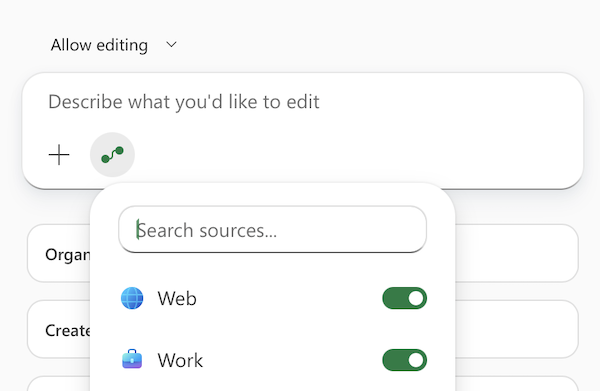
List of data sources
Web
The Web source allows Copilot to fetch information from the web to provide a better, more grounded experience. Websites used to enhance the response are always listed as sources with citations in the response. Web search can also be turned on and off by an IT admin control.
Work
The Work source is available to customers with a commercial Microsoft 365 Copilot subscription. Work search allows Copilot to find information from your work documents and conversations. You are explicitly asked to select and confirm which specific work sources you are allowing Copilot to use for the response. Sources you approve or deny using apply to your current chat. Copilot does not ask you to approve those specific sources again during that conversation. Starting a new chat resets your previous approvals and denials, and you need to confirm sources again.
Remember that Copilot has access to your entire conversation history during your chat session. Only approve sources that you're comfortable with Copilot pulling into your document, especially if you've shared or are planning to share your document with others.
Federated connectors
Available to customers with a Microsoft 365 Copilot commercial subscription. Federated connectors let Copilot retrieve information directly from external services in real time without importing or storing it in your workbook. Copilot uses your credentials and only accesses data you have permission to view. You must give explicit consent before any data is sent to an external service.
Once you approve a federated connector, Copilot can use it to answer questions, generate tables, or provide analysis based on the external data. Copilot's response cites the sources it uses, so you always know where information comes from. Your admin can also control which connectors are available in your organization.
To learn more about federated connectors in Copilot, see Federated connectors overview.
Available connectors
- Canva: Connects to Canva design content to enable users to create, edit, search, and manage designs directly within their workflows.
- CB Insights: Explore comprehensive market insights, private company data, investment activity, and emerging trends to support research, strategy, and business growth.
- Daloopa: Extract structured, audit-ready financial data from company filings, with traceability back to source documents for greater accuracy and confidence in analysis.
- FactSet: Query a broad range of financial datasets, market data, and analytical tools to support research, portfolio construction, performance tracking, and risk management.
- Google Calendar: Connects to Google Calendar to enable users to access, manage, and query events and availability across their schedule.
- Google Contacts: Connects to Google Contacts to enable users to retrieve and reference contact details such as names, email addresses, and phone numbers.
- HubSpot: Connects to HubSpot CRM data to enable users to access and enrich responses with customer, sales, and marketing insights from HubSpot.
- Intercom: Connects to Intercom customer communication data to help users access and work with customer interactions and support insights within their workflows.
- Linear: Connects to Linear to surface and work with issues, projects, and product roadmap data, helping teams streamline development workflows and collaboration.
- LSEG: Connects to LSEG's financial data platform to enable users to access real‑time market data, analytics, and valuation tools in conversational workflows.
- Moody's: Connects to Moody's credit intelligence platform to provide access to credit ratings, research, and risk insights to support financial analysis and decision-making workflows.
- Morningstar: Access trusted investment research, analyst ratings, and comprehensive market data to evaluate opportunities and make more informed financial decisions.
- Notion: Connects to Notion workspaces to enable users to search, retrieve, and use content from pages, databases, and notes directly in their workflows.
- PitchBook: Gain insights into companies, investors, and private market transactions through trusted data and research that inform strategic and investment decisions.
- S&P Global: Access and query a broad range of S&P Global datasets, including company financials, market intelligence, and other business data sources.
Additional data sources
Forrester AI, Dice, Autodesk, Infor Nexus Digital Assistant, Article Galaxy, Granola, HG Insights, NyquistAI, Polar Analytics, Sight Machine, BoardWise, GoDaddy, Blockscout, Excalidraw, Malwarebytes, Microsoft Learn, Taskrabbit Booking Assistance, Wolfram, ZipRecruiter, Aiwyn Tax, Clarity AI, GraphOS MCP Tools, Hugging Face, Kindora Funder Discovery, pg-aiguide, enosix arnold, Harvey, Pulse by PassBy, Fitch Solutions, Sprouts Data Intelligence, Customer.io, Fellow.ai, Grain, Jam, Clarify, Cloudinary, Context7, Legal Data Hunter, MailerLite.
Microsoft 365 Copilot connectors
Use connectors built by Microsoft to integrate Copilot in Excel with Microsoft services and external platforms. Microsoft 365 Copilot connectors allow you to access information throughout your organization's platforms, such as work items, tickets, database rows, or CRM records, and then analyze them with Copilot in Excel. For more information and the full list of connectors, see Microsoft-built connectors gallery.