

Solver is a Microsoft Excel add-in program you can use for what-if analysis. Use Solver to find an optimal (maximum or minimum) value for a formula in one cell—called the objective cell—subject to constraints, or limits, on the values of other formula cells on a worksheet. Solver works with a group of cells, called decision variables or simply variable cells, that are used in computing the formulas in the objective and constraint cells. Solver adjusts the values in the decision variable cells to satisfy the limits on constraint cells and produce the result you want for the objective cell.
Put simply, you can use Solver to determine the maximum or minimum value of one cell by changing other cells. For example, you can change the amount of your projected advertising budget and see the effect on your projected profit amount.
Example of a Solver evaluation
In the following example, the level of advertising in each quarter affects the number of units sold, indirectly determining the amount of sales revenue, the associated expenses, and the profit. Solver can change the quarterly budgets for advertising (decision variable cells B5:C5), up to a total budget constraint of $20,000 (cell F5), until the total profit (objective cell F7) reaches the maximum possible amount. The values in the variable cells are used to calculate the profit for each quarter, so they're related to the formula objective cell F7, =SUM(Q1 Profit:Q2 Profit).

1. Variable cells
2. Constrained cell
3. Objective cell
After Solver runs, the new values are as follows.

Define and solve a problem
On the Data tab, in the Analysis group, select Solver.

Note
If the Solver command or the Analysis group isn't available, you need to activate the Solver add-in. For more information, see How to activate the Solver add-in.
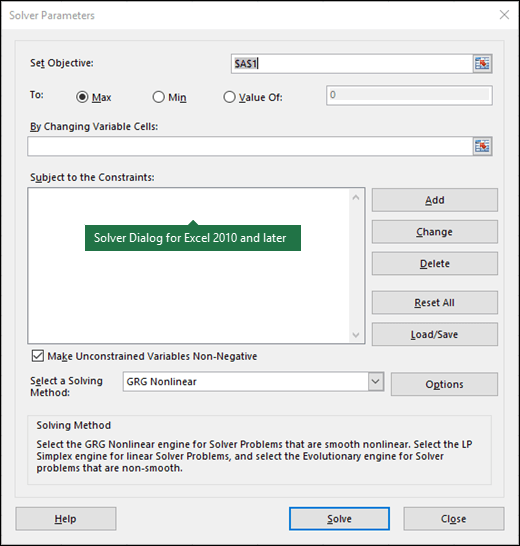
In the Set Objective box, enter a cell reference or name for the objective cell. The objective cell must contain a formula.
Do one of the following steps.
- If you want the value of the objective cell to be as large as possible, select Max.
- If you want the value of the objective cell to be as small as possible, select Min.
- If you want the objective cell to be a certain value, select Value of, and then type the value in the box.
- In the By Changing Variable Cells box, enter a name or reference for each decision variable cell range. Separate the nonadjacent references with commas. The variable cells must be related directly or indirectly to the objective cell. You can specify up to 200 variable cells.
In the Subject to the Constraints box, enter any constraints that you want to apply by doing the following steps.
In the Solver Parameters dialog box, select Add.
In the Cell Reference box, enter the cell reference or name of the cell range for which you want to constrain the value.
Select the relationship ( <=, =, >=, int, bin, or dif ) that you want between the referenced cell and the constraint. If you select int, integer appears in the Constraint box. If you select bin, binary appears in the Constraint box. If you select dif, alldifferent appears in the Constraint box.
If you choose <=, =, or >= for the relationship in the Constraint box, type a number, a cell reference or name, or a formula.
Do one of the following steps.
To accept the constraint and add another, select Add.
To accept the constraint and return to the Solver Parameters dialog box, select OK.
Note
You can apply the int, bin, and dif relationships only in constraints on decision variable cells.
You can change or delete an existing constraint by doing the following actions.
- In the Solver Parameters dialog box, select the constraint that you want to change or delete.
- Select Change and then make your changes or select Delete.
Select Solve and do one of the following actions.
- To keep the solution values on the worksheet, in the Solver Results dialog box, select Keep Solver Solution.
- To restore the original values before you selected Solve, select Restore Original Values.
- You can interrupt the solution process by pressing Esc. Excel recalculates the worksheet with the last values that it found for the decision variable cells.
- To create a report that's based on your solution after Solver finds a solution, select a report type in the Reports box and then select OK. The report is created on a new worksheet in your workbook. If Solver doesn't find a solution, only certain reports or no reports are available.
- To save your decision variable cell values as a scenario that you can display later, select Save Scenario in the Solver Results dialog box, and then type a name for the scenario in the Scenario Name box.
Step through Solver trial solutions
After you define a problem, select Options in the Solver Parameters dialog box.
In the Options dialog box, select the Show Iteration Results check box to see the values of each trial solution, and then select OK.
In the Solver Parameters dialog box, select Solve.
In the Show Trial Solution dialog box, do one of the following actions.
- To stop the solution process and display the Solver Results dialog box, select Stop.
- To continue the solution process and display the next trial solution, select Continue.
Change how Solver finds solutions
- In the Solver Parameters dialog box, select Options.
- Choose or enter values for any of the options on the All Methods, GRG Nonlinear, and Evolutionary tabs in the dialog box.
Save or load a problem model
In the Solver Parameters dialog box, select Load/Save.
Enter a cell range for the model area and select either Save or Load.
When you save a model, enter the reference for the first cell of a vertical range of empty cells where you want to place the problem model. When you load a model, enter the reference for the entire range of cells that contains the problem model.Tip
You can save the last selections in the Solver Parameters dialog box with a worksheet by saving the workbook. Each worksheet in a workbook can have its own Solver selections, and all of them are saved. You can also define more than one problem for a worksheet by selecting Load/Save to save problems individually.
Solving methods used by Solver
You can choose any of the following three algorithms or solving methods in the Solver Parameters dialog box.
- Generalized Reduced Gradient (GRG) Nonlinear: Use for problems that are smooth nonlinear.
- LP Simplex: Use for problems that are linear.
- Evolutionary: Use for problems that are non-smooth.




More help on using Solver
For more detailed help on Solver, contact:
Frontline Systems, Inc.
P.O. Box 4288
Incline Village, NV 89450-4288
(775) 831-0300
Web site: http://www.solver.com
E-mail: info@solver.com
Solver Help at www.solver.com.
Portions of the Solver program code are copyright 1990-2009 by Frontline Systems, Inc. Portions are copyright 1989 by Optimal Methods, Inc.
Need more help?
You can always ask an expert in the Excel Tech Community or get support in Communities.
See Also
Using Solver for capital budgeting
Using Solver to determine the optimal product mix
Introduction to what-if analysis