
By default, gridlines don't appear on a printed worksheet or workbook. You can choose to print gridlines, change their color, and preview how the gridlines appear.
Tip
- To see how the gridlines print, on the Page Layout tab, in Sheet Options, click Print Preview. It displays a preview of what your printed sheet looks like. Gridlines print only around actual data in a sheet. If you want to print gridlines around empty cells, set the print area to include those cells. Alternatively, you can apply borders around the cells instead.
- To change the color of cell gridlines, in File, under Options, click Advanced. In the Display options for this worksheet, under Gridline color, select the color that you want to use.
- If gridlines don't appear when you preview or print the sheet, on the File menu, click Print, click Page Setup. Then on the Sheet tab, make sure that the Draft quality check box isn't selected.
- If gridlines don't print, there might be a problem with your printer driver. Make sure that you install the latest driver from the printer manufacturer.
Select the sheet.
On the Page Layout tab, under Gridlines, select the Print check box.
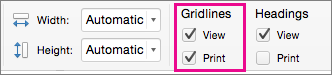
On the File menu, click Print.
See also
Preview pages before you print
Print headings or titles on every page