
Microsoft Ink Canvas is an AI-powered, pen-first experience designed for the moments before an idea becomes a document, prompt, image, or plan. Built for visual thinkers who use pen and touch as part of how they create, Ink Canvas gives you a flexible place to start—sketching, annotating, generating images, and summarizing your ideas into text directly on the canvas.
Ink Canvas gives you a place to start thinking visually, then turns that early work into something useful: a summary you can copy into a document, a visual you can adopt for a presentation, or a prompt you can continue refining. As AI becomes more capable, the way we express intent matters more. Ink Canvas helps you use more than keyboard input when an idea is visual, spatial, or still taking shape by making pen, touch, and handwriting part of how you work with Copilot.[^1]
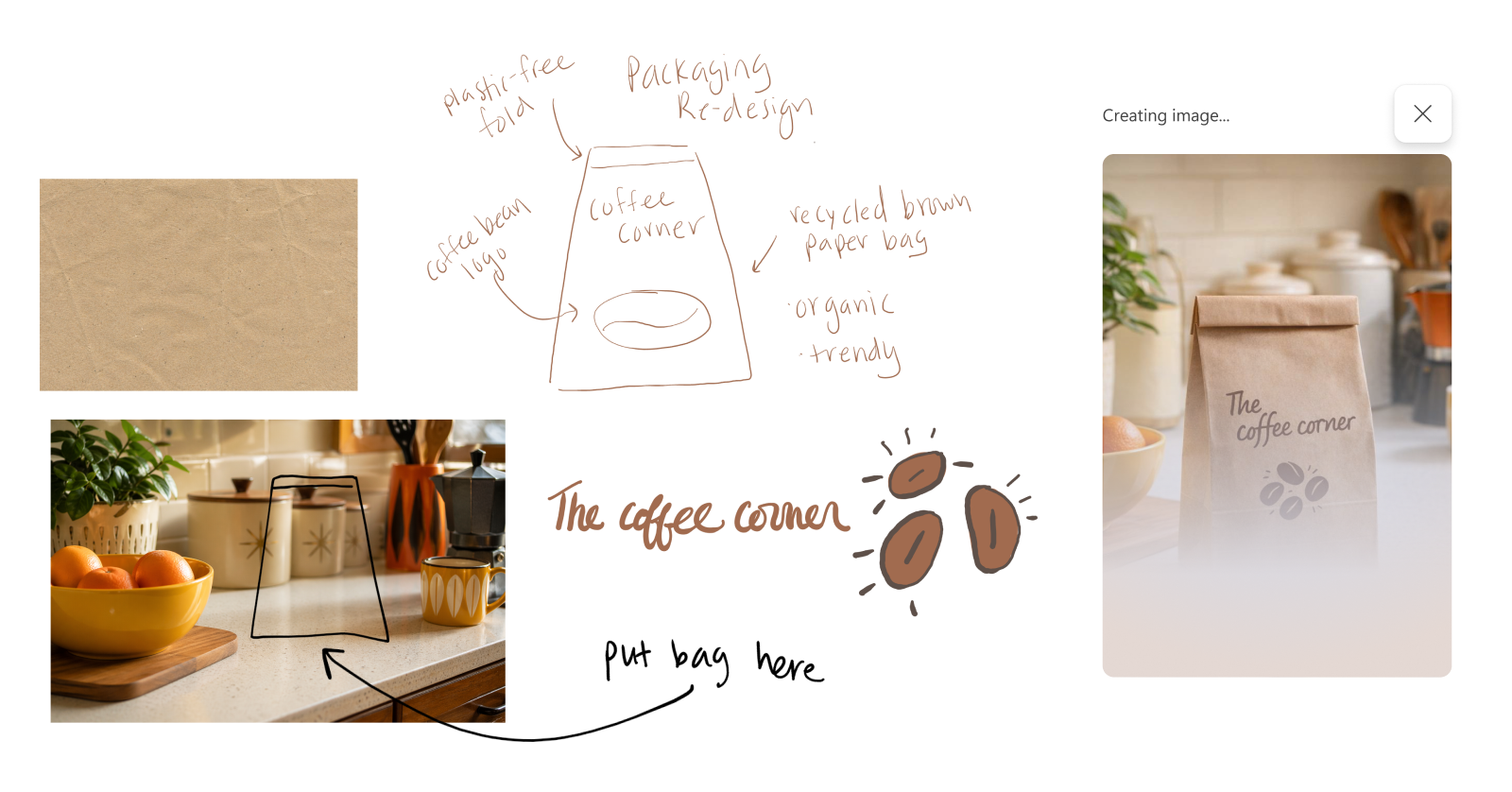
What can you do with Microsoft Ink Canvas?
Ink Canvas gives you a freeform digital workspace where you can start with a blank canvas, bring in visual content, mark it up, and use Copilot features to help move your ideas forward.
Create and iterate on the canvas
- Write, sketch, and organize ideas naturally with pen and touch, even when you're offline.
- Drag and drop images and annotate directly on top of them.
Use Copilot to understand and shape your work
- Use Lasso to select handwritten notes, sketches, or visual content and give Copilot context from a selected part of the canvas.
- Select Generate image to create a Copilot-generated image based on your visual intent.
- Select Generate text to turn your canvas content into text.
Find and reuse your ideas later
- Ink Canvas can automatically title canvases as you work, helping you identify and return to saved canvases.
- When supported, you can reference saved canvases in Microsoft Copilot so your notes and sketches can help inform the conversation.
Get Microsoft Ink Canvas
Microsoft Ink Canvas comes preinstalled on Surface Pro 12-inch (2nd Edition). You can also download Microsoft Ink Canvas from the Microsoft Store.[^2]
Open Ink Canvas with Surface Slim Pen
On Surface Pro 12-inch (2nd Edition), select the Slim Pen shortcut button once to open a new canvas. On other supported devices, after you install Ink Canvas, set the Slim Pen shortcut button to open the app from the pen menu in Windows Settings.[^3]
Get started
Create a new canvas
- Open Ink Canvas.
- Select New Canvas.
- Start writing, drawing, or adding images.
Your work saves automatically while you create. The gallery organizes canvases so you can return to them later.
Licensing and requirements
Inking and non-Copilot features in Microsoft Ink Canvas are available without a Microsoft 365 subscription. Copilot-powered features require a Microsoft 365 subscription.
[^1]: Microsoft 365 Personal, Family, Premium, or Pro subscription required for Copilot-powered features. AI usage limits apply. Learn more about AI credits and limits. Minimum age limits might apply for use of Copilot-powered features. See Copilot frequently asked questions.
[^2]: Microsoft Ink Canvas requires Windows 10 version 18362.0 or higher and integrated touch support. Microsoft account and sign-in required.
[^3]: Slim Pen sold separately.