

Copilot Pages is an interactive canvas within Microsoft Copilot Chat that lets you turn Copilot responses into editable, shareable pages. With multipage functionality, you can open any of your existing Copilot pages beside your current Copilot chat.
Note
- This article applies to Copilot Pages in the Microsoft Copilot app. If you want to learn about Copilot Pages in the Microsoft Copilot app, see Using Copilot Pages with Microsoft Copilot.
- If you have a work or school (Entra ID) account, Copilot Pages is available to those who have SharePoint or OneDrive storage, including ones without a Microsoft Copilot license.
- If you have a personal Microsoft account, Copilot Pages is available if you’re a Microsoft 365 Personal, Family, or Premium subscriber. Learn more about Microsoft Copilot licensing and Microsoft Copilot plans.
Benefits of multipage functionality
- A fresh chat can be started and still maintain continuity when added to existing pages. No need to revisit old chats.
- Multiple new pages can be created from a single chat session, which is ideal for covering multiple topics or managing different responses.
- Pages can easily be browsed and managed through Copilot Pages in the Copilot navigation pane.
- Pages created in previous chats can be shared, which ensures all team members are viewing the same content and collaborating on it.
- Multiple sources can be used to synthesize information. This is especially ideal for content creators, analysts, planners, and leaders.
How to add a response to a new page
Tip
New to Copilot Pages? Get started creating your first page.
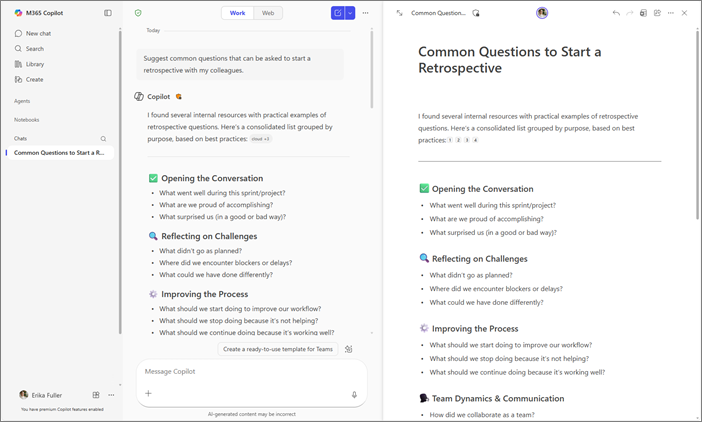
Select the pencil button
 below Copilot's response to create a page and open it side-by-side with Copilot Chat. Select the title directly on the page if you want to rename it.
How to add a response to an existing page
- Below Copilot's response, select the drop-down arrow next to the pencil button
.
- Select Add to recent page.
- Under Recent Pages, select the page you want.
The response will be added to the bottom of that page.
Tip
Want to see all of your pages? Learn how to find your Microsoft Copilot Pages.
Provide feedback
- To provide feedback on this experience, select Settings and more
 in the lower left corner next to your name.
 - Select Feedback.
More ways to work with Copilot Pages
Draft content with Microsoft Copilot Chat and Copilot Pages
How to share Microsoft Copilot Pages