

The Microsoft OneDrive app lets you upload your pictures and download any files you have at OneDrive.com.
Important
- The OneDrive app doesn't sync files automatically, but you can upload updated files and edited pictures.
- If you exceed your Microsoft storage, you can't upload, edit, or sync new files (such as Camera Roll) to your OneDrive. Learn about Microsoft cloud storage.
After you download the OneDrive app, watch the video for quick tips or expand the sections in this article to learn how to use it.
Download OneDrive from Google Play
Sign in
To add a personal account, enter your Microsoft account on the sign in page. To add a OneDrive for work or school account, enter the email address you use for your company, school, or organization.
Note
- If you have a problem signing in with your work or school account, try signing in at OneDrive.com or contact your IT department.
- To change or reset your OneDrive password, sign in to your account online at account.microsoft.com/security.
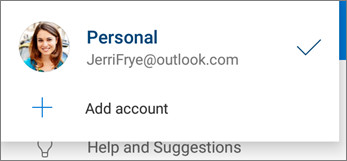
To add an additional OneDrive for work or school account, tap your picture or the icon at the top of the app  , and then tap Add account. Sign in using the username and password you use for OneDrive for work or school.
When your organization uses SharePoint 2013, SharePoint Server 2016, or SharePoint Server 2019, the sign-in process is different from Microsoft 365. On the sign in screen, tap Have a SharePoint Server URL? Then enter the web address of your SharePoint server to continue the sign-in process. The web address, also known as a URL, might look like http://portal.
Note
- For you to sign in to OneDrive for work or school, your organization needs to have a qualifying SharePoint in Microsoft 365 or Microsoft 365 business subscription plan, or your organization needs to have its own SharePoint Server deployment.
- You can't sign in with multiple work or school accounts from the same organization.
Switch between accounts
To switch between a personal OneDrive account and a OneDrive for work or school account, or between multiple OneDrive for work or school accounts, tap your picture or the icon at the top of the app  , and then select the account you want to use.

Tip
You can add only one personal account to the OneDrive app. To open a different personal account, open Settings, tap your account name, tap Sign out, and then sign in with the account you want to use.
Upload files from your device to OneDrive
Use the Upload tool to upload files to OneDrive, such as documents, OneNote notebooks, photos, videos, or music.
Tip
If your device is set to automatically upload pictures to OneDrive, pictures you take with your device go to the OneDrive Camera roll folder. You don't need to upload them to OneDrive manually.
In the OneDrive app, open the folder you want to add a file to.
Tap Add
 at the bottom of the screen, and then tap Upload.
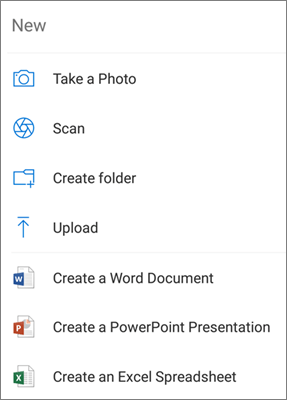 image type="content" source="media/od-iosperson.png" alt-text="Person icon in OneDrive app for iOS"::: icon.
Tap Settings
 .
.Tap Camera upload.
- If this toggle is greyed out, that means you need to select an account first, under Camera upload account.
Set Camera upload to On.
Note
- Camera upload is available only on devices running Android 4.0 or later.
- To help preserve your device battery while downloading, select Upload only when charging.
- All photos and videos will be uploaded at their original sizes when you're on a Wi‑Fi network. If you want to use your mobile network, open the OneDrive app > Settings > Camera upload > Upload using > Wi‑Fi and mobile network.
- The camera roll on your device uploads to OneDrive rather than syncing. That means you can delete uploaded photos and videos from your device and the copies in OneDrive won't be affected.
- The OneDrive cloud icon may briefly appear in your Android notifications as part of the normal upload process.
- If files aren't uploading like screenshots, you can select Settings > Camera upload > Additional Folders.
For OneDrive for work or school accounts:
- Make sure you're signed in to the app with the account that you want to upload photos to.
- Select Me
 > Photos.
 - In the Photos view, from the Camera upload status pop-up, select Turn on. (If you already have Camera Upload enabled on another account, select Change instead.)
- Confirm that you want to Turn on Camera upload. (If you selected Change in the previous step, confirm that you want to Change the Camera Upload account.)
- Confirm again that you have the right account selected.
Scan a whiteboard, document, business card, or photo to OneDrive
In the OneDrive app, tap Scan
 . You can also tap Add
at the bottom of the screen, and then tap Scan. To exit Scan mode without scanning anything, tap the X icon in the upper left corner of your screen.
. You can also tap Add
at the bottom of the screen, and then tap Scan. To exit Scan mode without scanning anything, tap the X icon in the upper left corner of your screen.Select the appropriate flash setting (on, off, automatic, or torch) by tapping the Flash icon in the upper right corner.
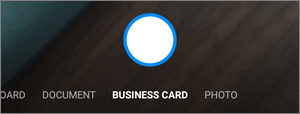
Select Whiteboard, Document, Business Card, or Photo, and then tap the white circle icon to scan the item.
Tip
Microsoft 365 subscribers have the option for multi-page scanning, so you can combine multiple scans into a single PDF. To use this option, tap Add, and then scan your next document.
After you scan your item, you can crop it, rotate it, or modify the filter you selected earlier (Whiteboard, Document, Business Card, or Photo). If you don't like the image, tap the X icon in the upper left to delete the scan and try again.

When you finish editing your item, tap Done, enter a file name, and then tap Save.
Tip
OneDrive automatically saves files as PDFs.
See Video: Scan, sign, and share documents.
Find the file you're looking for
You can search for text within files and even photos. To search for text in a file or photo, tap Search in the top bar, type the phrase you want in the Search box, and then tap the search icon at the bottom of the screen.
Create a folder
You can add folders in the Files view, or within other folders in OneDrive.
In the view or folder where you want a new folder, tap Add
at the bottom of the screen, and then tap Create folder.
image type="content" source="media/od-iosmove.png" alt-text="OneDrive move files"::: (You might need to tap More first to see the Move icon).Tip
You can move folders into another folder, as well as individual files.
Your Files list appears. Tap the folder you want to move the files to, and then tap Move here.
Tip
To create a new folder for these moved files, at the bottom of the Files list, tap New folder. Enter a name for the new folder, and then tap Create.
Find your SharePoint files in OneDrive
If you're using OneDrive, you can access your SharePoint files in the mobile app without leaving OneDrive. SharePoint sites you recently interacted with or that you follow appear in a list located under the name of your organization. You can also see your Microsoft 365 groups in the list, as each group has its own team site.
To learn more, see Find your SharePoint files in OneDrive.
Change how files are sorted
- In the OneDrive app, open the folder you want to sort, and then tap the arrow next to the current sort order, for example Sort by name (A-Z).
- Pick how you want the files sorted. You can sort by name, upload date, size, or extension.
Recover a file from the Recycle Bin
Files you delete from OneDrive go to the OneDrive Recycle Bin. For personal accounts, the files stay in the Recycle Bin for 30 days. You can restore the files to OneDrive before then, or you can permanently delete them from your OneDrive.
- Tap the Me icon
in the bottom right of the screen, and then tap Recycle Bin.
- In the Recycle Bin view, select the files you want to restore.
- To restore the files back to your OneDrive, tap Restore
 .
.
Note
If your recycle bin is full, the oldest items are automatically deleted after three days. If you're signed in with a work or school account, items in the recycle bin are automatically deleted after 93 days, unless the administrator changes the setting. See more information about how long deleted items are kept for work or school accounts.
Empty the Recycle Bin
Files you delete from OneDrive go to the OneDrive Recycle Bin. For personal accounts, the files stay in the Recycle Bin for 30 days. You can restore the files to OneDrive before then, or you can permanently delete them from your OneDrive.
- Tap the Me icon
in the bottom right of the screen, and then tap Recycle Bin.
- In the Recycle Bin view, select the files you want to delete.
- Tap Delete
 to remove the files permanently. To empty the entire Recycle Bin at once, tap Delete All.
Note
If your recycle bin is full, the oldest items are automatically deleted after three days. If you're signed in with a work or school account, items in the recycle bin are automatically deleted after 93 days, unless the administrator changes the setting. See more information about how long deleted items are kept for work or school accounts.
Download files from OneDrive to your device
In the OneDrive app, open the folder that has the files you want to download. Ensure the folder contents appear in List view, not as thumbnails.
Tap More
 next to the file you want to save, and then tap Save.
- You can also select multiple files by pressing and holding one photo or video, and then tapping the circle next to additional file names to check them.
- Tap More
in the upper right corner, and then tap Save.
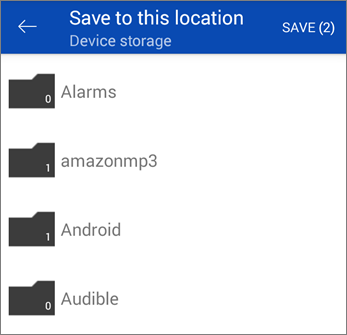
Tap the arrow at Save to this location to see folders on your device. Pick a folder for the downloaded files, and then tap Save.
Share a file
You can share files, photos, and folders from the OneDrive app for Android, just as you can on a PC or Mac. To stop sharing, go to the OneDrive website and sign in with your Microsoft account, or with your work or school account.
Files shared with you
When someone shares a OneDrive file or folder with you, you typically get an email message or a notification on your Android device. To find the files shared with you in the OneDrive app, tap the Shared view icon
 at the bottom of the app.
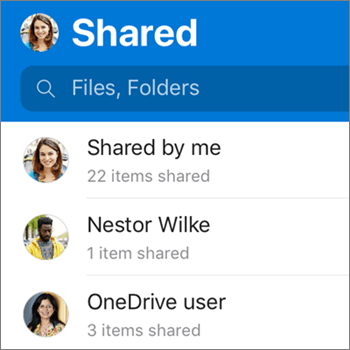
The Shared view includes files shared with you, and files you shared with others. When signed in with a personal OneDrive account, tap a sharer's name to find the files shared by that person.
Note
The Shared view looks different when you're signed in with a work or school account.
Read a file or folder offline
Mark files or folders offline to read them anytime, even when you aren't connected to the internet. Online edits made to the files sync the next time your Android device connects to the web, so you get the latest version of the file.
Note
- Files or folders marked offline are read-only - you can edit them only when you're online. If you edit a file offline, it saves as a new file, and doesn't change the original OneDrive file.
- Taking folders offline is available for Premium OneDrive with a Microsoft 365 subscription.
- In the OneDrive app, tap and hold the file or folder that you want available for offline reading, then tap Keep offline
 at the top of the app.
 - Files or folders marked for offline reading have the Keep offline icon in the List view. Tap the file listing anytime to open the file for reading.
Tip
Once you mark a file or folder offline, OneDrive also lists it in a Files Available Offline view. Tap the Me icon
at the bottom of the app, tap Files Available Offline to instantly find all your offline files and folders.
To stop keeping a file or folder offline, select the offline file or folder and tap Online only
 .
.
Set a OneDrive music file as the ringtone on your Android device
Here's how to set a ringtone from a OneDrive music file.
From any Home screen on your device, tap Apps > Settings > Sounds and Notifications > Ringtone.
To use your own music file, scroll to the bottom, and then select Add ringtone.
Tap Complete action using: OneDrive, and then tap Just once, if prompted.
Note
If you don't see the OneDrive option, download and save the music file to your device first.
Select the music file, and then tap Done.
Note
- If you want to set a ringtone from your device rather than from OneDrive, you might need to clear the OneDrive app defaults.
- Go to Settings > Apps.
- Scroll down and then tap OneDrive.
- After you clear the OneDrive defaults, you should be able to use the Sound Picker whenever you choose OneDrive files as ringtones, instead of going to OneDrive.
- Scroll down and then tap Clear Defaults.
See how much storage space you have (for your personal OneDrive account)
In the OneDrive app, tap the Me icon
at the bottom of the app. You see your total storage and space available near the top of the Me view.
Clear space on your device
OneDrive can remove local copies of the photos on your device to free up some space on your phone for things like apps and music.
Clean Up Space runs automatically when you have at least 1 GB of photos or videos to upload on your device (either by already having them on the device or by taking new ones). A notification appears on your device offering to Clean up space on your device. Tap Yes under the notification to free up the space on your device.
To set up OneDrive to clean up space automatically, turn on Camera upload. Here's how:
- Tap your profile picture or the
icon.
- Tap Settings
.
- Tap Camera upload and set Camera upload to On.
To run Clean Up Space manually:
- Tap your profile picture or the
icon.
- Tap Settings
.
- Tap Clear space on your device.
Add a passcode
Add a passcode to help prevent other people who use your device from accidentally accessing, changing, or deleting your files.
Tap your profile picture or the
icon.Tap Settings
.Tap Passcode, and then enable Require code.
Enter a 6-digit code, and then enter it again to verify it.
After you activate your passcode, you have the following options:
- Require code - enable or disable the passcode requirement.
- Change code - change the 6-digit passcode.
- Passcode timeout - set the timeout duration to 5 seconds, 10 seconds, 30 seconds, 1 minute, or 2 minutes.
- Use fingerprint to authenticate - select the checkbox to use this option instead of your passcode.
Sign out of accounts
To sign out of a personal OneDrive account or a OneDrive for work or school account, open the app, tap your profile picture or the
icon, and then tap Sign out.
Troubleshoot problems with the app
First, update the Android OS on your device. Then, make sure you install any available updates to the app. The app automatically downloads and installs updates when you're on Wi‑Fi. To see available updates that didn't download:
- Open the Google Play Store, access the menu in the upper left, and select My apps and games.
- Tap Updates.
- If updates are available, tap Update All.
If you still have problems with the app, try deleting it and then going to the Google Play Store to download it again.
If you don't see a file you're looking for in the app, see Find lost or missing files in OneDrive.
For more help, read how to Troubleshoot OneDrive for Android app problems.
Share feedback on the OneDrive app
You can rate the OneDrive app when you view it on an Android device, or get help, by shaking your device.
Need more help?
Account support. For help with your Microsoft account and subscriptions, visit Account & Billing Help.
Technical support. For technical support, select Contact Microsoft Support below, enter your problem and select Get Help.
Mobile users can contact Support by opening the OneDrive app and gently shaking your device.
Community support. Communities help you ask questions, give feedback, and hear from experts with rich knowledge. Ask the Microsoft Community. Do not disclose personal or sensitive information in public forums.