
Applies to: Outlook on the web, new Outlook for Windows, and the Calendar in Microsoft Teams
Before you begin
You need:
- A Microsoft 365 Copilot license.
- A meeting created or updated in Outlook on the web, new Outlook for Windows, or the Calendar in Microsoft Teams.
- A room that you added to the meeting.
Classic Outlook for Windows isn't currently supported. Support is being developed.
Rebooking applies only to rooms added by the organizer. If another attendee adds a room, Copilot doesn't automatically rebook it.
Enable Copilot rebook declined meeting rooms
If a room declines, Copilot will try to rebook it automatically when the room was added from a supported client or through Copilot scheduling. Rebook declined rooms is enabled by default.
Add a room in a supported client
After you add a room, check the Rebook declined rooms control in the event form, Places finder, or Room Finder in Outlook:
- Create a meeting or open a meeting that you organize.
- Add a room.
- Confirm that Rebook declined rooms stays turned on.
- Send the meeting invitation or update.
Ask Copilot to schedule a meeting and add a room
You can ask Copilot to schedule a meeting and add a room in one step. For example:
- "Schedule a meeting with Barbara and add a room."
- "Schedule a 30-minute meeting with Alex tomorrow afternoon and add a room."
- "Schedule a meeting with my manager to discuss the Q1 sales report and add a room."
Copilot confirms the selected room and indicates that Rebook declined rooms is on.
What happens after you send the invitation
If the room accepts
No action is needed. The meeting shows the room as confirmed.
If the room declines
Copilot searches for a replacement room in the background. Depending on room availability, this search can take from a few minutes to a few hours. If Copilot doesn't find an available room, it tries again every day before the meeting starts.
- Looks for an available room similar to the one that declined.
- Moves between candidate rooms while searching for a replacement.
- Updates the meeting only after a substitute room accepts.
Attendees aren't notified about candidate rooms.
You can edit the event at any time, including changing the room yourself. Copilot doesn't block or prevent manual changes.
While Copilot is searching
If Copilot can't find a suitable room on its first search, the meeting organizer receives one email from the requested room with the subject Copilot is searching for a room. The email explains that the requested room is unavailable, no similar room is currently available in the building, and Copilot will continue searching.
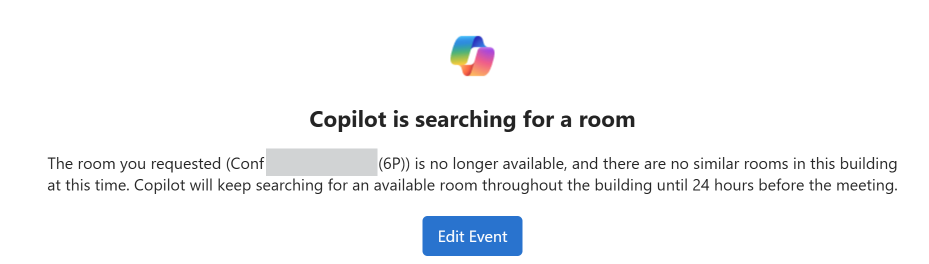
The email is sent once, not daily. The meeting organizer can wait for Copilot to continue or select Edit Event to change the room or other meeting details.
When Copilot finds a replacement
After a replacement room accepts, the meeting location is updated and attendees receive a meeting update informing them that the location changed. The meeting subject remains unchanged. The confirmation email identifies the original room and the room that Copilot booked:
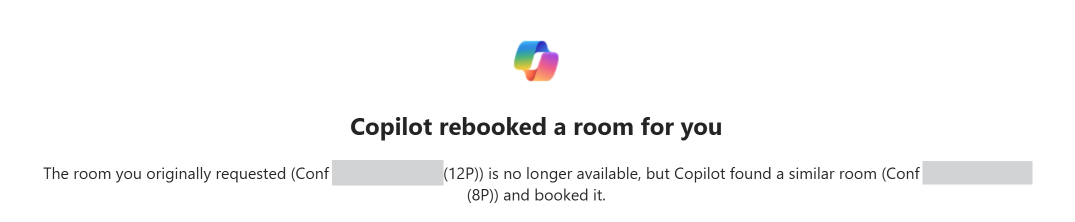
Open the event to confirm the updated location. You can still change the room manually if the replacement doesn't meet your needs.
If Copilot can't find an available room
If Copilot reaches the end of rebooking without finding an available room, you can receive a Copilot couldn't find an available room notification. It explains that the requested room is unavailable and that no available room was found in the building:
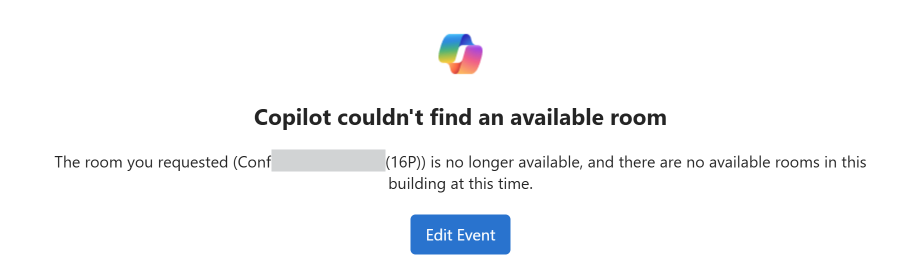
Select Edit Event, or open the meeting from your calendar, and update the room or other meeting details yourself.
How Copilot chooses a room
Copilot looks for a room similar to the one that declined the meeting. It considers:
- Location context: The original room's floor, building, and room list.
- Availability: Whether a candidate room is available for the meeting.
- Booking history: Rooms associated with your previous bookings.
- Capacity: The size of candidate rooms. Capacity is a consideration, not a mandatory filter.
The exact weighting and fallback order aren't specified in this article.
Work plan and work location settings can affect the order of recommendations based on your booking history, which can influence the room that Copilot ultimately selects.
Recurring meetings
Copilot room rebooking also works with recurring meetings.
When the room accepts only some meetings in the series
Depending on the room's conflict settings for recurring requests, the room can accept meetings that don't conflict with existing reservations and decline the meetings that do. The room response lists the conflicting meeting:

In that case, Copilot helps rebook the declined meetings in the series. Meetings accepted by the original room remain unchanged.
When the room declines the entire recurring request
Copilot first tries to rebook the recurring meeting or series. If it can't successfully rebook the entire series, it prioritizes the nearest meeting or meetings so that upcoming meetings can still have a room.
Turn off Copilot room rebooking
You can turn off Copilot room rebooking before the meeting starts:
- Open the meeting.
- Edit the event.
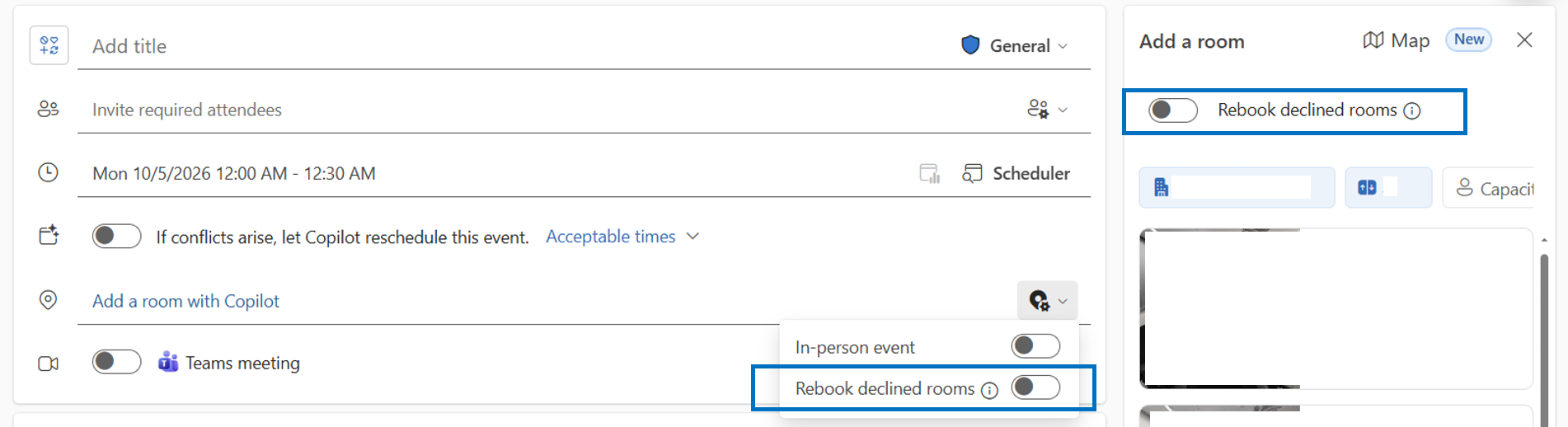
- Find Rebook declined rooms in the event form, Places finder, or Room Finder.
- Turn the setting off.
- Send the update.
Turning the setting off stops future automatic rebooking. It doesn't remove a room that Copilot already booked. To remove or replace an accepted room, edit the meeting location and send an update. You can find the toggle in the event form or while selecting a room with Add a room or Room Finder:
Notifications
| Situation | When | What the meeting organizer receives | What attendees receive |
|---|---|---|---|
| Copilot rebooked a room for you | After Copilot successfully rebooks a declined room | A confirmation email identifying the original and replacement rooms | A meeting update informing them that the location changed; the meeting subject doesn't change |
| Copilot is searching for a room | When the first rebooking attempt for a declined room doesn't find a suitable replacement | One email from the requested room | No notification |
| Copilot couldn't find an available room | When the meeting is within 24 hours of starting and Copilot hasn't found an available room | A notification with an option to edit the event | No notification |
Frequently asked questions
Can I choose the replacement room?
No. Copilot selects a room automatically. If you want a specific room, open the event and use Places Finder or Room Finder to change the room yourself.
Why didn't Copilot rebook a declined room?
Check who added the room to the meeting. Rebooking applies only to rooms added by the organizer. If an attendee added the room, open the event and add or change the room yourself.
Why did I receive a cancellation related to the original room?
In your mailbox, replacing the declined room can appear as canceling the original room for the meeting. This action releases only the original room reservation. It doesn't cancel the meeting on your calendar or the invitation for your attendees.
Will attendees know that the room changed?
Yes. After a substitute room accepts, attendees receive a meeting update informing them that the location changed. The meeting subject doesn't change. They aren't notified while Copilot is searching through candidate rooms.
Can I make changes while Copilot is searching?
Yes. Open the event and change the room or other meeting details at any time. Copilot doesn't block manual changes.
Get help
If Copilot room rebooking doesn't work as expected:
- Confirm that you added the room yourself.
- Check that Rebook declined rooms is still enabled.
- Check the latest room response and meeting details.
- Open the event and update it yourself if you need to make a change immediately.
- Contact your IT helpdesk or Microsoft 365 administrator if Copilot repeatedly selects an unexpected location or can't find rooms that should be available.
Your administrator can use Configure Copilot room rebooking for Exchange Online to check:
- Complete and consistent Places information, including floor, building, and roomlist.
- The room or resource mailbox and its visibility in Room Finder and Places finder.
- Room booking policy and processing.
- Workplace, work location, and work plan platform configuration.