If your mailbox is nearing its maximum capacity, we will begin sending you emails and in-app messages telling you your storage is almost full. If it does exceed capacity, you won't be able to send or receive any messages. Also, people who send you email will receive an error message that tells you your mailbox is full.
Select your product from the tabs below.
I get a "Quota exceeded" or "Mailbox full" message
To check how much mailbox storage you've used and quickly clear up space, in new Outlook, open your Settings > Accounts  and search for Storage.
Clean up your mailbox
Outlook accounts can have up to 100 GB of storage per mailbox (Exchange Online mailbox storage limits). Administrators can reduce the maximum mailbox size for individual users or across the organization. For more information, go to How to set Exchange Online mailbox sizes and limits in the Microsoft 365 environment for details.
From the Accounts > Storage page you should have a breakdown of how much space each folder in your mailbox is taking. Below, you should have a list of the folders represented in the breakdown with the option to permanently delete all items (or those older than 3, 6, or 12 months) in these folders to free up space.
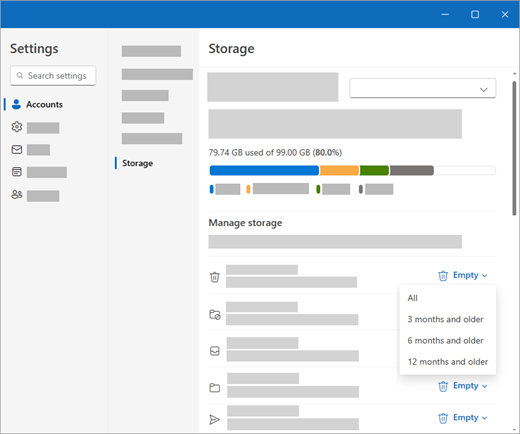
Permanently delete email in new Outlook
When deleting items from Inbox or other folders, items are sent to the Deleted Items folder by default. The Deleted Items folder does count against your mailbox storage quota until it is manually emptied.
To permanently delete a message or messages, select or highlight the messages, press Shift and DEL on your keyboard.
Other ways to reduce your storage new Outlook
To make room in your mailbox, try the following solutions.
Sweep unwanted email from your inbox
Use the Sweep button to quickly remove unwanted email from your inbox or archive folders. Sweep lets you automatically delete all incoming email from a particular sender, keep only the latest message from that sender, or delete email that's older than 10 days.
To sweep your inbox, choose a message you want to sweep, and select Sweep.
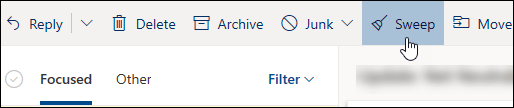
To learn more about Sweep, go to Organize your inbox with Archive, Sweep, and other tools.
Important
Items deleted using Sweep will not count toward reducing your storage quota until they are also deleted from the Deleted Items folder.
Saving attachments to OneDrive is another good way to make room in your inbox
At the top of your message list in new Outlook, select Filter > Sort by > Size.

Note
If the message list sorts the smallest messages on top, click Filter > Sort by > Size again to put the largest messages on top.
Select the message containing the attachments you want to upload to OneDrive.
Beneath the attachment, select Save to OneDrive.
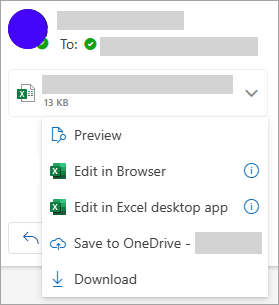
Permanently delete the original email that contained the attachment by pressing Shift and DEL on your keyboard.
Delete email messages that include files or photos
To delete the file or image, you must delete the message it's attached to:
- For All images, find the corresponding message in your mailbox and delete it.
- For Sent images, go to your Sent Items, find the corresponding message, then delete it.
- After deleting the message, you also need to delete it from your Deleted Items folder. Go to Deleted Items, select the item or items to remove, then select Delete.
How else can I increase sending and storage limits
If you are still unable to make enough space using the above methods you can try the following:
Clean up a Microsoft 365 Group mailbox
If you get an email that my group mailbox is almost full, the owner of the Microsoft 365 Group can permanently delete messages to clean up your group mailbox.
Sign in to new Outlook or Outlook on the Web by using the owner credentials for the group.
Select Groups  in the App bar located in the left of the window.
In the left pane, under Groups, select the group that is full or is close to reaching capacity.

Select Settings  .
.
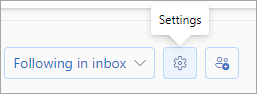
Select Manage Storage.
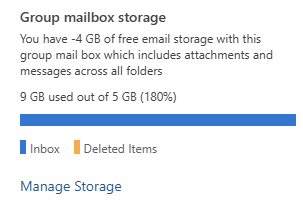
From here, you can empty the folder that's occupying most of the space in group mailbox.
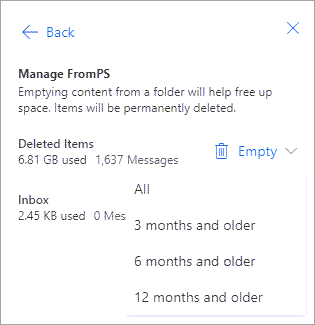
Select OK.
I get a "Quota exceeded" or "Mailbox full" message
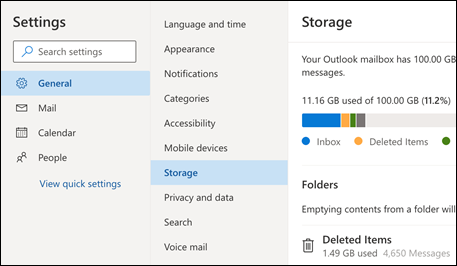
To check how much mailbox storage you've used and quickly clear up space, in Outlook on the web open your Settings
and search for Storage.
How to clean up your mailbox in Outlook on the web
Outlook accounts can have up to 100GB of storage per mailbox (Exchange Online mailbox storage limits). Administrators can reduce maximum mailbox sizes per user or globally, go to How to set Exchange Online mailbox sizes and limits in the Microsoft 365 environment for details.
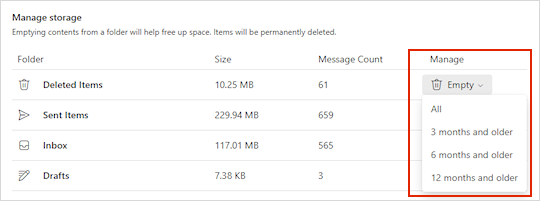
From the Settings > Storage page you should have a breakdown of how much space each folder in your mailbox is taking. Below, you should have a list of the folders represented in the breakdown with the option to permanently delete all items (or those older than 3, 6, or 12 months) in these folders to free up space.
How to permanently delete email in Outlook on the web
When deleting items from Inbox or other folders, items are sent to the Deleted Items folder by default. The Deleted Items folder does count against your mailbox storage quota until it is manually emptied.
To permanently delete a message or messages, select or highlight the messages, press Shift and DEL on your keyboard.
Other ways to reduce your storage
To make room in your mailbox, try the following solutions.
Sweep unwanted email from your inbox
Use the Sweep button to quickly remove unwanted email from your inbox or archive folders. Sweep lets you automatically delete all incoming email from a particular sender, keep only the latest message from that sender, or delete email that's older than 10 days.
To sweep your inbox, choose a message you want to sweep, and select Sweep.
To learn more about Sweep, go to Organize your inbox with Archive, Sweep, and other tools in Outlook.com.
Important
Items deleted using Sweep will not count toward reducing your storage quota until they are also deleted from the Deleted Items folder.
Saving attachments to OneDrive is another good way to make room in your inbox
At the top of your message list in Outlook on the web, select Filter > Sort by > Size.
Note
If the message list sorts the smallest messages on top, click Filter > Sort by > Size again to put the largest messages on top.
Select the message containing the attachments you want to upload to OneDrive.
Beneath the attachment, select Save to OneDrive.
Permanently delete the original email that contained the attachment by pressing Shift and DEL on your keyboard.
Delete email messages that include files or photos
To delete the file or image, you must delete the message it's attached to:
- For All images, find the corresponding message in your mailbox and delete it.
- For Sent images, go to your Outlook.com Sent Items, find the corresponding message, then delete it.
- After deleting the message, you also need to delete it from your Deleted Items folder. Go to Deleted Items, select the item or items to remove, then select Delete.
How else can I increase sending and storage limits
If you are still unable to make enough space using the above methods you can try the following:
I get an email that my group mailbox is almost full
You can permanently delete messages to clean up your group mailbox. Only a group owner can delete messages from a Microsoft 365 group mailbox.
- Sign in to Outlook on the web by using the owner credentials for the group.
- Locate the group under Groups that is full or is close to reaching capacity.
- Select the Group or Group Inbox and select the check box to Select all messages from the group.
- Press shift+delete and select OK to confirm you want to delete all messages permanently.
- Follow the same steps for Groups\Deleted items folder, to delete any email items present there. The Microsoft 365 group mailbox should be empty in a few minutes.
I get a "Quota exceeded" or "Mailbox full" message
To check how much mailbox storage you've used and quickly clear up space, in Outlook.com open your Settings
and search for Storage.
How to clean up your Mailbox in Outlook.com
Microsoft offers 15 GB of email storage space per free Outlook.com account. Microsoft 365 subscribers get 100 GB of space.
From the Settings > Storage page you should have a breakdown of how much space each folder in your mailbox is taking. Below, you should have a list of the folders represented in the breakdown with the option to permanently delete all items (or those older than 3, 6, or 12 months) in these folders to free up space.
If you are not a Microsoft 365 subscriber, you also have the option to upgrade to get 100 GB of space as well as other Outlook and Microsoft 365 subscription features.

How to permanently delete email in Outlook.com
When deleting items from Inbox or other folders, items are sent to the Deleted Items folder by default. The Deleted Items folder does count against your mailbox storage quota until it is manually emptied or the emails are automatically deleted after 30 days, whichever happens first.
Note
Items in the Junk folder are automatically deleted after 10 days.
To permanently delete a message or messages, select or highlight the messages, press Shift and DEL on your keyboard.
How else can I increase sending and storage limits?
You can increase sending and storage limits by upgrading your Outlook.com account with a Microsoft 365 subscription. This gives you:
- Advanced email security
- An ad-free inbox
- A 100 GB mailbox per person
- Larger OneDrive storage, installable Microsoft 365 apps, and much, much more!
Sending limits in Outlook.com
Fix Outlook.com email sync issues
Get help with Outlook.com
Need more help?

|
To get support in Outlook.com, tap or click here or select Help on the menu bar and enter your query. If the self-help doesn't solve your problem, scroll down to Still need help? and select Yes.
If the above steps don't work or if you can't sign in, tap or click here. |

|
For other help with your Microsoft account and subscriptions, visit Account & Billing Help. |

|
To get help and troubleshoot other Microsoft products and services, enter your problem here. |

|
Post questions, follow discussions and share your knowledge in the Outlook.com Community. |

