
The Planner Plugin connects Planner to supported Copilot experiences after your admin makes it available to your organization. You currently find it in Microsoft Copilot under Plugins > Cowork. This article focuses on Cowork scenarios that help you move from knowing what's on your plate to getting it done. Every change to Planner is shown to you first and applied only with your approval.
Important: AI-generated content might be inaccurate. Review and verify all output before you rely on it or approve changes.
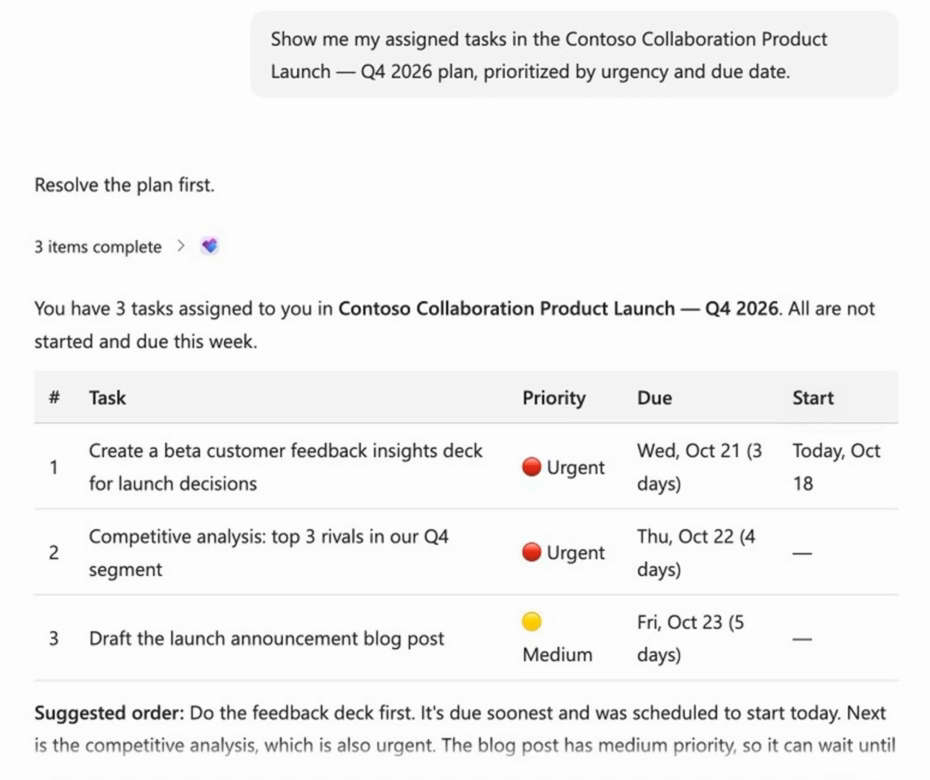
See and prioritize your work
Ask about the tasks assigned to you across your plans. Cowork highlights overdue and upcoming work and suggests what to focus on. This doesn't change anything in Planner.
Example prompts:
- "What should I work on first today?"
- "What am I behind on?"
- "Show my urgent tasks in the Marketing Launch plan."
Get help completing your tasks
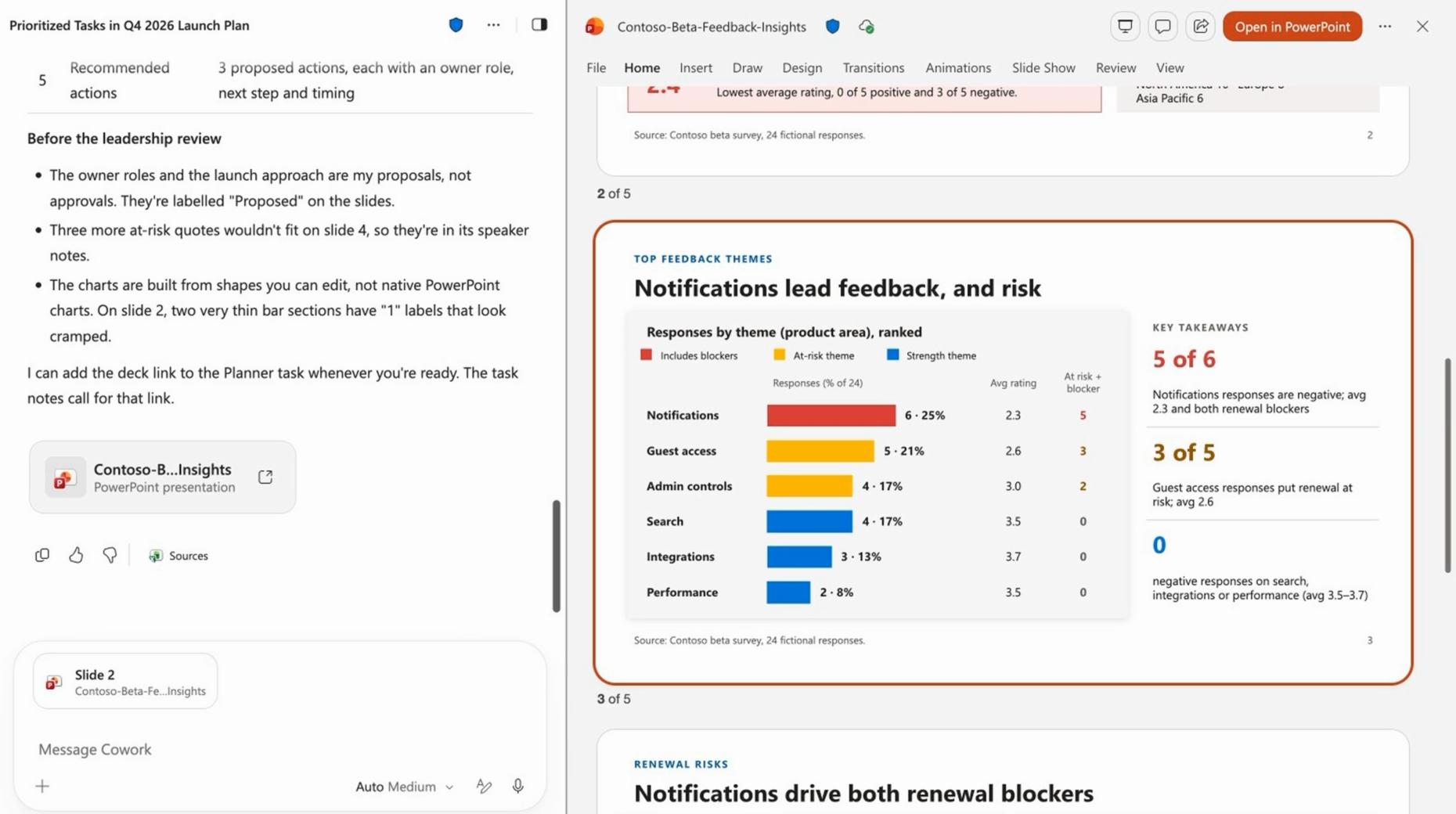
Choose a task and tell Cowork how to help: research, a draft, an analysis, or a finished file. Cowork uses the task's notes, checklist, and attachments, and then saves the result for you to review.
After you approve, Cowork can:
- Update the task's progress.
- Check off completed checklist items.
- Add a link to the finished file.
- Mark the task complete.
If something needs your input, such as a decision or a review, Cowork tells you what's left for you to do.
Example prompts:
- "Which of my tasks can you help with?"
- "Work on the customer feedback deck task."
Get a visual plan report
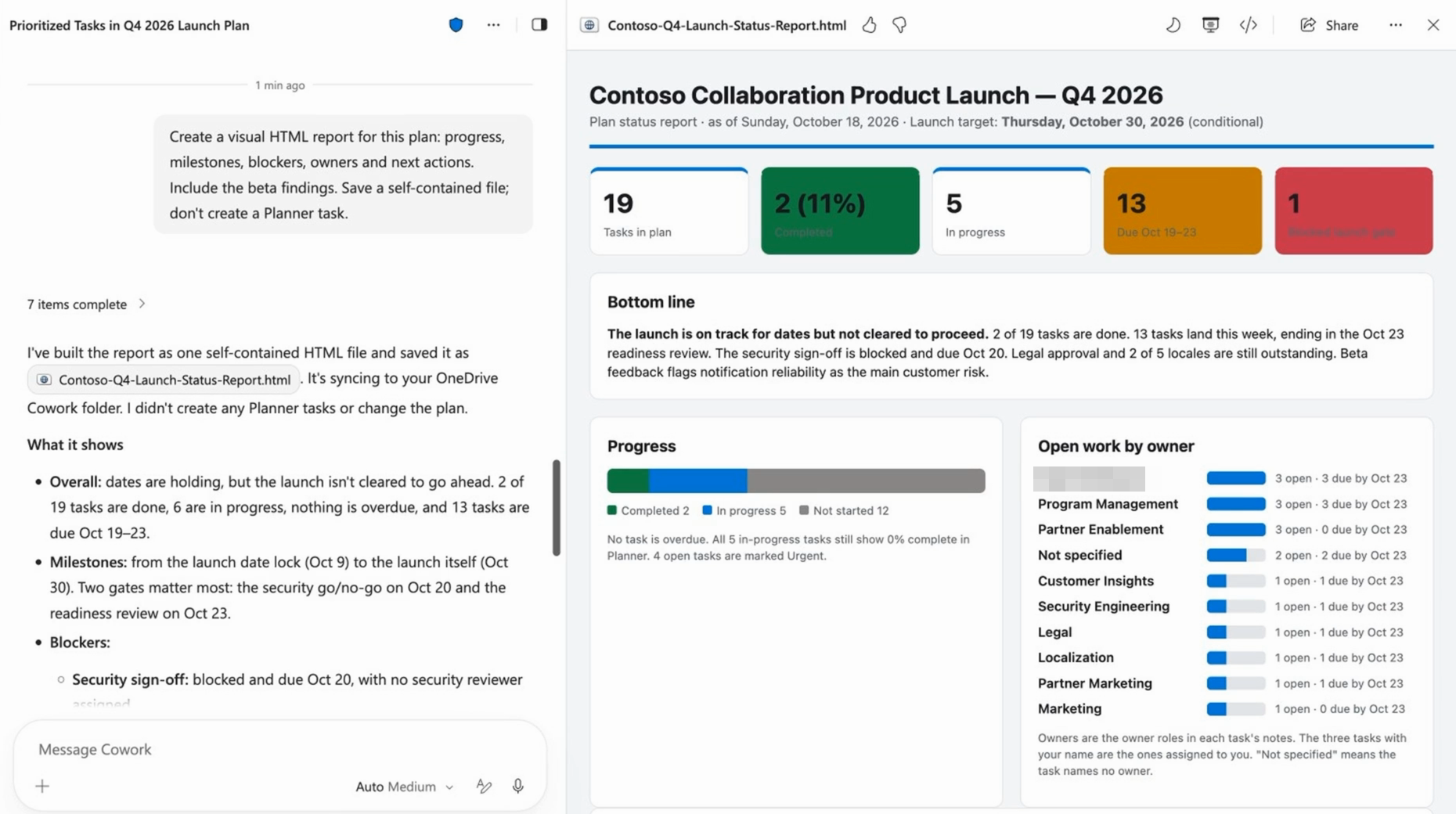
Cowork creates a visual report for a plan that you can review and share. Reports can include:
- Overall progress
- Upcoming and overdue tasks
- Work by owner and bucket
- Progress toward goals
- Blockers and recommended next steps
Example prompts:
- "Create a status report for this plan."
- "Which tasks in the Marketing Launch plan are at risk?"
Turn spreadsheets and documents into plans
Already tracking work in a spreadsheet or document? Share it with Cowork, and it proposes a Planner plan with buckets, tasks, owners, and due dates. Review the plan, make changes, and Cowork creates it when you approve.
This works with:
- Excel spreadsheets, such as a project tracker or launch checklist
- Word documents and PowerPoint presentations, such as a project brief
- Meeting notes and action items
Example prompts:
- "Create a Planner plan from this Excel sheet. Use each row as a task."
- "Turn the action items from this meeting into tasks in my Marketing Launch plan."
Get more done with Planner context
Cowork uses your tasks, including their notes, checklists, attachments, owners, and due dates, as context for work across Microsoft 365. You review and approve actions before Cowork takes them.
You can ask Cowork to:
- Draft and send emails, such as reminders to owners of overdue tasks.
- Schedule meetings, such as a review with the owners of at-risk tasks.
- Post plan updates in a Teams chat or channel.
- Create documents, presentations, and spreadsheets from task details.
Example prompts:
- "Email the owners of overdue tasks in the Marketing Launch plan with a friendly reminder."
- "Schedule a 30-minute review with the owners of the at-risk tasks."
- "Post this week's Marketing Launch status in the team channel."
Automate Planner work
Set up Cowork to run Planner requests automatically, either on a schedule or when something happens, such as when you receive an email or a Teams message. You manage these automations on the Automations page in Cowork, where you can edit, pause, resume, or delete them. Changes to Planner still need your approval.
Example prompts for scheduled automations:
- "Every Monday at 9 AM, send me a list of my tasks due this week."
- "Every Friday afternoon, create a status report for the Marketing Launch plan and post it in Teams."
- "Each morning, tell me which of my tasks became overdue."
Example prompts for event-driven automations:
- "Whenever I get an email that asks me to review something, draft a Planner task for it in my Marketing Launch plan for my approval."
- "When I'm mentioned in the Launch channel, check whether it's about one of my Planner tasks and summarize what's needed."
For more information, see Use Copilot Cowork.
Turn goals into tasks
Share a goal, idea, or document. Cowork suggests a list of tasks. You choose which plan to add them to, review the list, and Cowork creates only the tasks you approve.
Example prompts:
- "Turn the goal 'Launch the new website by March' into tasks."
- "Suggest tasks from this document for my Marketing Launch plan."
Create and update tasks
Ask Cowork to:
- Create tasks.
- Change due dates, priority, or progress.
- Add notes, checklist items, or links.
- Mark tasks complete.
Example prompt:
- "Move the Marketing task to Friday and set it to Important."
How approvals work
- Cowork shows you exactly what it will create or change before it updates Planner.
- You can approve or cancel each change. To adjust a change, tell Cowork what to do differently.
- When several changes are waiting, you can approve them one at a time or all together.
- If you choose an option to stop asking about similar actions, it applies only to the current session.
Tips for best results
- Name the plan or task you mean.
- Ask Cowork to "show me first" before it makes changes.
- Split large requests into smaller steps.