
The Planner Plugin connects Planner to supported Copilot experiences after your admin makes it available to your organization. You currently find it in Microsoft Copilot under Plugins > Cowork. This article shows you how to install, connect, and use the plugin in Copilot Cowork so Cowork can work with your Planner tasks, plans, and goals.
Before you begin
- You need a Microsoft 365 Copilot license and access to Copilot Cowork.
- Your organization must allow the Planner Plugin. If you can't find it, contact your IT admin.
Install the plugin
Open Microsoft Copilot and select Plugins.
Select the Cowork tab.
Search for Planner Plugin.
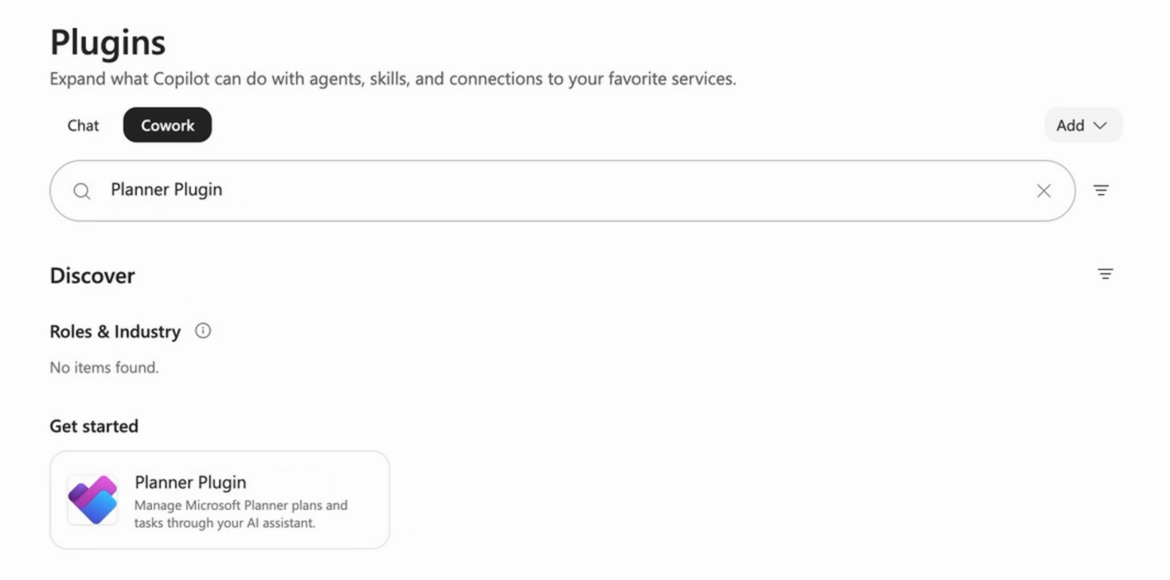
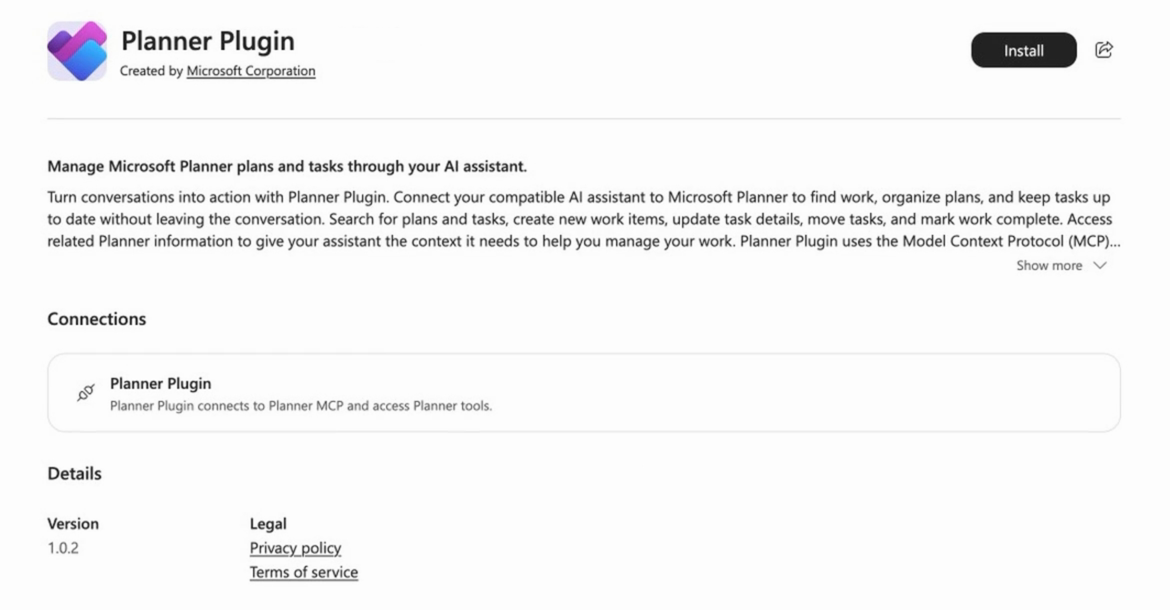
Select Planner Plugin. Check that it's created by Microsoft Corporation.
Select Install.
Connect your account
The first time you install or use the plugin, you might be asked to connect.
If you're prompted, select Connect and complete the sign-in.
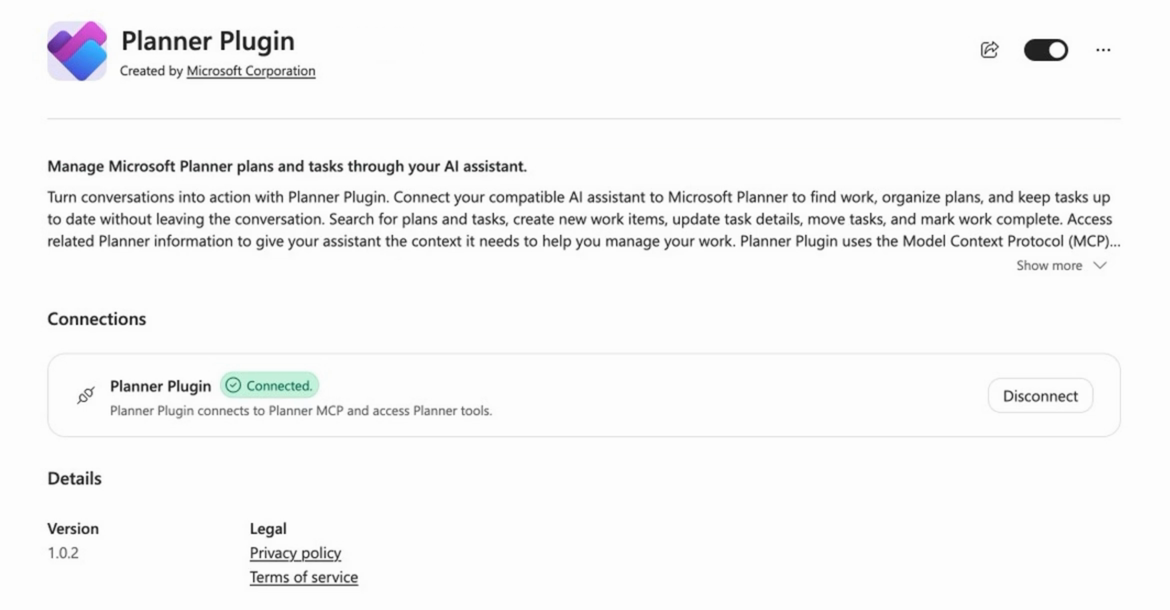
On the plugin details page, under Connections, check that Planner Plugin shows Connected.
Make sure the plugin toggle is turned on, and then return to Cowork.
You only need to connect once. Cowork remembers your connection.
If your organization already added the plugin
The plugin appears automatically and shows Managed by your organization. You can turn it on or off on the Plugins page (Cowork tab), but you can't remove it. You might still need to connect the first time you use it.
Start using the plugin
Just ask. Cowork uses the Planner Plugin automatically when your request is about your tasks, plans, or goals.
Try these prompts:
- "What's on my plate this week?"
- "Create a status report for the Marketing Launch plan."
- "Turn this goal into tasks for my Marketing Launch plan."
- "Help me with the competitive analysis task."
- "Create a Planner plan from this Excel sheet."
Turn off, disconnect, or remove the plugin
- To turn it off: On the Plugins page (Cowork tab), open Planner Plugin and turn off the toggle.
- To disconnect your account: Open Planner Plugin, and under Connections, select Disconnect.
- To remove it: Open Planner Plugin, select More options (...), and then select Remove. Conversations already in progress aren't affected.