
The colors and styles you use for slides, text, charts, and graphics go a long way toward improving accessibility in PowerPoint presentations. Using an accessible template is a good starting point.
Use an accessible template
In PowerPoint, you can search for and use pre-defined accessible templates.
Open PowerPoint.
Note
If PowerPoint is already open, go to File > New.
Type accessible templates in the search text field.
To see information about an accessible template, select it.
To open a new presentation based on the selected template, select Create.
To see other color, style, and font options, browse the PowerPoint themes. On the Design tab, expand the Themes menu and select a theme that suits your purposes.
Tips for accessible color and style choices in PowerPoint
Off-white backgrounds are better for people with perceptual differences, like dyslexia.
Select templates and themes with sans serif fonts that are 18 points or larger.
Look for solid backgrounds with contrasting text color.
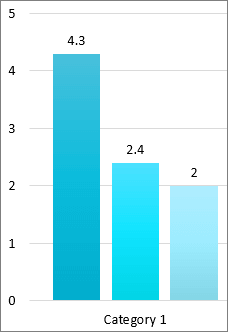
To make information more accessible, differentiate it in more than one way. In the image below, both color and text differentiate information:
Want more?
Make your PowerPoint presentations accessible to people with disabilities