
Note
If you don’t see Copilot in Word, Excel, PowerPoint, or OneNote, it might not be included with your Microsoft 365 subscription or available based on your organization’s settings. Learn which Copilot license you have.
A skill extends the capabilities of an AI model. Skills are reusable, instruction-based capabilities that provide agents with domain expertise, workflows, and task-specific guidance. Skills provide Copilot in PowerPoint with information to complete repeatable tasks. With Copilot in PowerPoint, you can choose from skills available on the Copilot pane or create your own custom skills.
Choose skills
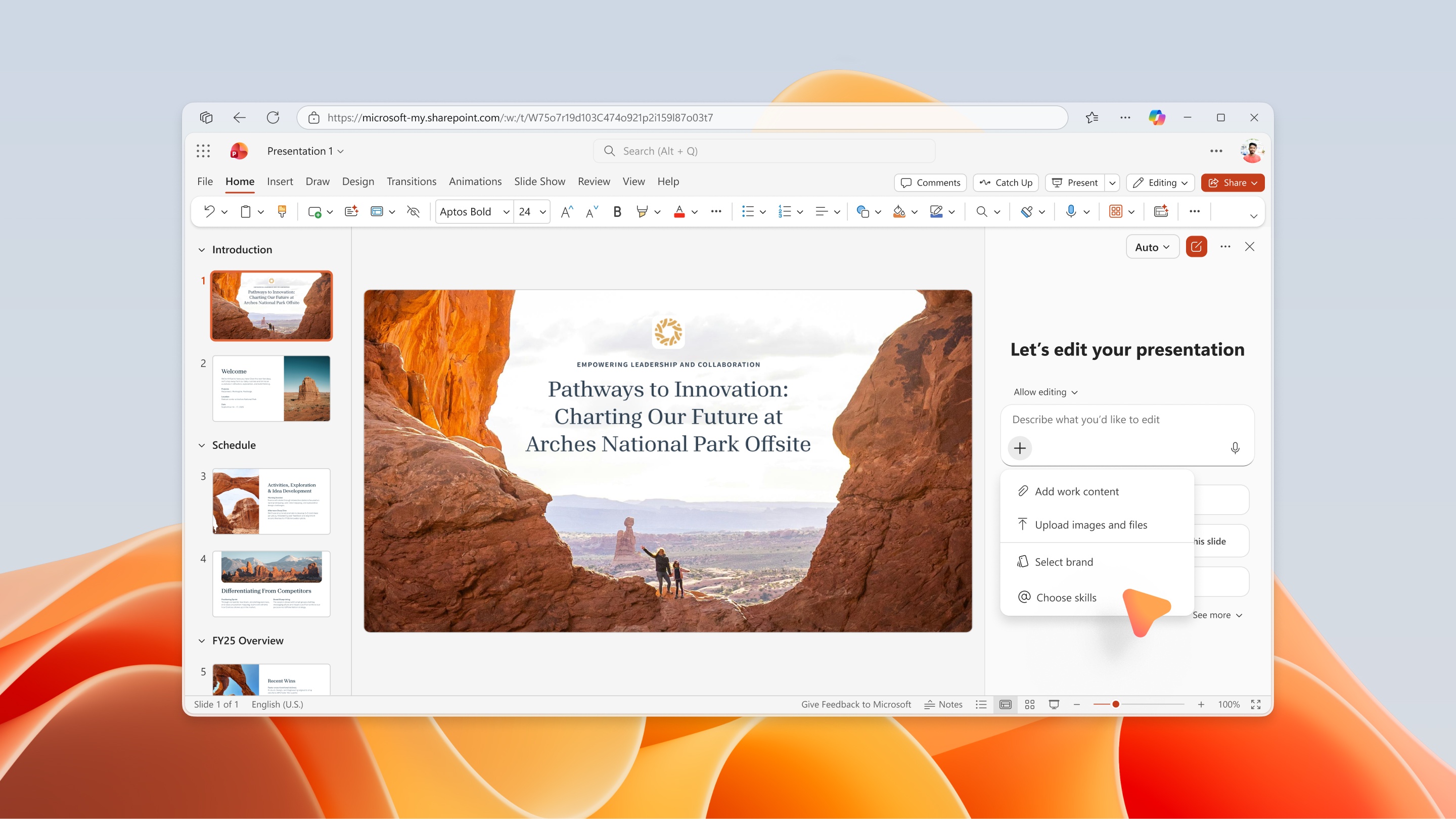
To use a skill, open Copilot in PowerPoint, select the + sign menu in the prompt field, and then select Choose skills. The Choose skills list shows skills provided by Copilot in PowerPoint and custom skills that you've uploaded. To learn more about creating your own custom skills, see Creation of skills.
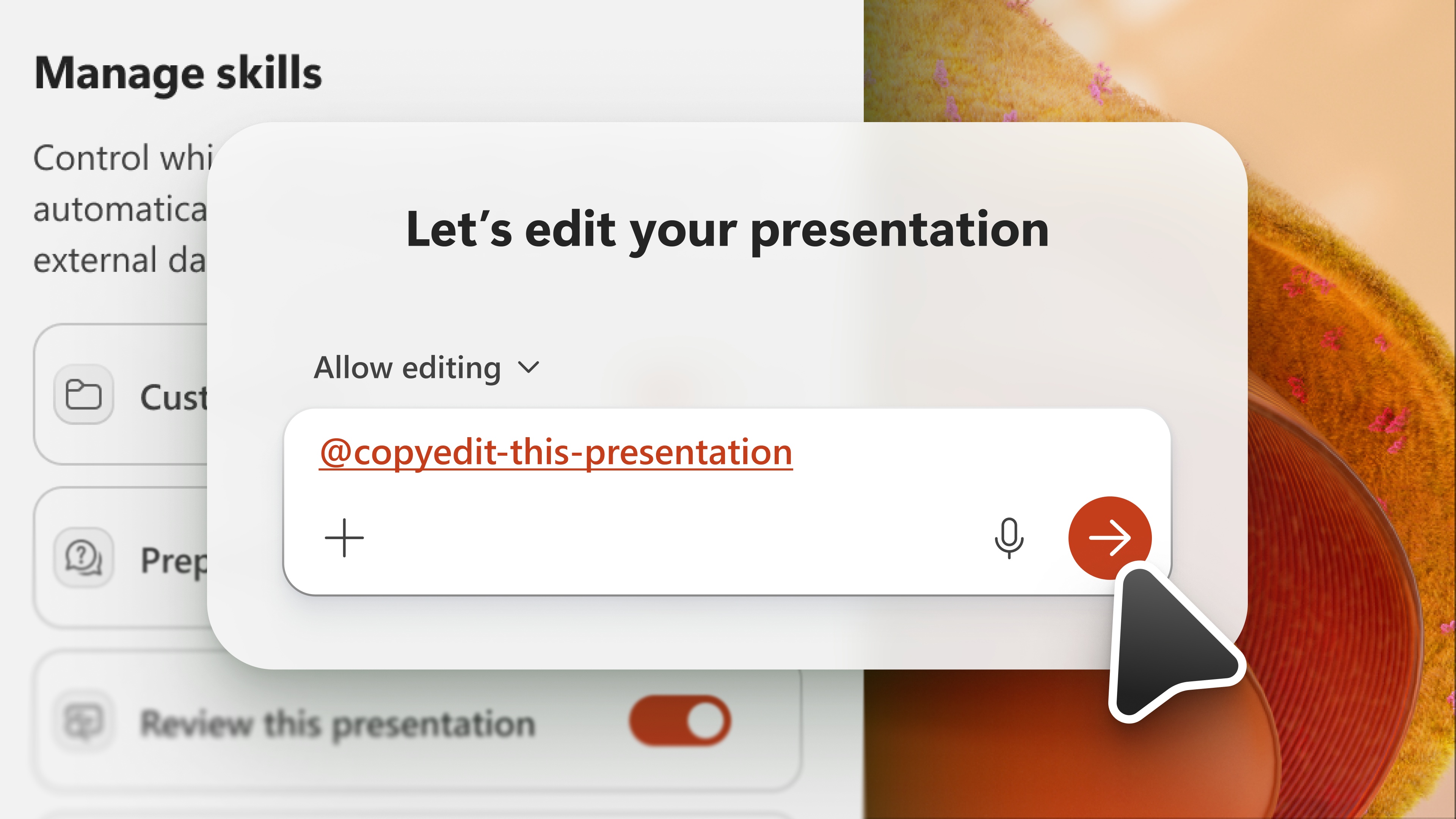
To invoke a specific skill in your request, you can either select it from the Choose skills menu, or type it directly with an @mention. For example, to call a skill named "copyedit-this-presentation", type @copyedit-this-presentation in your prompt to Copilot.
Manage skills
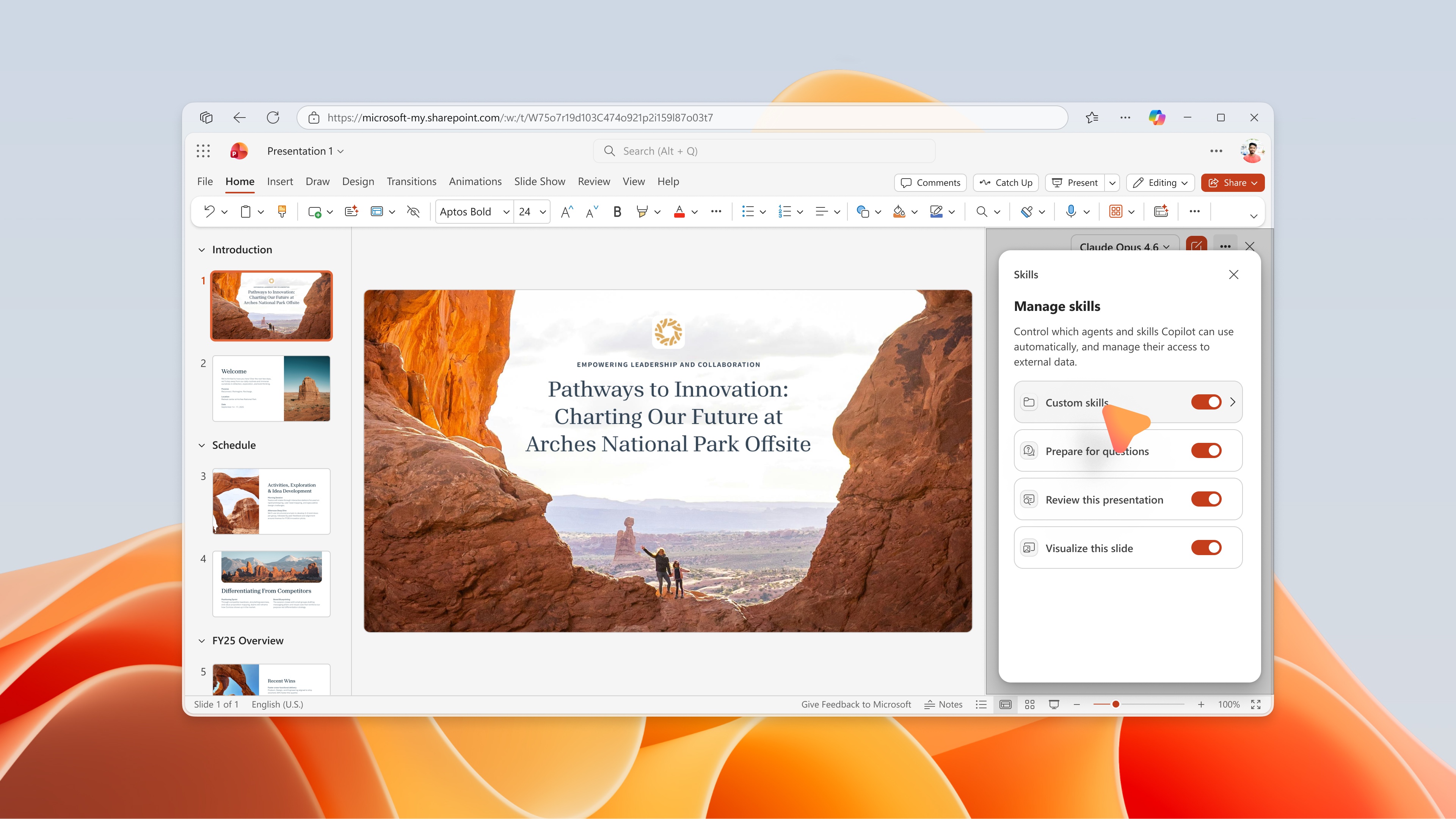
Toggle skills on or off to control which ones Copilot in PowerPoint uses by default. To manage your skills, select the Settings menu (see "..." in the upper-right corner), and then select Manage skills.
Important
Turning a skill off in the Manage skills dialog stops Copilot from using that skill automatically and it will not show in the skill dropdown menu.
Creation of skills
There are several ways to add a custom skill to Copilot in PowerPoint.
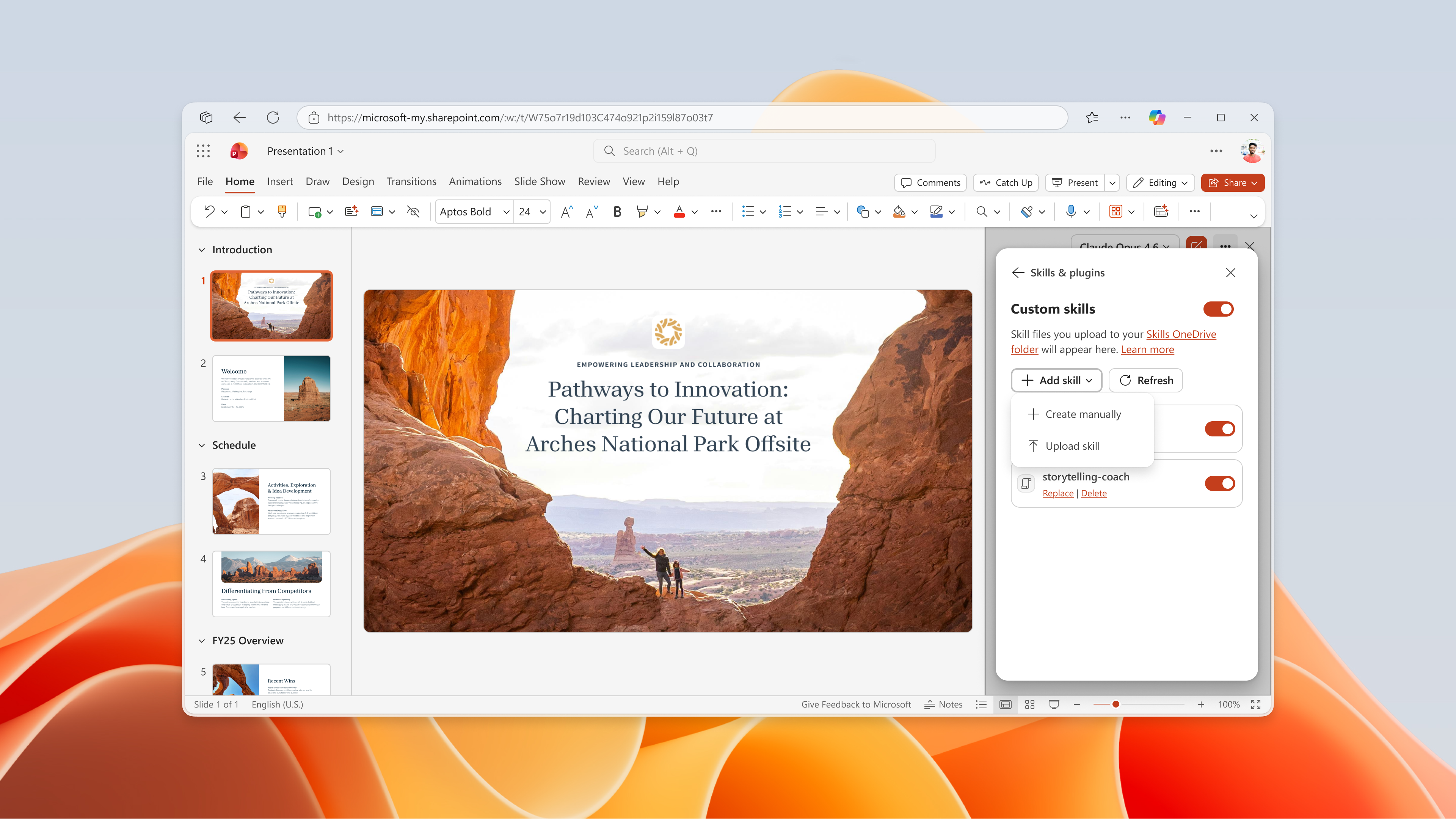
Option 1: Upload a skill within Copilot in PowerPoint
In the Copilot chat pane, select the + sign and then Choose skills. Scroll to the end of the skills list and select Manage skills in the dropdown. Then select Add skill.
You can upload or drag and drop one or more skill files directly from within Copilot in PowerPoint. This automatically stores the skill in your Skills folder on OneDrive and makes it instantly available in the skill dropdown menu for use with Copilot in PowerPoint. If you don't see the skill after uploading it, try refreshing it in the Manage skills pane.
Note
This skill is only for your personal use. If you don't see your uploaded skill in the skills menu, confirm you've met the custom skill format requirements described in the following section.
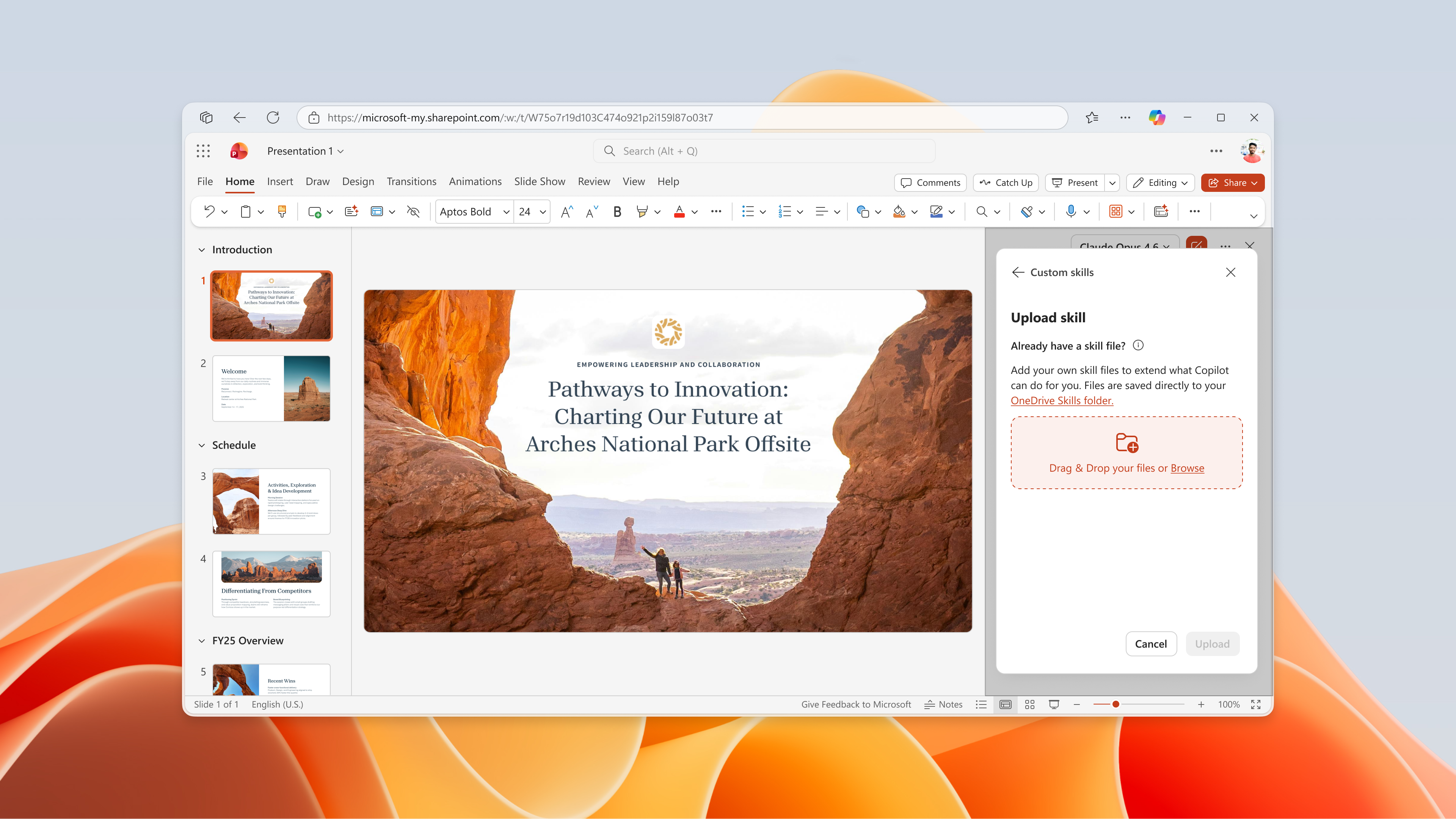
Option 2: Use Add skill in Copilot in PowerPoint
In the Add skill menu in the Copilot pane, use the form to copy and paste your skill. This also automatically saves the skill to your Skills folder on OneDrive after you select Add.
Option 3: Copy your skill directly within OneDrive
Custom skills are uploaded by you and saved to your OneDrive account in a specific folder. If you ask Copilot for the same thing often, turn that request into a skill. You can edit your custom skills and turn them off or on anytime. To create a custom skill, take the following steps.
- In the Copilot pane, select the Settings menu (the ... in the upper-right corner).
- Select Manage skills.
- Select Custom skills.
- Select Create OneDrive folder. Copilot creates the OneDrive skills folder.
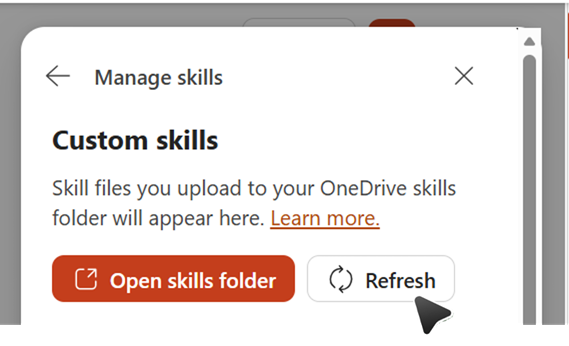
- Select Open skills folder. Copilot opens the new skills folder in your OneDrive.
- Add your skills to this folder. Use custom skills created by your organization, or create your own. See Custom skills format requirements for details on how to create your own skills.
Custom skill format requirements
Custom skills must follow the industry standard format to be recognized by Copilot in PowerPoint. Each skill needs an individual folder, and that folder must have a SKILL.md file defining the skill. SKILL.md has two sections:
- The metadata section, at the top between the three dash delimiters (---), is called the frontmatter. It holds the name and a description that tells Copilot when to use the skill. This section is required.
- The body section is your instructions, telling Copilot how to do the task. There are no format restrictions. The following is an example of a simple SKILL.md for a skill named create-executive-summary-slide. This SKILL.md file must be in a folder named create-executive-summary-slide to be recognized by Copilot in PowerPoint.
---
name: create-executive-summary-slide
description: Use when I ask Copilot to create executive summary slide of a given deck. After the summary is created, add it to a new slide.
---
# Create Executive Summary
When Copilot creates executive summary content, add it to a new slide and follow the design style of existing presentation.
## Steps
1. Create the summary as requested.
2. Analyze design style of existing deck.
3. Add summary in new slide but following existing presentation design style
For more information about standard skills formatting, see Agent skills: Specification.
Edit or remove skills
To edit or delete a custom skill, open the Manage skills pane within Copilot in PowerPoint. Select Edit or Delete below each custom skill.
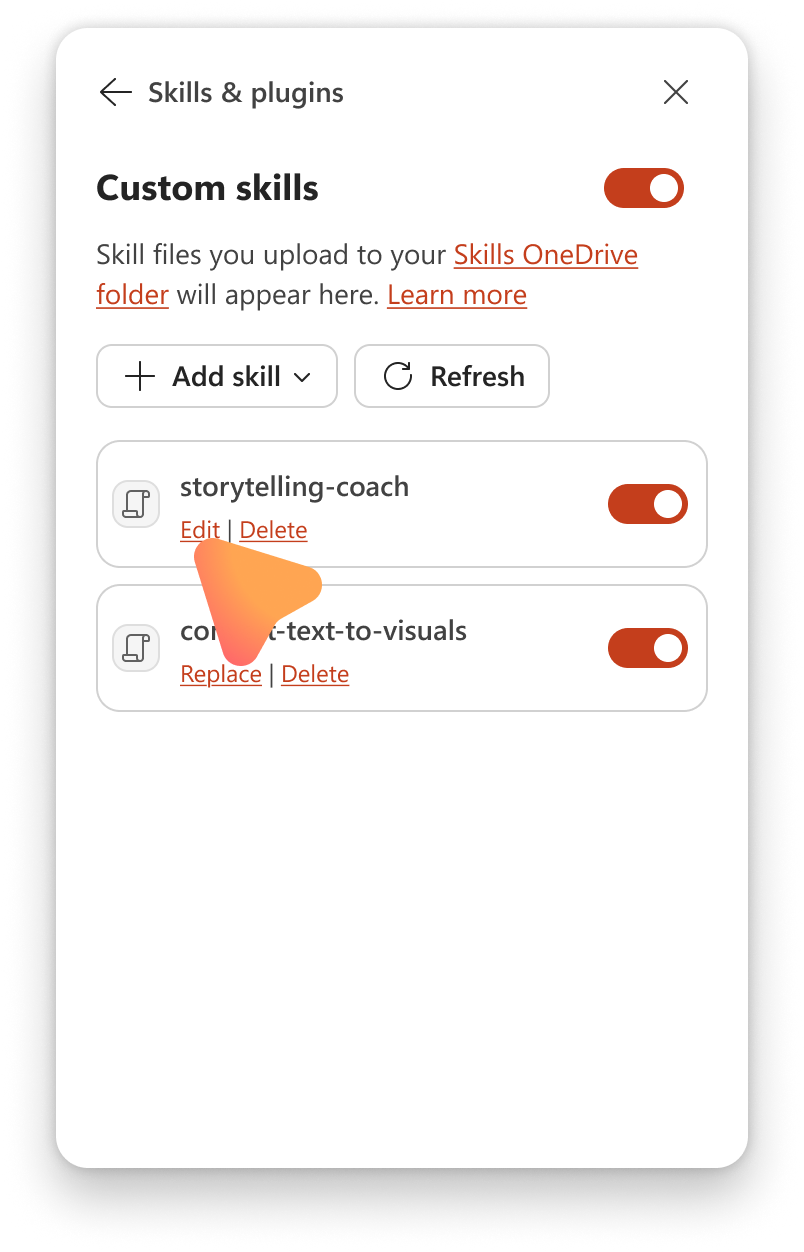
Alternatively, if you add, remove, or rename a skill in OneDrive, select Refresh in the Custom skills dialog so Copilot recognizes the change.
To remove a skill from the skills list in Copilot without deleting the folder in OneDrive, change the skill folder name. Copilot skips any folder whose name doesn't match its name in SKILL.md.
Known limitations
When uploading a custom skill as a ZIP file, supported file types include, but aren't limited to, md, txt, csv, json, xml, html, svg, py, and js.
Image files such as PNG and PDF files, as well as nested ZIP folders, aren't currently supported.