
The AutoText Editor offers a focused workspace for creating and refining AutoText. Its streamlined design reduces manual steps and supports advanced reporting workflows.
Access AutoText Editor
You can open the AutoText Editor from the following screens:
- From the AutoText Manager: Select the AutoText name or select the AutoText and choose Open in the AutoText Preview Pane.
- From the Report Editor: In the bottom pane, open the AutoText tab
 , select the AutoText, then select the ellipsis in the preview pane and choose Edit.
Editing workspace
This section provides the core tools for creating and refining AutoText. It includes the AutoText Editor for adding and updating content, the formatting ribbon for applying text styles, and fields for inserting variable information and supporting report navigation.
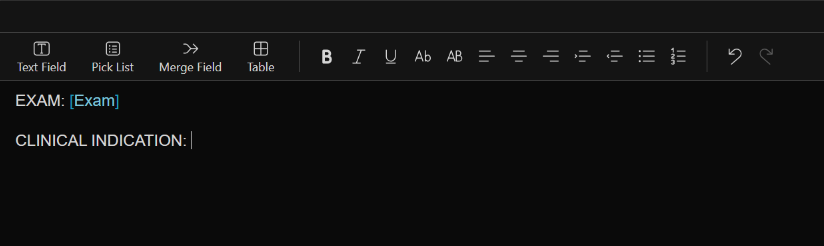
- AutoText Editor: The main editor pane where AutoText content is created and refined. This is where text, fields, and formatting are applied.
- Formatting ribbon: Provides text formatting options while editing an AutoText. To format text, highlight the desired text in the AutoText Editor and select the appropriate formatting option.
- Fields: Placeholders within an AutoText that allow easy navigation through a report and the ability to insert variable information within a block of standard text. For more information, see Using fill-in fields.
Action buttons

The following functions are available for the AutoText you create or clone.
- Save: Saves the changes made to the AutoText.
- Close: Closes the AutoText and redirects you to AutoText Manager.
- Delete: Removes the AutoText from your collection.
Configuration and settings

- Procedure Code: Select Procedure Codes located in the upper right corner to categorize an AutoText.
- Settings: Use the Settings pane to define your AutoText. If the Settings pane is collapsed, select the gear icon to expand it.
Search results and AutoText preview
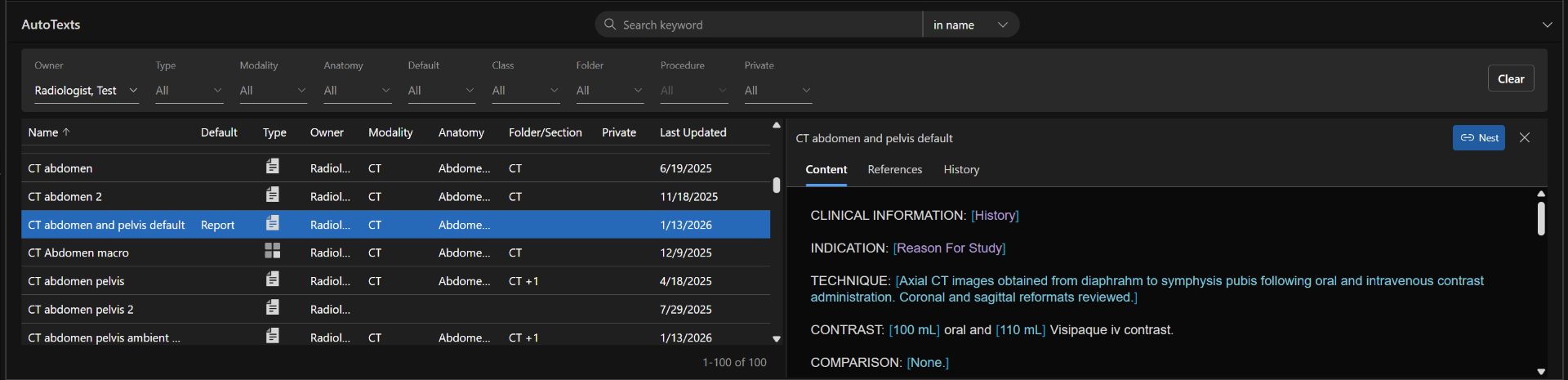
Review AutoText search results in a sortable grid with result counts, and preview content, references, and change history before opening or editing an AutoText.
The search results grid is retained from the AutoText Manager and enables keyword searches, filters, and a preview of the AutoText while working in the editor. For more details, see Search for an AutoText.
The total number of results is shown, with up to 200 results per page. Results can be sorted to help quickly locate specific AutoTexts.
Preview an AutoText: Preview AutoText content directly before replacing, inserting, or nesting it.
- Content: The preview displays the AutoText body, including components and sub-components within the selected Template, Macro, or Module.
- References: Displays AutoText that reference or are nested within the selected AutoText.
- History: Shows the last 20 changes made to the AutoText, including Create, Change Properties, Change Procedures, Change Content, and Change Default.
Nest: Enables you to reference the AutoText within another, enabling reusable, standardized content across multiple Templates or Macros. For more details, see nesting AutoText.